Device-bound passkeys are the strongest phishing-resistant credential you can deploy in Microsoft Entra ID today, and in 2026 they are no longer an optional hardening step. They are the foundation of a modern identity security strategy. If you run identity and access management (IAM) for an enterprise, you are being asked the same questions I hear in every architecture review: which passkey type should we allow, for whom, how do we prove the authenticator is genuine, and how do we avoid locking out users on the way there?
This guide answers those questions from a practitioner’s point of view. We will cover what device-bound passkeys are, how they differ from synced passkeys, how passkey profiles work in Entra, how attestation and AAGUID restrictions fit together, and how to roll everything out without creating a helpdesk crisis.
Table of Contents
What Are Device-Bound Passkeys in Entra ID?
A passkey in Entra ID is a FIDO2 credential built on WebAuthn (browser side) and CTAP (authenticator side). During registration, the authenticator generates a public-private key pair. The public key is stored with Entra ID, and the private key stays with the authenticator. At sign-in, Entra sends a challenge, the authenticator signs it after the user proves presence and verification (a PIN or biometric), and Entra validates the signature against the stored public key.
Device-bound passkeys take this one step further: the private key is created on a single physical device and never leaves it. There is no export, no cloud backup and no sync fabric. In Entra ID, the device-bound options today are:
- FIDO2 security keys such as YubiKey or Feitian hardware tokens.
- Microsoft Authenticator on iOS and Android.
- Windows Hello, with Microsoft’s newer Entra passkey on Windows capability currently in preview, which registers a device-bound passkey in Windows Hello without requiring the device to be Entra joined.
Because the credential cannot be copied, device-bound passkeys remove entire attack classes: credential phishing, adversary-in-the-middle (AiTM) proxies, SMS and OTP interception, push fatigue and password spray. The private key is bound to the hardware, and the browser binds the signature to the legitimate origin, so a lookalike domain cannot replay it.
Device-Bound vs Synced Passkeys: Which Should You Allow?
Entra ID now distinguishes between two passkey types, and your policy should too.
Device-bound passkeys live on one authenticator. They support attestation, which lets Entra verify the make and model of the authenticator at registration. Recovery means registering another authenticator or going through your identity verification process.
Synced passkeys are created by a passkey provider such as iCloud Keychain, Google Password Manager, 1Password or Bitwarden. The private key is encrypted and synchronized across the user’s devices through the provider. They are convenient and recover easily, but they cannot be attested, so Entra cannot verify where the key came from, and recovery depends on a consumer or third-party account outside your control.
My recommendation from deployments:
| Population | Recommended passkey type | Attestation |
|---|---|---|
| Global admins, privileged roles, break-glass adjacent accounts | Device-bound passkeys on FIDO2 security keys | Enforced |
| Executives, finance, engineering with sensitive access | Device-bound (security keys or Authenticator) | Enforced |
| General workforce | Device-bound plus synced, depending on risk appetite | Optional |
| Frontline / shared devices | Device-bound security keys | Enforced |
The principle is simple. The higher the blast radius of the account, the more you want provenance, and only device-bound passkeys with attestation can provide it.
Passkey Profiles: The Control Plane for Device-Bound Passkeys
Historically, the Passkey (FIDO2) policy in Entra was a single tenant-wide setting. Passkey profiles replace that with group-based configuration. Each profile lets you define:
- Passkey types: device-bound, synced, or both.
- Enforce attestation: yes or no.
- Key restrictions: an allow or block list of AAGUIDs.
- Target groups: which users or groups the profile applies to.
This is what makes a realistic rollout possible. You can give your IT admins a profile that allows only attested device-bound passkeys on approved security key models, while giving the rest of the company a more flexible profile.
Important Behaviors to Understand Before You Opt In
Having supported several migrations, these are the points that catch teams out:
- Opting in to passkey profiles is effectively a one-way move. Plan the change; do not experiment in production.
- Existing settings are migrated into a Default passkey profile. If your tenant had Passkey (FIDO2) enabled and attestation was not enforced, the Default profile can end up allowing synced passkeys as well. Review it immediately after migration so you do not enable a passkey type you did not intend to.
- Attestation is a registration-time control. If you enforce attestation later, users who already registered an unattested passkey are not blocked from signing in with it. You need to audit and re-register those credentials.
- Disabling device-bound passkeys in a profile blocks sign-in for targeted users, even if they previously registered one. Treat that toggle with care.
- Attested registration constraints. When attestation is enforced for Microsoft Authenticator, users must register directly from within the app. Cross-device registration flows do not support attested registration.
Attestation and AAGUID Restrictions Explained
Attestation is how a relying party, in this case Entra ID, verifies the authenticity of the authenticator at registration. When you enforce attestation, Entra can validate the authenticator against trusted metadata, so you know the passkey is genuine and comes from the stated vendor. Without it, Entra cannot guarantee any attribute about the passkey, including whether it is device-bound or synced.
Two facts matter here:
- Only hardware security keys and Microsoft Authenticator on iOS and Android can perform attestation today. Enforcing attestation therefore restricts a profile to device-bound passkeys and excludes synced ones.
- Entra passkey on Windows, which is in preview, does not support attestation, so it will not satisfy a profile that enforces it.
AAGUIDs (Authenticator Attestation GUIDs) are identifiers each vendor assigns to an authenticator model. In a passkey profile, key restrictions let you allow only specific AAGUIDs, for example the YubiKey 5 series you purchased and Microsoft Authenticator for iOS and Android, or block specific ones. Key restrictions work best when combined with enforced attestation. Without attestation, the AAGUID a client reports is self-asserted, so the restriction is only partially trustworthy.
In practice, I build three standard profiles:
- Privileged: Security Keys Only. Device-bound, attestation enforced, AAGUID allow list of the approved key models.
- Workforce: Authenticator. Device-bound, attestation enforced, AAGUIDs limited to Microsoft Authenticator for iOS and Android.
- General: Flexible. Device-bound and synced, attestation off, used for broad adoption with a roadmap to tighten later.
Step-by-Step: Configure Device-Bound Passkeys in Entra ID
Step 1: Confirm prerequisites
- Decide on authenticators and buy hardware. Security keys should support FIDO2 with an AAGUID you can allow-list.
- Make sure Microsoft Authenticator is current on mobile devices if you plan to use it. Profiles that target Authenticator depend on recent app versions.
- Verify your users can reach the Security info registration experience and that Conditional Access does not block it.
Step 2: Opt in to passkey profiles
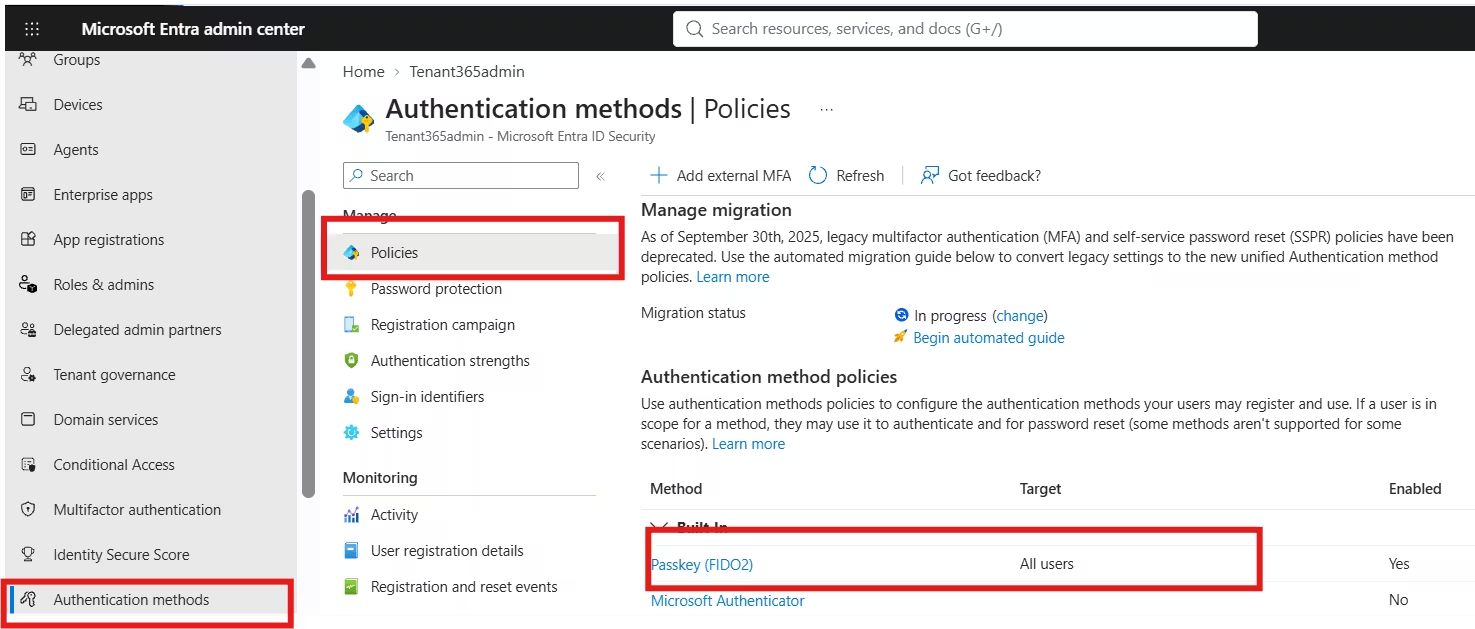
In the Microsoft Entra admin center, go to Entra ID > Authentication methods > Policies, select Passkey (FIDO2), and opt in to passkey profiles via the banner. Immediately review the migrated Default passkey profile.
Step 3: Create a profile for device-bound passkeys
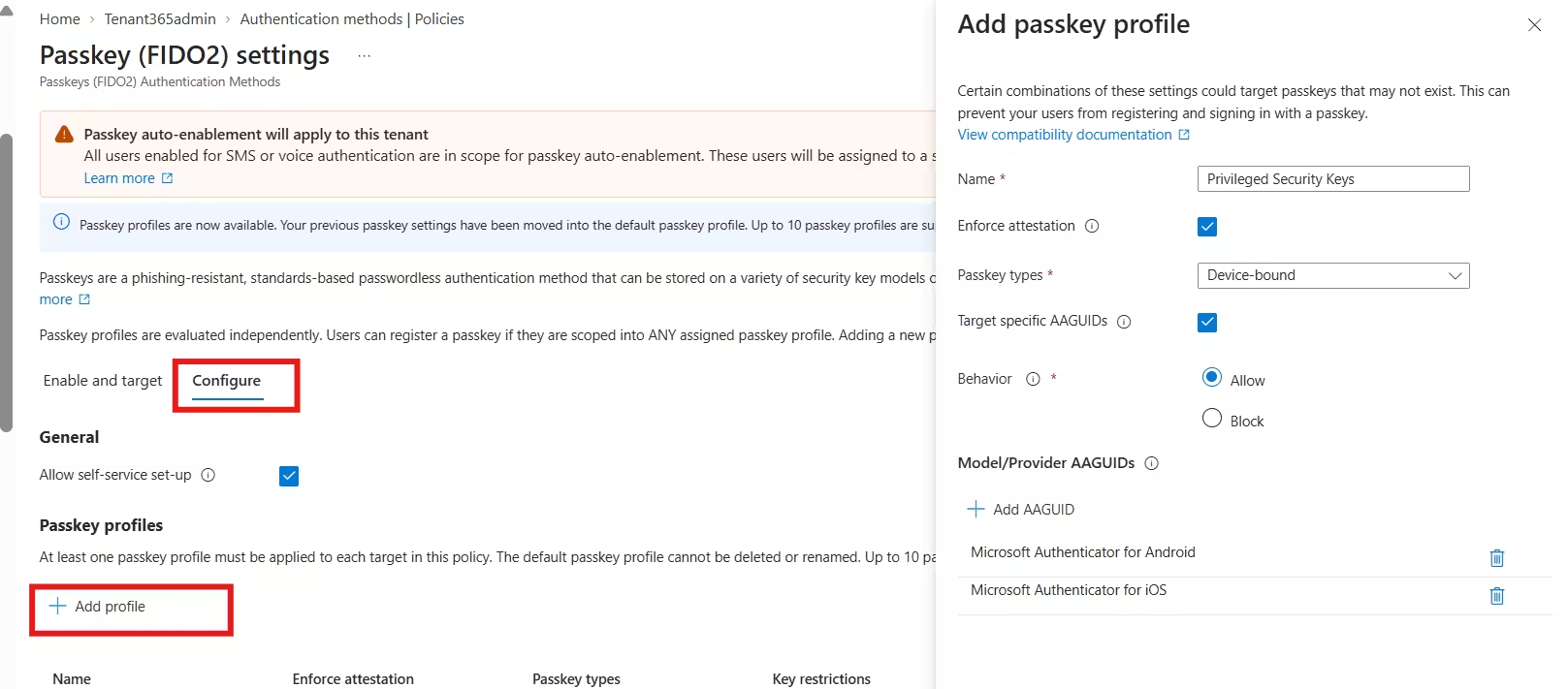
On the Configure tab, add a profile:
- Name: for example, “Privileged Security Keys”.
- Passkey types: Device-bound.
- Enforce attestation: Yes.
- Key restrictions: Enforce, with behavior set to Allow and your approved AAGUIDs listed.
For a Microsoft Authenticator profile, choose Device-bound, enforce attestation, and add the Microsoft Authenticator AAGUIDs for iOS and Android.
Step 4: Enable and target groups
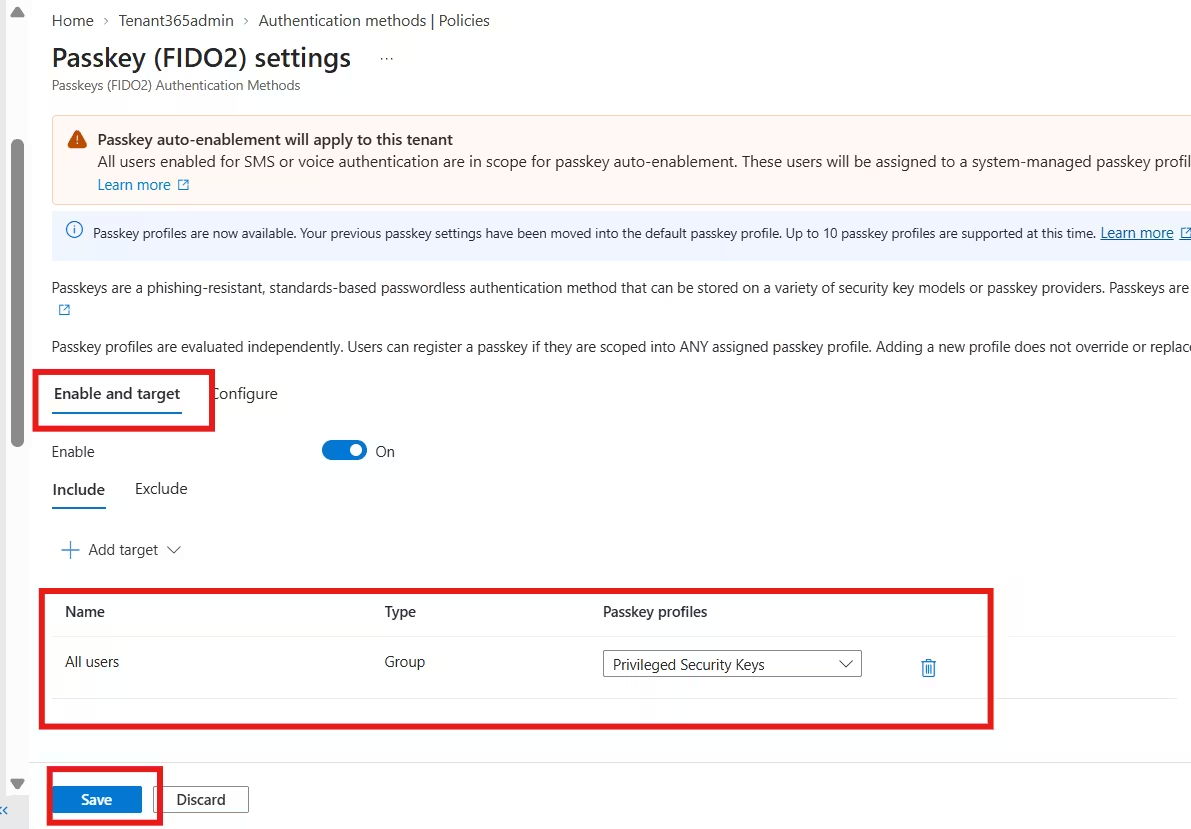
On the Enable and target tab, assign each profile to the right security group. Use dedicated groups per profile and avoid overlap, because a user’s effective experience becomes hard to reason about when groups collide.
You can also automate this through Microsoft Graph by patching the FIDO2 authentication method configuration at /authenticationMethodsPolicy/authenticationMethodConfigurations/FIDO2. Infrastructure-as-code is the right approach for anything beyond a pilot, as it gives you a reviewable history of policy changes.
Step 5: Register and test
Have pilot users register from the Security info page, then test sign-in on web, desktop and mobile. For Windows sign-in with a security key, validate the experience on Microsoft Entra joined and hybrid joined devices, noting that hybrid scenarios have OS version requirements.
Step 6: Drive adoption
Use registration campaigns to nudge users to register a passkey, rather than relying on emails alone. Pair the nudge with a clear helpdesk script and a documented recovery path.
Pair Device-Bound Passkeys with Conditional Access
Passkeys are the credential. Conditional Access is the enforcement layer. To get the full value:
- Require authentication strength. Use the built-in Phishing-resistant MFA authentication strength, or a custom strength that allows only passkeys (FIDO2), for admin portals, sensitive apps and privileged roles. Custom strengths can even be restricted to specific AAGUIDs.
- Protect registration. Use a Conditional Access policy for the “Register security information” user action so that new passkeys can only be registered from trusted locations or compliant devices, or after a Temporary Access Pass (TAP).
- Use TAP for bootstrapping. A TAP lets a new hire or a user with a lost key register a replacement passkey without ever having a password or SMS fallback.
- Remove legacy methods. Once adoption is high, retire SMS, voice and OTP for targeted groups. Leaving weak methods enabled lets attackers downgrade the sign-in.
Security Benefits of Device-Bound Passkeys
When I present the business case to security leadership, I focus on five outcomes:
- Phishing resistance by design. The credential is origin-bound and cannot be entered into a fake site.
- No shared secrets. Nothing for attackers to steal from a server breach or crack offline.
- Verified provenance. Attestation proves the hardware and vendor, which matters for compliance frameworks and zero trust.
- Lower helpdesk cost. Fewer password resets, fewer MFA fatigue incidents and fewer account takeover investigations.
- Better user experience. A tap or a biometric beats typing a password and then approving a prompt.
These benefits compound for regulated sectors. Auditors increasingly expect phishing-resistant MFA for privileged and remote access, and device-bound passkeys with attestation produce clean evidence.
Risks and Limitations to Plan For
No control is free, and device-bound passkeys have trade-offs worth designing around:
- Lost or broken devices. Because nothing syncs, users need a second registered authenticator or an identity-proofed recovery path. Require two passkeys for admins.
- Hardware cost and logistics. Security keys must be purchased, shipped and inventoried. Budget for spares.
- Platform gaps. Some features, such as attestation, are not available for every device-bound option, so confirm that your chosen authenticator satisfies your profile.
- Existing unattested registrations. Enforcing attestation does not retroactively invalidate earlier registrations. Run a report and drive re-registration.
- Legacy and non-browser apps. Some applications and protocols cannot use passkeys directly. Use Conditional Access to cover what you can and plan modernization for the rest.
- Migration surprises. Tenants that did nothing before the automatic profile migration may have inherited a Default profile that allows synced passkeys. Check it.
Best Practices from the Field
- Start with privileged accounts. They give you the highest risk reduction per user and the smallest rollout.
- Make attestation the default for anything sensitive, and document any exception.
- Maintain an AAGUID allow list and review it whenever you add a hardware vendor.
- Require two authenticators per admin and store a tested recovery runbook.
- Separate profiles by risk tier rather than by department politics.
- Monitor sign-in logs and authentication method registration events, and alert on new passkey registrations for privileged accounts.
- Review Microsoft’s release notes regularly. Passkey capabilities in Entra are evolving quickly, and previews such as Entra passkey on Windows can change your design options.
Conclusion
Device-bound passkeys in Entra ID give you what passwords and legacy MFA never could: a credential that attackers cannot phish, replay or steal remotely, and that you can verify with attestation. Passkey profiles make it practical to apply the right level of assurance to the right population, so privileged users get attested security keys while everyone else moves on a smoother path.
The path forward is straightforward. Opt in to passkey profiles deliberately, audit the Default profile, build a strict profile for administrators, pilot with a small group, enforce phishing-resistant authentication strength through Conditional Access, and then expand. Teams that do this now will be well ahead of the next wave of AiTM and token theft campaigns.
Frequently Asked Questions (FAQ)
What are device-bound passkeys in Microsoft Entra ID?
Device-bound passkeys are FIDO2 credentials whose private key is generated and stored on a single physical authenticator, such as a security key or Microsoft Authenticator, and never leaves it. Entra stores only the public key and verifies a signed challenge at sign-in.
What is the difference between device-bound and synced passkeys in Entra?
Device-bound passkeys stay on one device and support attestation. Synced passkeys are encrypted and shared across a user’s devices through a provider such as iCloud Keychain or Google Password Manager, and they cannot be attested. Choose device-bound for privileged and high-risk users.
Does enforcing attestation block synced passkeys?
Yes. Because only certain hardware authenticators and Microsoft Authenticator can attest, enabling attestation in a passkey profile allows only device-bound passkeys and excludes synced ones.
Will enforcing attestation remove existing passkeys?
No. Attestation is checked at registration. Users who already registered an unattested passkey can continue to sign in, so you should audit existing registrations and have those users re-register.
Can I restrict which security keys users can register?
Yes. Use key restrictions in the passkey profile to allow or block specific AAGUIDs. Combine this with enforced attestation so the reported authenticator model can be trusted.
Are passkey profiles reversible?
Treat opting in as a one-way change. Your previous settings move into the Default passkey profile, so review that profile right after you opt in and plan the migration in a test or pilot context.
What happens if a user loses their device-bound passkey?
They need another registered authenticator or a recovery process. A Temporary Access Pass issued after identity verification is the common approach. For administrators, require at least two registered authenticators.
Can I require device-bound passkeys with Conditional Access?
Yes. Use an authentication strength policy that allows only passkeys (FIDO2), or the built-in phishing-resistant MFA strength, and assign it to the apps and roles you want to protect.
Azure AD: The Ultimate Guide to Secure Cloud Identity Management
Azure Active Directory Licensing: Ultimate Guide Free vs P1 vs P2
Mail Contact in Exchange Online: Proven Setup Guide 2026
