Mail recall in Outlook is the feature every sender wishes they never needed, until the moment a confidential attachment lands in the wrong inbox. If you are staring at a greyed-out Recall button or a failed recall report, you are not alone. As an Outlook troubleshooting specialist, I see the same handful of causes behind nearly every failed recall, and almost all of them can be diagnosed in minutes.
This guide explains exactly how mail recall in Outlook works in 2026, which apps and accounts support it, how to run it step by step, and how to fix it when it fails. You will also learn the admin settings that decide whether recall works at all, and the safer habits that keep you from needing it again.
Table of Contents
What Is Mail Recall in Outlook and How Does It Work?
Mail recall in Outlook lets you ask Exchange to pull a message back from recipients’ mailboxes after you hit Send. It only works inside Microsoft Exchange, which means Microsoft 365 work or school accounts and Exchange-based mailboxes. Personal Outlook.com and Hotmail accounts do not support it; they rely on Undo Send instead.
There are two generations of the feature, and knowing which one you are using explains most failures.
- Classic recall runs from the sender’s Outlook for Windows. It tries to delete the unread copy in each recipient’s mailbox, so the message must still be untouched. Microsoft’s Exchange team has said this older method succeeded only about half the time.
- Cloud-based recall runs inside Exchange Online. It works with any email client that syncs to the recipient’s Exchange Online mailbox, the client does not need to be open, and Microsoft says it is more than twice as effective as the classic tool. Depending on how your organization configures it, it can also reach messages that were already read or moved into subfolders.
Either way, mail recall in Outlook is a request, not a guarantee. A message that has already been opened, forwarded, or moved by a rule may stay put, which is why checking the recall report matters as much as clicking the button.
Requirements Before You Try Mail Recall in Outlook
Check these conditions first. If any row says no, mail recall in Outlook will not succeed no matter how many times you retry.
One change worth watching: reports say Microsoft planned general availability of cross-tenant recall for August 2026. It requires the recipient’s organization to add you to a recall allow list, so ask your IT team whether it is active in your tenant before you rely on it.
| Situation | Can recall work? |
| Sender and recipient both on Exchange Online in the same organization | Yes |
| Sender uses new Outlook, Outlook on the web, or classic Outlook with a Microsoft 365 work or school account | Yes |
| Outlook for iOS or Android with a work or school account | Yes, supported since 2025 |
| Recipient outside your organization | Usually no |
| Recipient mailbox on an on-premises Exchange server | No for cloud-based recall |
| Personal Outlook.com, Hotmail, Gmail, IMAP or POP account | No |
| Message protected by Azure Information Protection | No in classic Outlook |
| Admin has disabled cloud-based recall | No |
How to Use Mail Recall in Outlook, Step by Step
The menu labels differ by app, so match the steps to the version you actually use.
New Outlook for Windows and Outlook on the web
- Open the Sent Items folder and double-click the message to open it.
- On the ribbon, select Recall Message.
- Confirm the prompt and wait for the result.
- Watch your inbox for the Message Recall Report, which normally arrives within about 30 seconds.
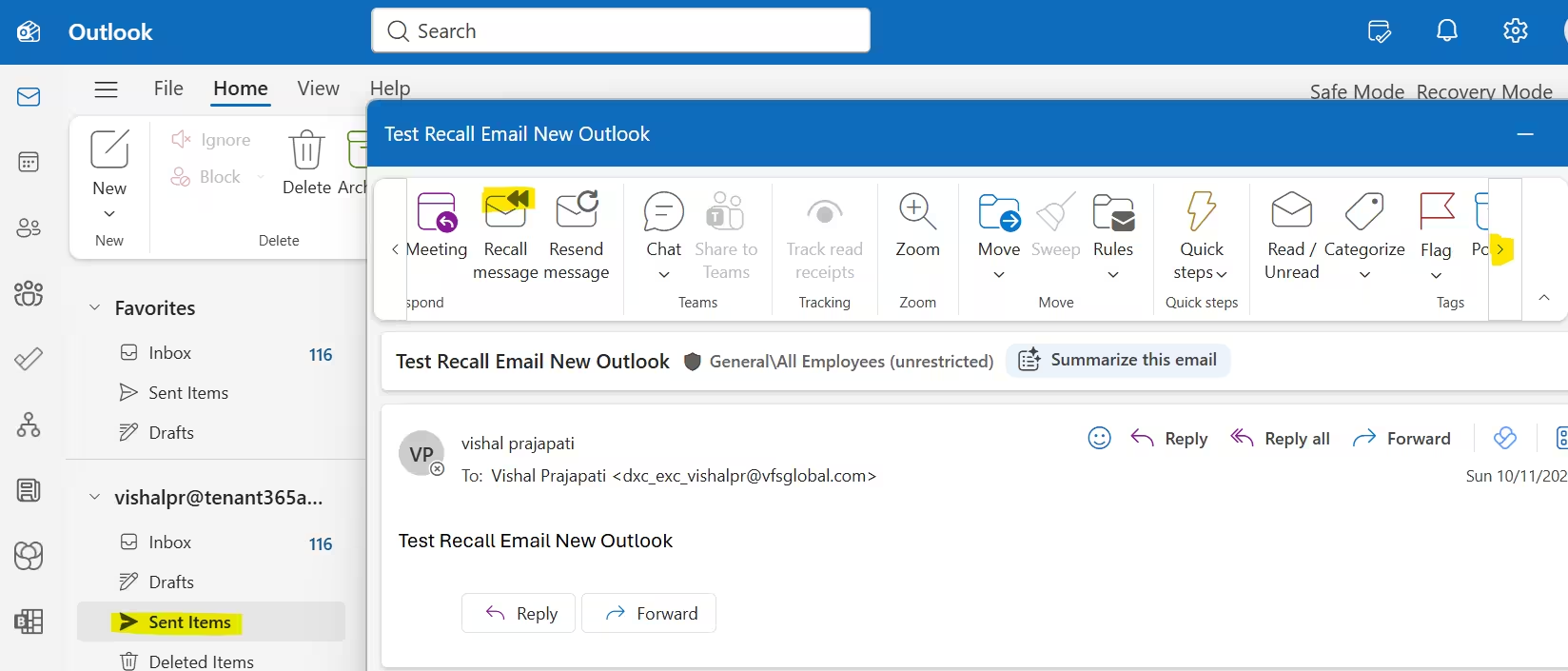
New Outlook does not offer the “replace with a new message” option. Recall first, then send the corrected message separately.
Classic Outlook for Windows
- Go to Sent Items and double-click the message so it opens in its own window. The command is not available from the reading pane.
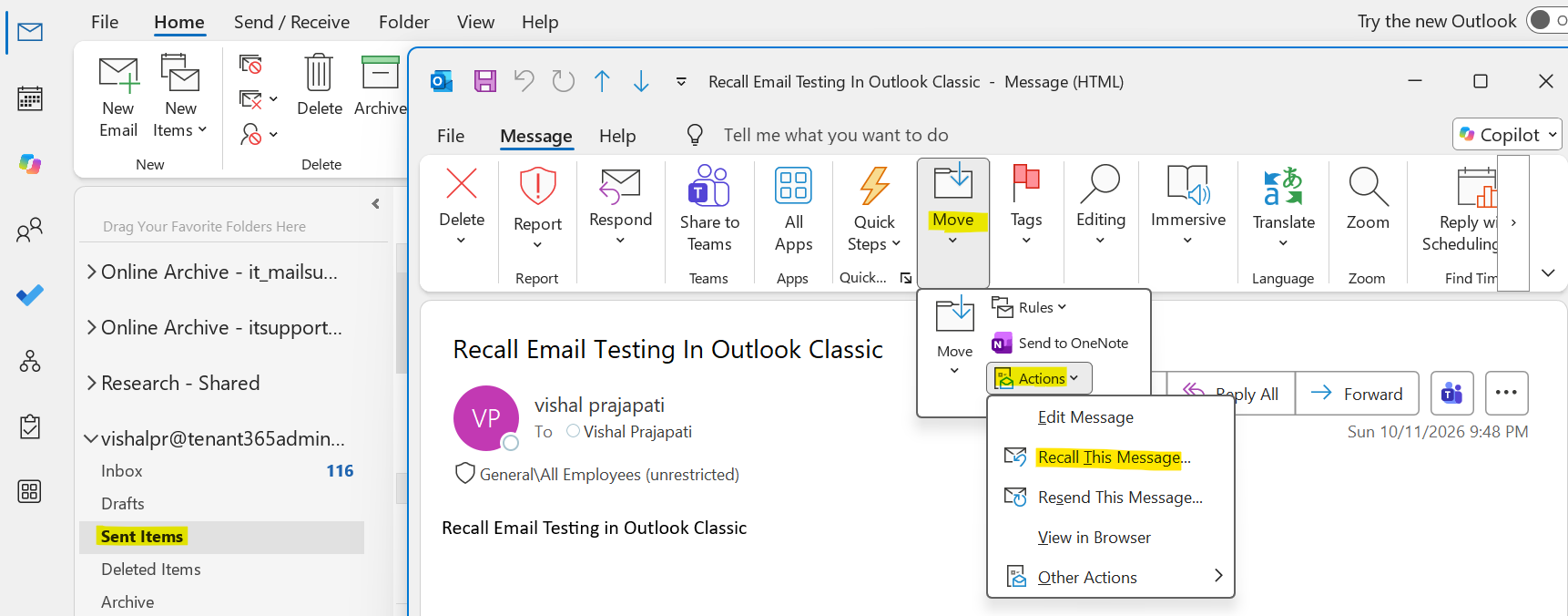
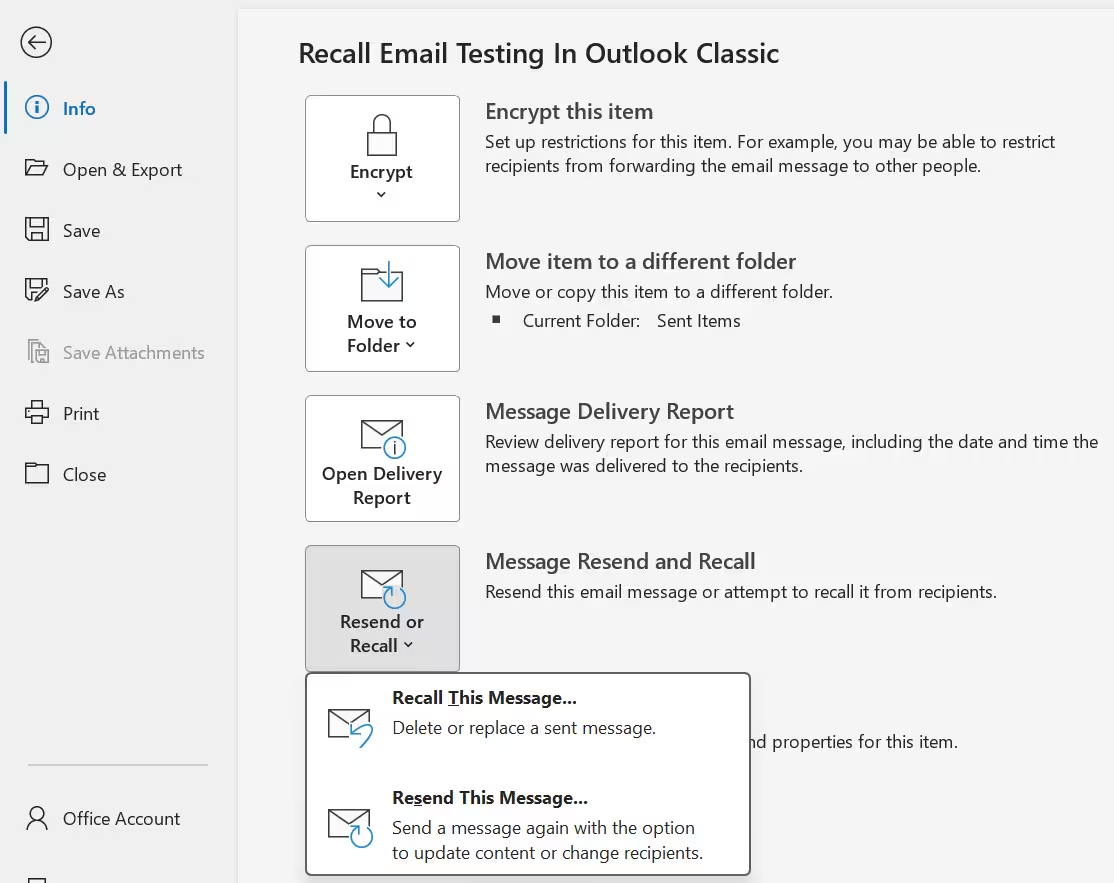
- On the Message tab, choose Actions, then Recall This Message. You can also use File > Info > Resend or Recall.
- Pick Delete unread copies of this message, or Delete unread copies and replace with a new message if you want to send a corrected version.
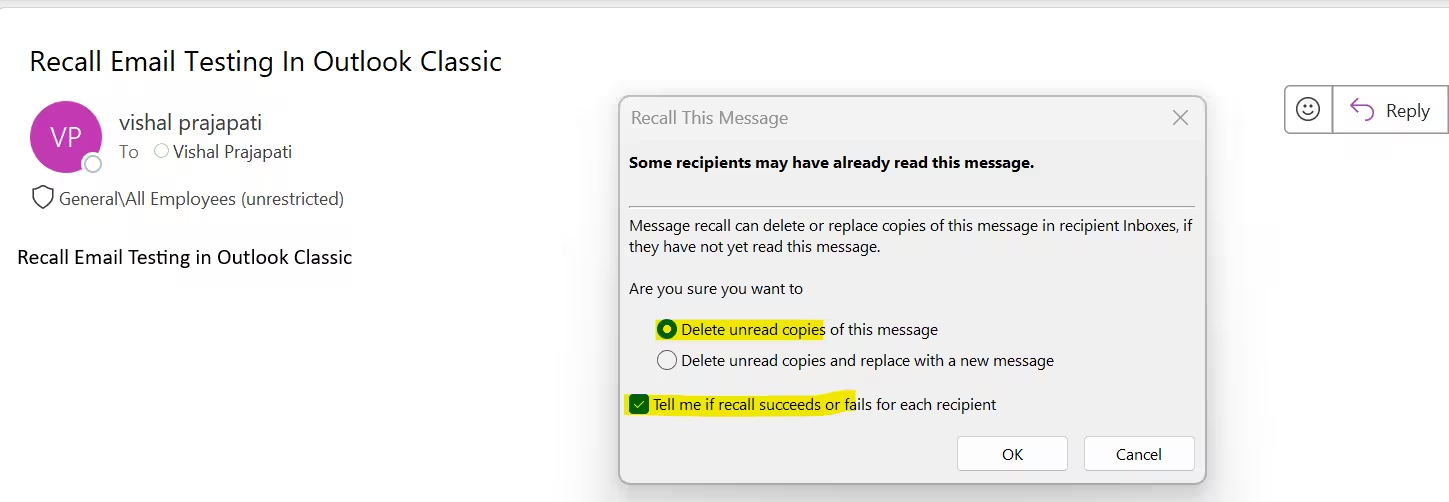
- Tick Tell me if recall succeeds or fails for each recipient and select OK.
Outlook for Mac and mobile
On a supported version of Outlook for Mac, select the message in the Sent folder on your Android or iOS device and select Recall Message on the ribbon, or Control-click the sent message and choose Recall. In Outlook for iOS and Android, open the sent message and look for the recall option in its menu, using a Microsoft 365 work or school account. Menu wording shifts between app updates, so if you cannot find it, confirm you are on the latest build.
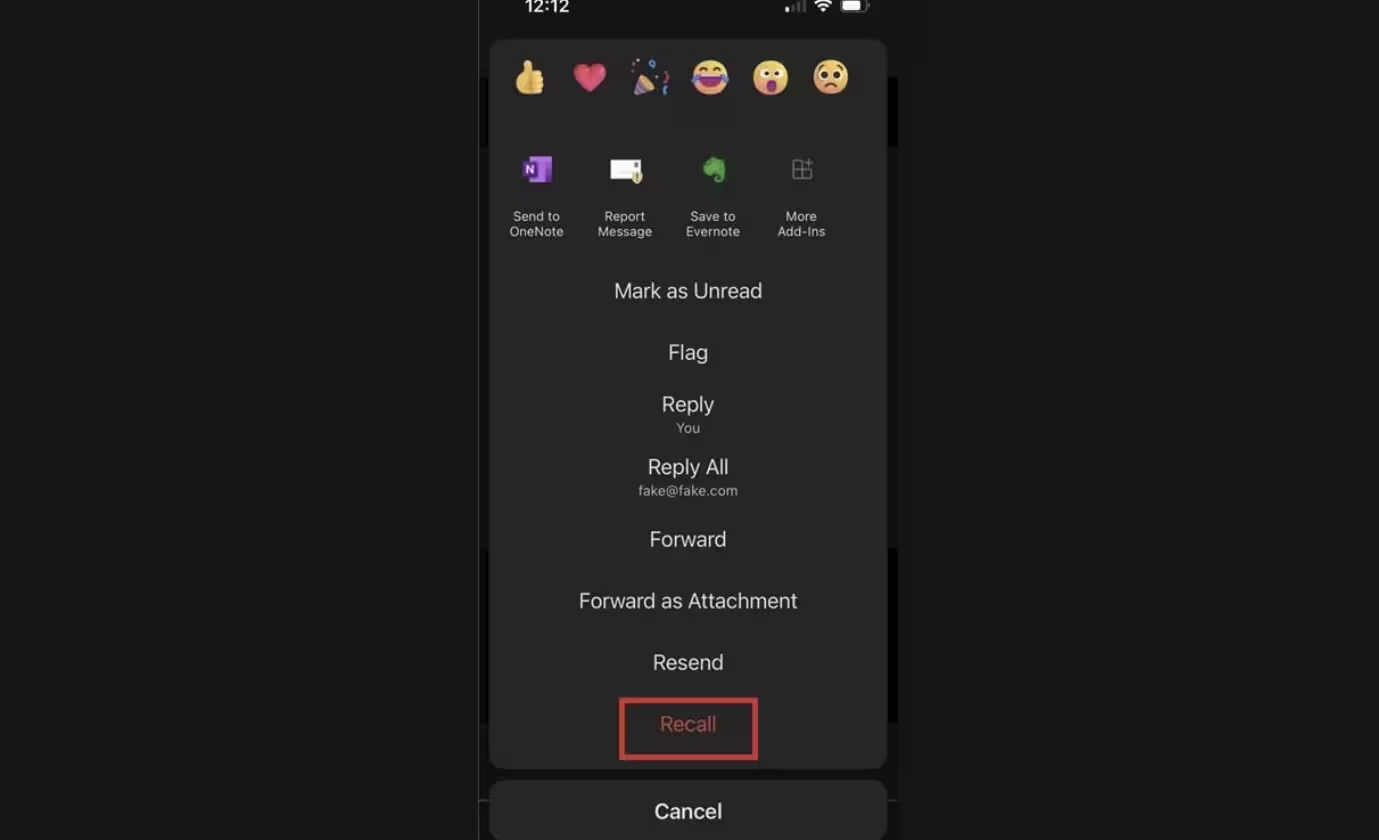
Following these steps correctly is only half of mail recall in Outlook; the other half is knowing what the report is telling you.
What Is the Message Recall Report?
The Message Recall Report is an automatic email that Exchange sends you after you start a recall. It tells you whether the recall worked for each recipient, so you never have to guess. Think of it as the confirmation step of mail recall in Outlook.
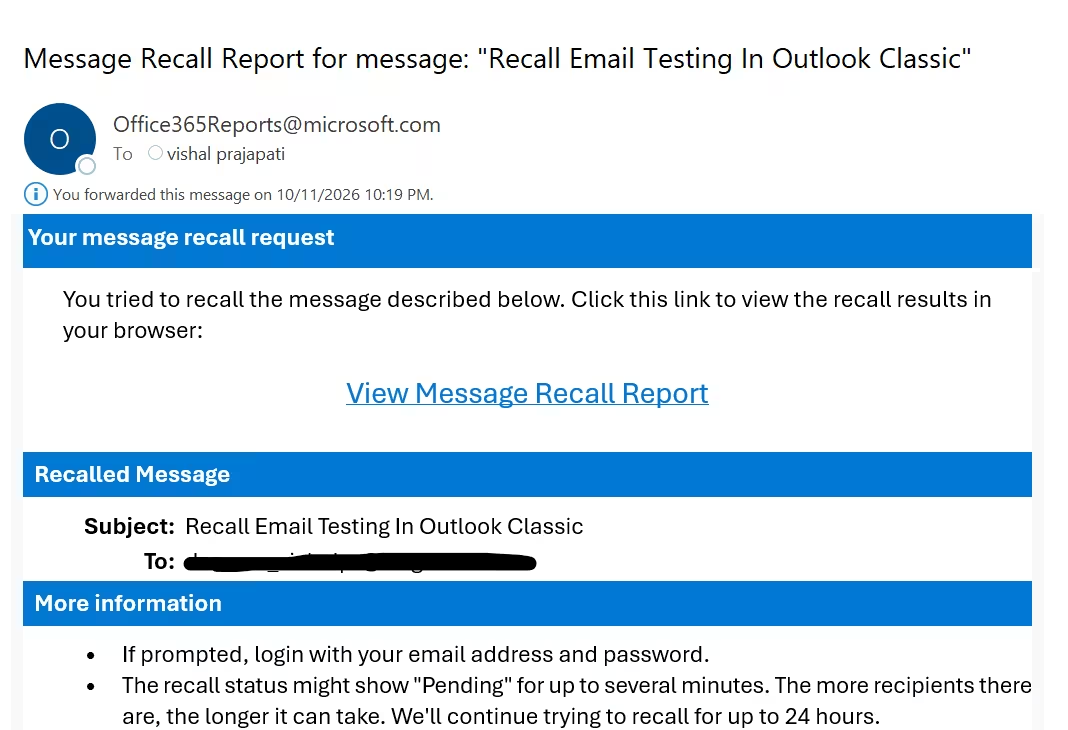
In new Outlook and Outlook on the web it normally arrives within about 30 seconds. In classic Outlook, tick Tell me if recall succeeds or fails for each recipient when you start the recall so you receive the outcome. Keep the report: it is your record if IT or a manager asks what happened to a sensitive message.
How to Read the Message Recall Report
Every recall attempt generates a Message Recall Report, and it is your only proof of what happened. It lists the outcome for each recipient, so scan it for anyone marked as failed.
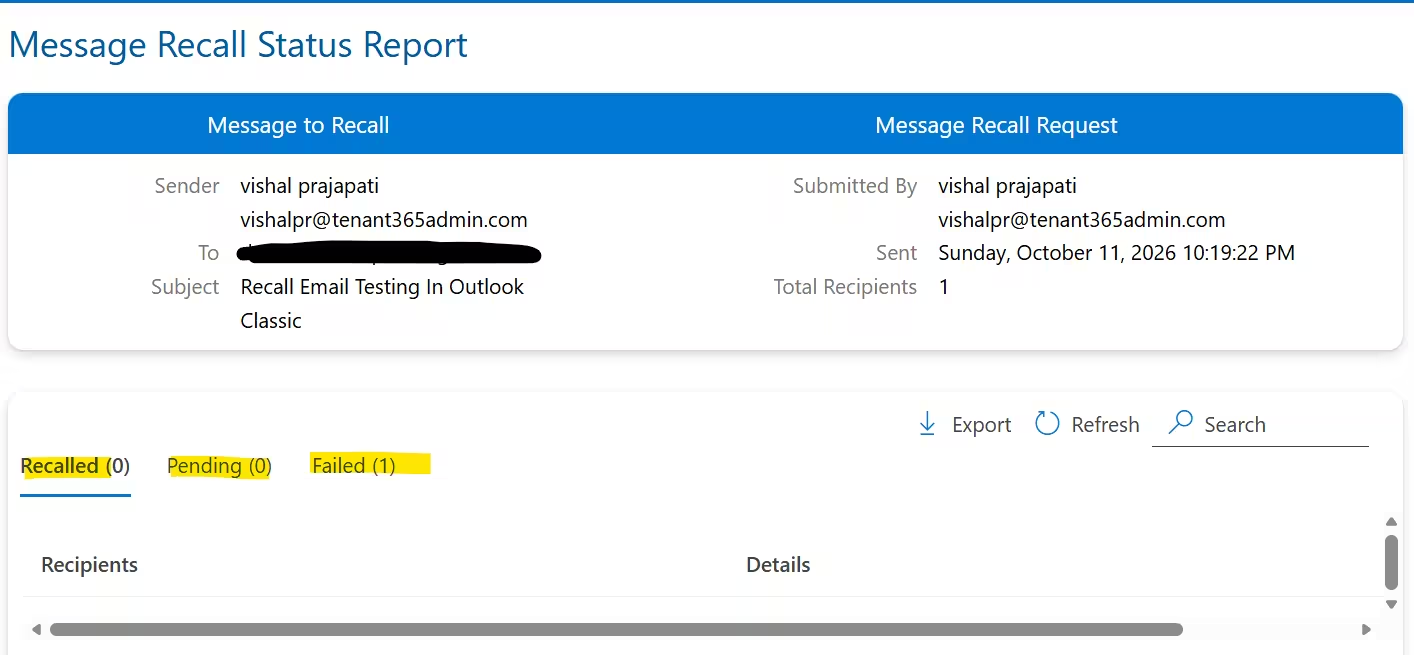
A failure usually means one of three things: the recipient already read the message, a mailbox rule moved or copied it, or the mailbox sits outside Exchange Online where cloud-based recall cannot reach it.
If a recall fails for someone, do not assume the damage is done. Send a short follow-up asking them to delete the message unread, and tell your IT or security team straight away if sensitive data was involved. Admins can use Message Trace in the Exchange admin center to confirm who received the original and when. A quick, honest follow-up often protects you better than a second attempt at mail recall in Outlook.
Why Mail Recall in Outlook Fails (And What to Do About It)
After years of fixing these cases, the pattern is consistent. Most failures come from the conditions below, not from a bug.
| Cause | What happens | Fix |
| Recipient already opened the message | Classic recall cannot delete a read message | Send a follow-up and ask them to delete it |
| Inbox rule moved the message | The copy is no longer where classic recall looks | Use cloud-based recall from new Outlook or the web |
| Recipient is outside your organization | Exchange cannot reach an external mailbox | Contact them directly |
| Recipient mailbox is on-premises | Cloud-based recall does not apply | Ask IT about hybrid configuration |
| Non-Exchange account (IMAP, POP, Gmail, Outlook.com) | The Recall command is hidden or greyed out | Use Undo Send going forward |
| Message protected by Azure Information Protection | Classic recall does not support it | Try new Outlook and ask IT |
| Cloud recall disabled by admin | No recall option appears | Ask IT to enable it in Exchange Online |
The fix for most rows is the same: move to new Outlook or Outlook on the web, where Microsoft’s cloud-based recall is available, and keep your expectations realistic for external recipients.
Mail Recall in Outlook Greyed Out: Expert Troubleshooting Checklist
When the button is greyed out or missing, work through this list in order. It mirrors the sequence I use on support cases.
- Confirm the account type. In classic Outlook, open File > Account Settings and check that the account is Microsoft Exchange. IMAP and POP accounts cannot recall.
- Open the message properly. Double-click the message in Sent Items so it opens in a separate window. Recall does not appear when you only preview it.
- Check the folder. You can only recall from Sent Items, not from Drafts or a forwarded copy.
- Switch apps. Try new Outlook or Outlook on the web. If recall appears there but not in classic Outlook, your classic profile or mode is the problem, not your mailbox.
- Update Outlook. Install the latest build through File > Office Account > Update Options, then restart. Outdated builds can hide newer recall commands.
- Test in Safe Mode. Hold Ctrl while launching Outlook, or run outlook.exe /safe, to rule out add-ins interfering with the ribbon.
- Create a fresh profile. In Control Panel > Mail > Show Profiles, add a new profile. A corrupted profile is a common cause of missing commands.
- Check your license. Cloud-based recall depends on Exchange Online, so confirm your Microsoft 365 license includes an Exchange Online plan.
- Ask your admin. If everything above passes, recall may be turned off at the tenant level, covered in the next section.
If mail recall in Outlook is greyed out in every app, the cause is almost always account type or an admin policy.
Admin Fixes: Enable Mail Recall in Outlook Through Exchange Online
Cloud-based recall is controlled centrally, so end-user troubleshooting stops here. If you are an Exchange admin, sign in to the Exchange admin center, open the Message Recall settings, and confirm that cloud-based recall is turned on for the organization. You can also choose whether recipients receive an alert when a message is recalled.
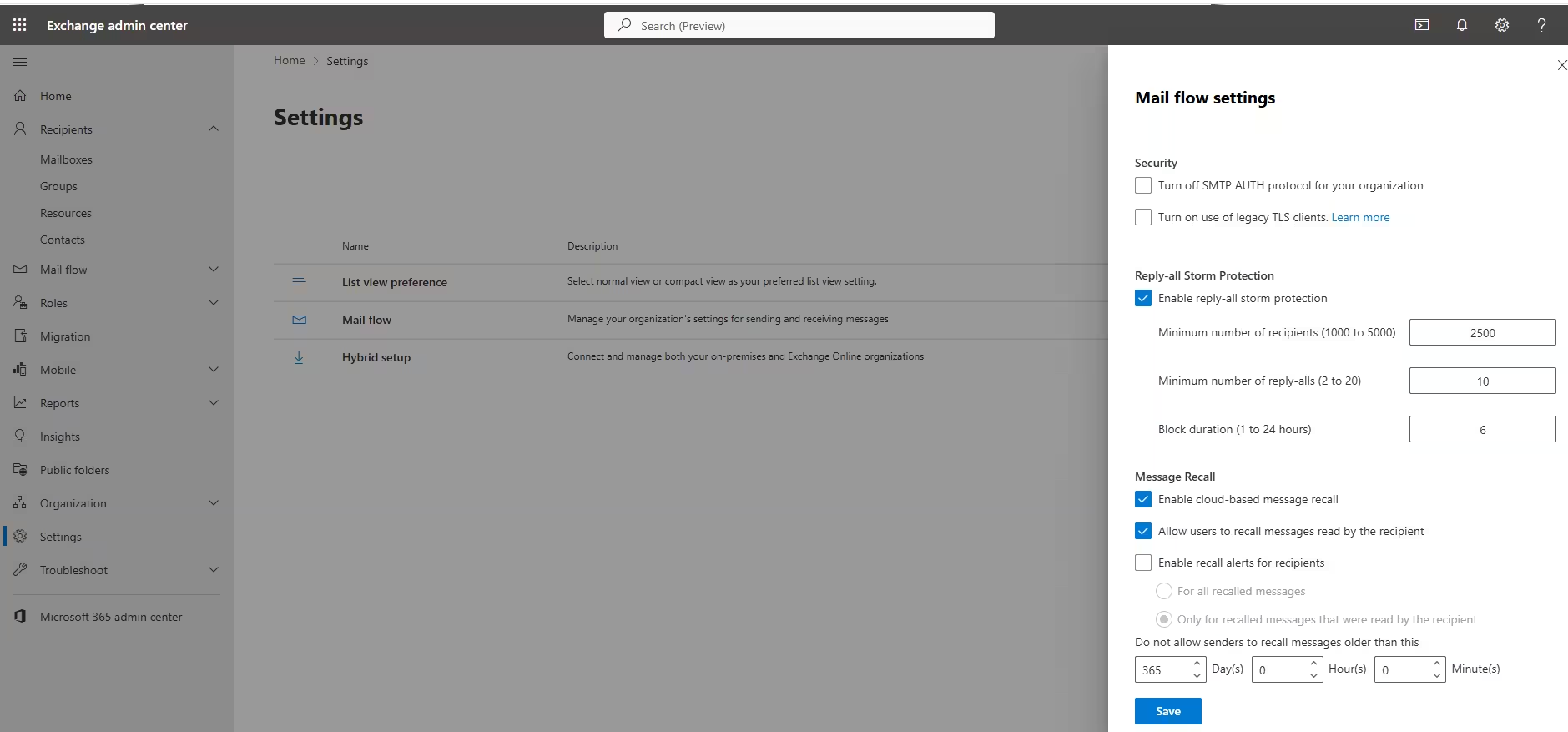
The same settings can be managed through Exchange Online PowerShell. Connect to Exchange Online PowerShell, then use the Set-OrganizationConfig cmdlet to review and change the recall options. Check Microsoft’s current documentation for exact parameter names, since they can change between releases.
Admins should also verify three things:
- Licensing: affected users have an Exchange Online plan.
- Mailbox location: recipients on on-premises Exchange will not be reached by cloud-based recall.
- Cross-tenant needs: if users must recall messages sent to partners, review the recall allow list and whether cross-tenant recall has reached your tenant.
With these settings aligned, mail recall in Outlook becomes predictable for the whole organization rather than a lottery for each sender.
Better Than Recall: Stop the Mistake Before It Sends
The most reliable fix is not needing one. Combine these three safeguards:
- Undo Send: in new Outlook and Outlook on the web, open Settings > Mail > Compose and reply and set a delay of up to 10 seconds. A held message can be cancelled with no recall needed.
- Schedule Send: write the message now and release it later, giving you time to reread before it goes. It is available in new Outlook and Outlook on the web.
- Delay delivery rule (classic Outlook): under Rules, create a rule that defers all outgoing messages by one to two minutes. Messages wait in the Outbox, where you can still edit or delete them.
Add one more habit: fill in the recipients last. Typing the To line after you finish the body and attach files removes the autocomplete accident behind many wrong sends. Pair these habits with recall, and mail recall in Outlook becomes your last line of defense rather than your only one.
FAQ: Mail Recall in Outlook
Can I recall an email in Outlook after it has been read?
Classic recall generally cannot remove a message the recipient has already opened. Microsoft’s newer cloud-based recall can reach read messages when your organization allows it, but success is never guaranteed.
Does the recipient know I recalled the message?
Possibly. Classic recall could leave a notice in the recipient’s inbox, and Exchange Online admins can configure recall notifications for recipients. Assume they may see it.
Why is Recall This Message greyed out in Outlook?
The usual causes are a non-Exchange account such as IMAP, POP, Gmail or personal Outlook.com, opening the message in the reading pane instead of its own window, a recall setting disabled by your admin, or an unsupported Outlook profile. Work through the checklist above.
Can I recall an email sent to someone outside my company?
Usually not. Recall typically fails for messages sent outside Exchange Online. Microsoft has been working on cross-tenant recall, but it requires the other organization to add you to a recall allow list.
Does mail recall in Outlook work on Mac and mobile?
Yes, on supported versions with a Microsoft 365 work or school account. Outlook for iOS and Android gained recall in 2025. Personal accounts are not supported.
What is the fastest way to avoid needing mail recall in Outlook?
Turn on Undo Send with a 10-second delay, use Schedule Send for important messages, and add recipients last.
Final Thoughts on Mail Recall in Outlook
Mail recall in Outlook works best when you act within seconds, use the right app, and verify the result in the recall report. Use new Outlook or Outlook on the web for the strongest chance of success, follow the troubleshooting checklist when the command disappears, and ask your admin to confirm cloud-based recall is enabled. If a recall fails, a prompt, polite follow-up message is your best remaining option. And if you manage a team, share this guide so everyone knows the limits before the next accidental send.
Distribution List in Exchange Online: Best Proven Setup Guide
Exchange Online Connector: Proven Guide to Secure Mail Flow
Conditional Access Interview Questions: Proven Answers 2026
