A mail user in Exchange Online is one of the most misunderstood recipient types in Microsoft 365, and misusing it quietly wastes licensing budget, clutters your Global Address List (GAL), and creates security blind spots. In this guide, I’ll explain exactly what this recipient is, when to use it instead of a mailbox or mail contact, and how to create, manage, and audit it with PowerShell.
Table of Contents
What Is a Mail User in Exchange Online?
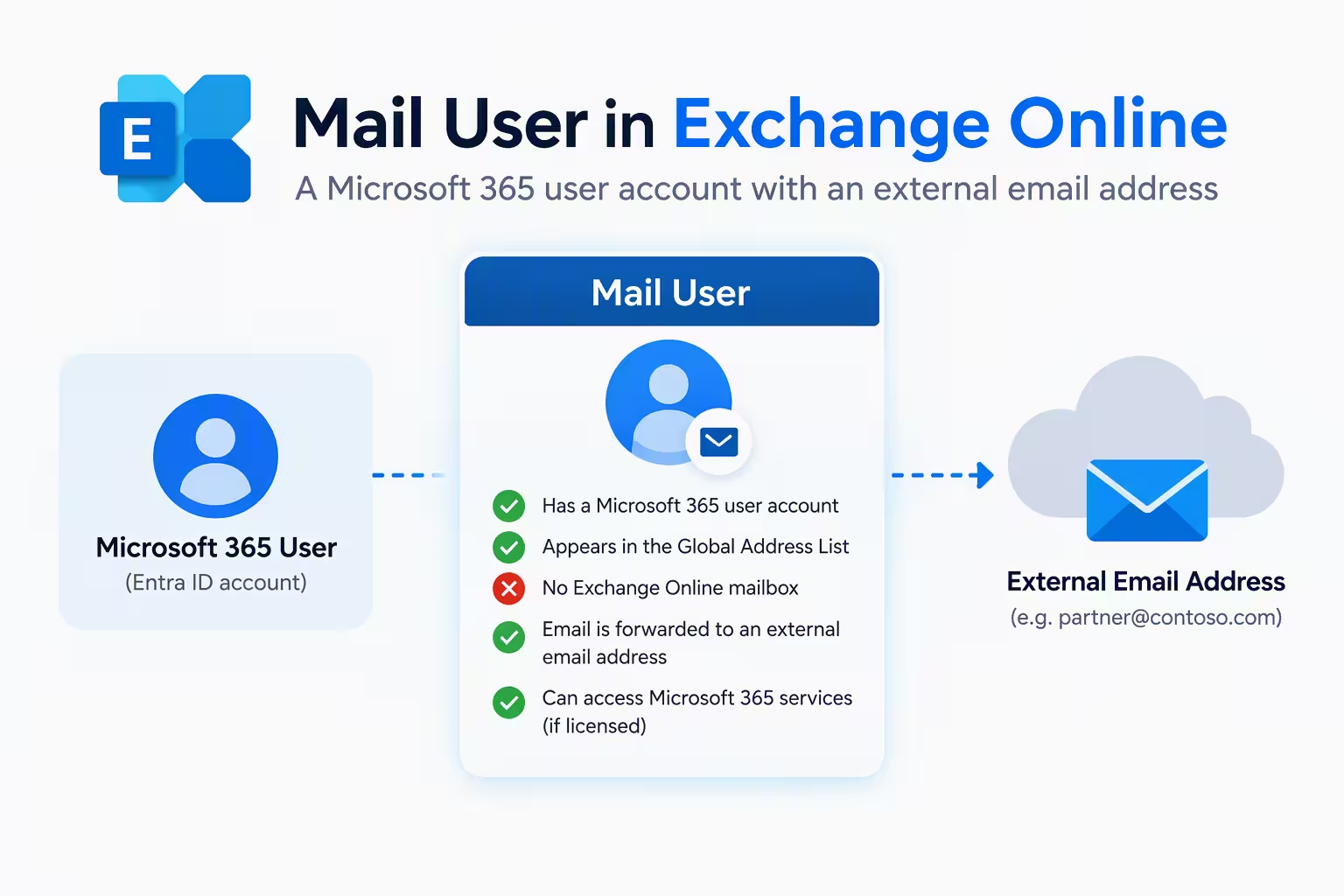
This recipient type has a Microsoft Entra ID (formerly Azure AD) account and an external email address, but no Exchange Online mailbox. The person can sign in to your tenant, but email sent to their internal address is routed to the external address you define.
In practice, it gives you the best of both worlds:
- Sign-in capability: the account can authenticate to Microsoft 365 services such as Teams, SharePoint, or line-of-business apps.
- GAL presence: the recipient appears in the Global Address List so internal staff can find and email them easily.
- No mailbox cost: because no mailbox exists, no Exchange Online license is required just for mail routing.
If you manage a tenant with contractors, partners, acquired-company staff, or hybrid migration scenarios, this object is a tool you should be using deliberately.
Mail User vs. Mail Contact vs. Mailbox
Admins often pick the wrong recipient type. Here is the difference:
| Recipient type | Has sign-in account | Has Exchange mailbox | Email delivered to |
|---|---|---|---|
| Mail user | Yes | No | External address |
| Mail contact | No | No | External address |
| User mailbox | Yes | Yes | Exchange Online |
Choose a mail contact when someone only needs to appear in the address book. Choose the sign-in-enabled option when that person also needs access to tenant resources. Choose a mailbox only when they genuinely need to store mail inside your tenant.
Common Scenarios Where This Recipient Makes Sense
1. Contractors and vendors. They keep their own corporate email but need Teams or SharePoint access. They can sign in while mail continues to land in their own inbox.
2. Mergers and acquisitions. During a coexistence period, acquired staff keep their legacy mailboxes while appearing in your GAL with full details.
3. Hybrid migrations. In a hybrid deployment, a user whose mailbox still lives on-premises is represented in Exchange Online as a mail user. When the mailbox is moved, the object is converted to a mailbox. If you see one with an ExchangeGuid populated, this is usually why.
4. Microsoft Entra B2B guests. Guest accounts invited through Entra B2B are represented in Exchange Online with an #EXT# style identity. Understanding this helps you troubleshoot GAL visibility and group membership issues.
How to Create a Mail User in Exchange Online
You can build one in the Exchange admin center (EAC), but PowerShell is faster and repeatable. First, connect:
Connect-ExchangeOnline -UserPrincipalName admin@yourdomain.comThen create the recipient:
$pwd = ConvertTo-SecureString "Str0ng!Temp#Pass2026" -AsPlainText -Force

New-MailUser -Name "Priya Sharma" -DisplayName "Priya Sharma (Contractor)" -MicrosoftOnlineServicesID priya.sharma@yourdomain.com -ExternalEmailAddress priya@vendorcorp.com -Password $pwd
Key parameters to understand:
- -MicrosoftOnlineServicesID: the sign-in identity (UPN) inside your tenant.
- -ExternalEmailAddress: where mail is actually delivered.
- -Password: required in Exchange Online, supplied as a SecureString. Force a password change at first sign-in through your identity process.
Never hard-code real passwords in scripts. Pull them from a secure vault in production.
How to Manage and Update a Mail User
Once created, you will frequently need to view or change attributes. Useful cmdlets include:
# View a specific recipient
Get-MailUser -Identity priya.sharma@yourdomain.com | Format-List

# Change the external address
Set-MailUser -Identity priya.sharma@yourdomain.com -ExternalEmailAddress priya@newvendor.com

# Hide from the GAL
Set-MailUser -Identity priya.sharma@yourdomain.com -HiddenFromAddressListsEnabled $true

# Remove it
Remove-MailUser -Identity priya.sharma@yourdomain.com
To add the recipient to a distribution group, use:
Add-DistributionGroupMember -Identity "Vendor-Updates" -Member priya.sharma@yourdomain.comAudit Every Recipient in Your Tenant
Stale recipients are a real risk. A forgotten contractor account with active sign-in is an easy target for attackers. Run a regular export:
Get-MailUser -ResultSize Unlimited | Select DisplayName, PrimarySmtpAddress, ExternalEmailAddress, WhenCreated | Export-Csv .\MailUsers-Audit.csv -NoTypeInformationReview the file quarterly. Disable or remove any entry that no longer has a business justification, and cross-check the list against HR or vendor-management records.
Licensing: Where This Recipient Saves You Money
It does not need an Exchange Online license to exist. That is the cost advantage. Mail-enabled external identities do not consume a mailbox license, yet still appear in your directory.
Be careful, though. If you assign a license that includes Exchange Online to the account, a mailbox can be provisioned, and the recipient type changes. Always verify the outcome:
Get-Recipient -Identity priya.sharma@yourdomain.com | Select RecipientTypeDetailsIf you see MailUser, you are on track. If you see UserMailbox, a mailbox was created, and mail may no longer flow to the external address as you intended. Review your license assignments before bulk changes.
Security Best Practices
- Apply Conditional Access. Require MFA for all external-facing identities with sign-in rights.
- Use least privilege. Grant access only to the specific Teams, sites, or apps the person needs.
- Set an expiry. Use Entra access reviews or a documented offboarding date so accounts do not live forever.
- Monitor sign-ins. Alert on unusual locations or legacy authentication attempts.
- Control mail flow. Use mail flow rules to inspect or restrict sensitive content sent to external addresses.
- Hide when appropriate. If the person should not be discoverable, hide them from the GAL.
Troubleshooting Common Problems
- Not showing in the GAL: Check
HiddenFromAddressListsEnabled, and allow time for address book updates to propagate. - Mail not reaching the external address: Verify the
ExternalEmailAddressvalue and confirm the remote domain or connector is not blocking delivery. - Cannot create the object: The email address or alias is probably already in use. Search with
Get-Recipient. - Unexpected mailbox appeared: An Exchange Online license was assigned. Remove it and review the recipient type.
Frequently Asked Questions (FAQ)
1. What is a mail user in Exchange Online?
It is a recipient with a Microsoft Entra ID sign-in account and an external email address but no Exchange Online mailbox. Mail sent to it is forwarded to the external address.
2. What is the difference between a mail user and a mail contact?
The first can sign in to your tenant; a mail contact cannot. Both route email to an external address and appear in the GAL.
3. Does a mail user require an Exchange Online license?
No. It does not need an Exchange Online mailbox license to exist. Other Microsoft 365 services you grant may have their own licensing requirements.
4. Which PowerShell cmdlet creates a mail user?
Use New-MailUser after connecting with Connect-ExchangeOnline. You must supply a name, a sign-in ID, an external email address, and a password.
5. Can I convert one into a mailbox?
Yes. Assigning an Exchange Online license (or completing a hybrid mailbox move) provisions a mailbox and changes the recipient type. Always verify with Get-Recipient.
6. Why do my Entra B2B guest users show up this way?
Exchange Online represents guest accounts as this recipient type so they can appear in the directory and be added to groups without hosting a mailbox.
7. How do I hide one from the address list?
Run Set-MailUser -Identity <user> -HiddenFromAddressListsEnabled $true8. How often should I audit these recipients?
At least quarterly. Export with Get-MailUser, then remove or disable accounts without a current business need.
Final Thoughts
Used correctly, a mail user gives you secure sign-in, clean address book data, and lower licensing costs without forcing external staff into a mailbox they do not need. Pair it with disciplined audits and Conditional Access, and it becomes a dependable part of your Exchange Online design.
Mail Contact in Exchange Online: Proven Setup Guide 2026
Distribution List in Exchange Online: Best Proven Setup Guide
Microsoft 365 Tenant Admin: Ultimate Security & Roles Guide
