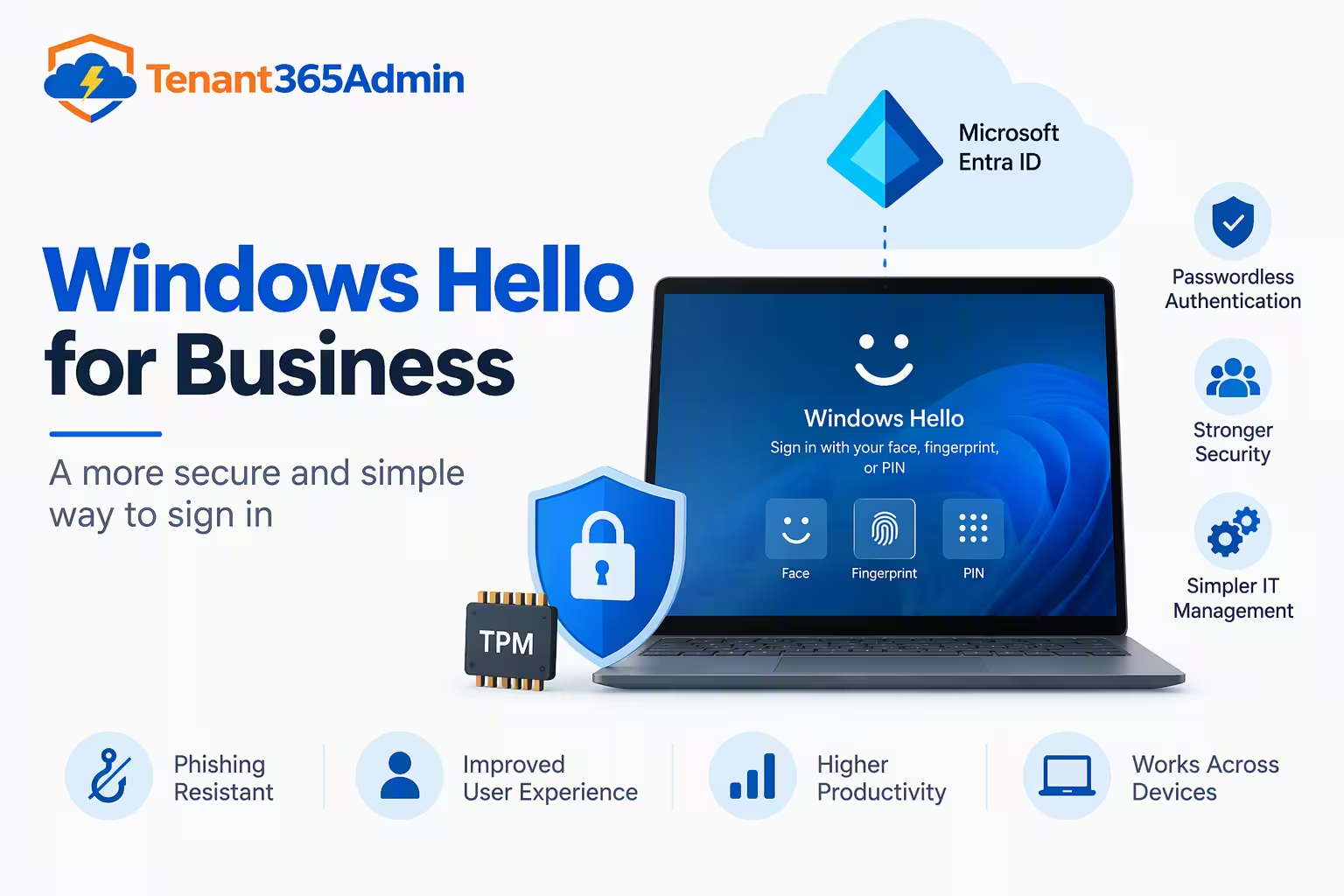
Windows Hello for Business is the easiest way to stop using passwords on your company’s Windows computers, and Microsoft Intune is the easiest way to set it up. If you manage Windows devices for a company, you already know the problem: passwords get phished, reused, forgotten and reset at enormous cost to the help desk. Windows Hello for Business (WHfB) replaces that weak shared secret with a strong, hardware-backed credential tied to a specific device (Device Bound) and unlocked by a biometric or PIN.
This guide walks through everything an admin needs: how the technology works, which trust model to choose, the exact Intune configuration, Conditional Access, rollout strategy and troubleshooting. It is written from the field, so you will see the mistakes that stall most deployments and how to avoid them.
Table of Contents
What Is Windows Hello for Business?
Windows Hello for Business is the enterprise version of Windows Hello. Consumer Windows Hello lets a person sign in to a single PC with a face, fingerprint or PIN. The business edition goes further. It provisions an asymmetric key pair (or certificate) on the device, registers the public key with your identity provider (Microsoft Entra ID or Active Directory), and uses the private key, protected by the TPM, to prove who the user is.
The key idea is that the gesture (your face, fingerprint or PIN) never leaves the device. It only unlocks the private key locally. Nothing reusable travels across the network, which is why there is nothing for an attacker to capture and replay.
The practical benefits for a business:
- Phishing resistance. The credential is bound to the device and the legitimate sign-in service, so a fake login page cannot harvest it.
- Built-in multifactor authentication. The two factors are something you have (the enrolled device with its TPM) and something you are or know (biometric or PIN).
- Lower support cost. No password expiry cycles, fewer lockouts and fewer reset tickets.
- Better user experience. Signing in takes a glance or a quick PIN.
- Compliance alignment. Passwordless, phishing-resistant sign-in maps well to zero trust and modern regulatory expectations.
Windows Hello for Business vs Windows Hello: A Critical Difference
Admins often confuse the two, and the confusion causes real deployment errors. Windows Hello (consumer) is a local convenience feature with no central management. Windows Hello for Business is managed through policy, backed by your directory, and enforceable through Intune and Conditional Access. A PIN set up under consumer Windows Hello is not a Windows Hello for Business credential and will not satisfy your passwordless requirements. Always verify that users are provisioned under the business policy.
Prerequisites Before You Deploy
Skipping preparation is the number one reason a Windows Hello for Business rollout goes sideways. Confirm the following first.
Identity and licensing
- Microsoft Entra ID tenant with devices that are Entra joined or hybrid joined.
- Microsoft Intune licensing (included in Microsoft 365 Business Premium, E3 and E5).
- Multifactor authentication available, since users complete MFA during first-time provisioning.
Devices
- Windows 10 (a currently supported version) or Windows 11. Windows 11 gives the best experience.
- A TPM 2.0 chip is strongly recommended. You can run without one, but you lose the hardware protection that makes the model strong.
- For biometrics, compatible fingerprint readers or IR cameras. For the strongest option, look for hardware that supports enhanced sign-in security.
Hybrid environments
- Windows Server domain controllers that are current and healthy.
- Microsoft Entra Connect with device writeback or hybrid join configured, as appropriate.
- A Microsoft Entra Kerberos server object created if you plan to use cloud Kerberos trust.
Choosing the Right Trust Model
The trust model decides how a Windows Hello for Business credential is validated, and it matters most when users must reach on-premises resources such as file shares, legacy apps or printers.
Cloud Kerberos trust. This is the recommended model for hybrid environments today. Entra ID issues partial Kerberos tickets that domain controllers can exchange for full tickets, so you do not need a certificate authority or the extra infrastructure that older models required. Deployment is the simplest of the three, and it works well with Intune.
Key trust. The device holds a key, and domain controllers validate it. It avoids a full public key infrastructure for users but requires domain controllers with suitable certificates, so it carries more overhead than cloud Kerberos trust.
Certificate trust. A certificate is issued to the user and used for authentication. It suits organizations with an existing PKI and certain legacy requirements, but it is the most complex to run and maintain.
Cloud-only. If your devices are Entra joined and users only need cloud resources, you do not need any of the above. Intune can enable Windows Hello for Business directly, and users sign in to Microsoft 365 and SaaS apps with their credential.
For most organizations the decision is straightforward: choose cloud-only for purely cloud estates and cloud Kerberos trust for hybrid estates. Reserve key and certificate trust for specific constraints.
How to Configure Windows Hello for Business in Intune
Intune gives you two layers of control: a tenant-wide default applied at enrollment, and targeted policies you assign to groups. Understanding how they interact prevents most conflicts.
Step 1: Set the tenant-wide default
In the Intune admin center, go to Devices > Enrollment > Windows > Windows Hello for Business. Here you can set whether Windows Hello for Business is enabled, disabled or not configured for all newly enrolling devices.
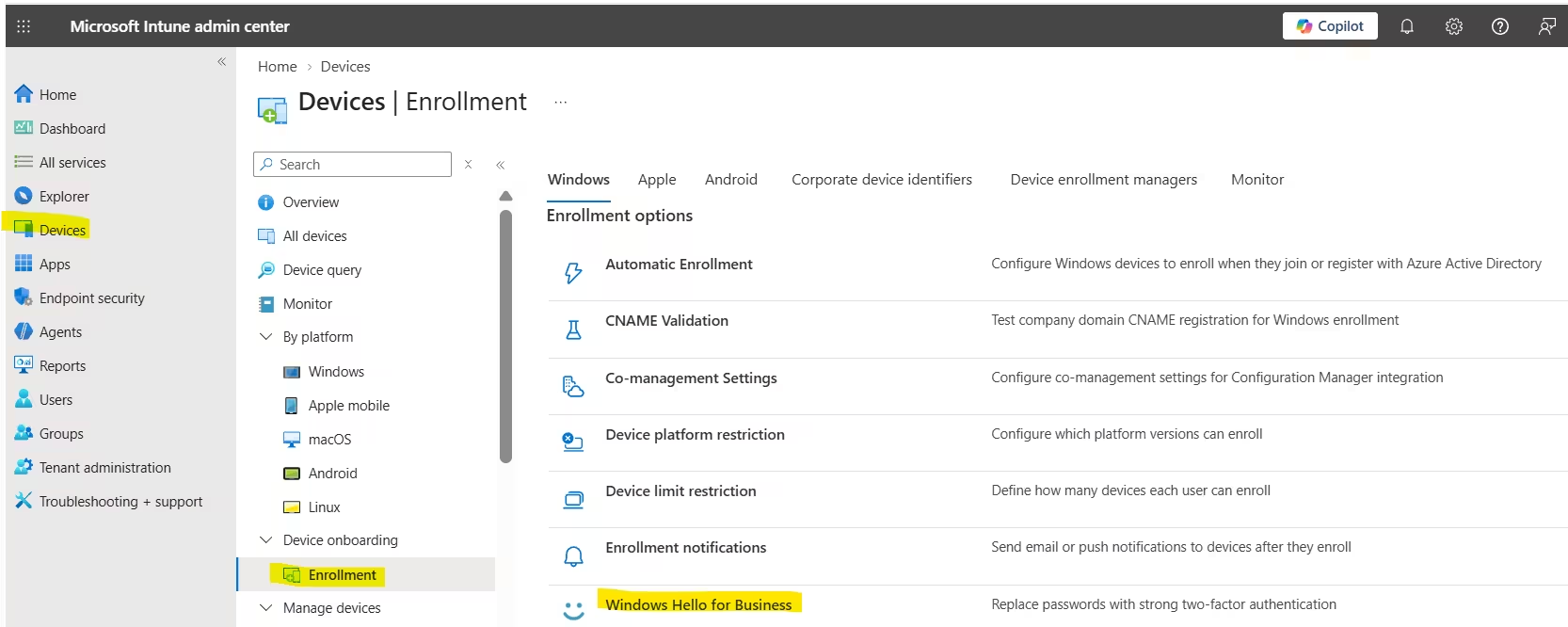
My recommendation: set this to Not configured (or Disabled) and manage everything through targeted policies instead. A tenant-wide setting is easy to forget, and it can silently fight with your group-based policies.
Step 2: Create a targeted policy
For precise control, create a dedicated policy. The cleanest path is Endpoint security > Account protection > Create policy, choosing Windows as the platform and Account protection as the profile. Alternatively, use the Settings catalog and search for the Windows Hello for Business category.
Key settings to configure:
| Setting | Recommended value | Why it matters |
|---|---|---|
| Use Windows Hello for Business | Enabled | Turns provisioning on for assigned users or devices |
| Use cloud trust for on-prem auth | Enabled (hybrid only) | Activates cloud Kerberos trust |
| Require security device | Yes | Forces TPM-backed keys |
| Use enhanced anti-spoofing | Enabled where supported | Hardens facial recognition |
| Minimum PIN length | 6 or higher | Raises the effort for brute force |
| PIN complexity (digits, upper, lower, special) | Based on policy | Optional, since the PIN is device-bound |
| PIN expiration and history | Off or long | Passwordless PINs rarely need rotation |
| Enable PIN recovery | Enabled | Lets users reset without calling the help desk |
| Allow biometric authentication | Allowed | Improves experience and adoption |
A point many admins miss: because a Windows Hello for Business PIN is local to the device and protected by the TPM, a longer PIN with heavy complexity rules adds less security than it does in a password world. Prioritize requiring a security device and enabling PIN recovery over aggressive complexity.
Step 3: Assign and scope sensibly
Assign the policy to a user or device group. Start with a pilot group of IT staff and a few friendly departments. Avoid assigning to All users on day one. Use a group that you can expand in waves.
Step 4: Configure cloud Kerberos trust (hybrid only)
If you chose cloud Kerberos trust, create the Microsoft Entra Kerberos server object once for your domain using the Microsoft Entra hybrid authentication management PowerShell module. After that, enabling the cloud trust setting in your Intune policy is all that is required on devices. Verify that your domain controllers are patched, since cloud Kerberos trust depends on supported server versions.
Pair Windows Hello for Business with Conditional Access
Deploying credentials is only half the job. To truly eliminate password risk, enforce passwordless sign-in through Conditional Access.
Use authentication strengths and select the built-in Passwordless MFA or Phishing-resistant MFA strength for sensitive apps and administrators. Windows Hello for Business satisfies these requirements, along with FIDO2 security keys and passkeys. This ensures that even if a user knows their password, they cannot reach protected resources without a compliant, passwordless method.
A sensible rollout path:
- Require phishing-resistant MFA for administrators first.
- Extend to high-risk applications such as finance, HR and admin portals.
- Extend to all users once adoption is high.
- Reduce or remove password sign-in options, and monitor sign-in logs for stragglers.
Also combine this with Intune device compliance. Requiring a compliant device ensures the machine holding the Windows Hello for Business key is itself healthy, encrypted and patched.
User Experience and First-Time Provisioning
During first sign-in after the policy applies, users are prompted to set up Windows Hello. They verify with MFA, then enroll a PIN and, if hardware allows, a face or fingerprint. The whole process usually takes under two minutes.
Communicate before you roll out. A short email or Teams message explaining that a prompt is coming, why it is safe and what to expect will cut support tickets significantly. Include a screenshot or two. Users who understand that their fingerprint never leaves the laptop adopt faster and trust the system more.
Rollout Strategy That Works
A phased rollout beats a big-bang deployment every time.
- Pilot (week 1 to 2): IT and a small, tolerant group. Validate hardware coverage, hybrid sign-in to on-premises resources and PIN recovery.
- Early adopters (week 3 to 5): One or two departments. Collect feedback and refine messaging.
- Broad deployment (week 6 onward): Expand by group, device type or location. Monitor provisioning rates in Intune reports.
- Enforcement: Once adoption is high, tighten Conditional Access and reduce password dependence.
Track success with metrics: percentage of users provisioned, number of password sign-ins versus Hello sign-ins, and help desk tickets related to authentication.
Common Problems and How to Fix Them
Even a well-planned Windows Hello for Business deployment hits snags. These are the ones I see most.
Users are not prompted to provision. Check that the policy is assigned to the correct group, the device is Entra joined or hybrid joined, and the device has synced with Intune. Run dsregcmd /status and confirm the join state. Look for NgcSet : YES once provisioning completes.
Conflicting policies. A tenant-wide enrollment setting and a targeted policy can disagree. Review both, and keep one authoritative source. Check the policy report in Intune for conflict status.
On-premises resources prompt for a password. For hybrid cloud Kerberos trust, confirm the Kerberos server object exists, domain controllers are supported and patched, and the cloud trust setting is enabled. Devices must be able to reach a domain controller.
TPM errors. If the TPM is missing, disabled or in a bad state, provisioning fails when you require a security device. Check TPM health in the Windows Security app or with Get-Tpm. Update firmware if needed.
Stale or corrupted Hello container. A broken container can block sign-in. As a last resort on a single device, you can reset it with certutil -DeleteHelloContainer and let the user re-provision.
Biometric not available. Confirm drivers are current and the sensor is compatible. Always keep a PIN as a fallback.
For deeper diagnostics, open Event Viewer and review Applications and Services Logs > Microsoft > Windows > HelloForBusiness > Operational to see exactly where provisioning failed.
Security Best Practices
- Always require a security device so keys live in the TPM.
- Enable enhanced sign-in security where hardware supports it, for stronger protection of biometric data.
- Enforce BitLocker and device compliance through Intune.
- Keep PIN recovery enabled so lost PINs do not become shadow-password workarounds.
- Protect the registration moment, since MFA at provisioning is the trust anchor. Use Conditional Access to require MFA from trusted contexts when users register.
- Plan for lost or stolen devices: remote wipe or retire the device in Intune, and revoke sessions in Entra.
- Maintain a break-glass account that is excluded from Conditional Access and stored securely.
Is Windows Hello for Business Worth It?
For nearly every organization using Microsoft 365, the answer is yes. It is included in your existing licensing, it removes the most commonly exploited attack vector, and Intune makes management consistent and auditable. The investment is mostly planning time, not money. Organizations that complete the move see fewer account compromises, happier users and a simpler security story to tell auditors.
If you want a single sentence to take away: configure Windows Hello for Business with a security device requirement, cloud Kerberos trust for hybrid, pair it with phishing-resistant Conditional Access, and roll it out in waves.
Frequently Asked Questions
What is Windows Hello for Business and how is it different from a password?
It is a passwordless credential made of a cryptographic key stored on the device, unlocked by a biometric or PIN. Unlike a password, it is never transmitted or stored on a server, so it cannot be phished or replayed.
Does Windows Hello for Business require Intune?
No. You can deploy it with Group Policy in on-premises environments. However, Intune is the recommended method for Entra joined and hybrid devices because it offers cloud-based policy, reporting and integration with Conditional Access.
Is a TPM required for Windows Hello for Business?
A TPM 2.0 is strongly recommended and required if you set the policy to require a security device. Without a TPM, keys fall back to software storage, which is less secure.
What is the best trust model for hybrid environments?
Cloud Kerberos trust is generally the best choice. It avoids PKI complexity, is faster to deploy and works smoothly with Intune and Entra ID.
Can users still use a password after Windows Hello for Business is enabled?
Yes, unless you restrict it. Enabling the policy adds a passwordless option, but passwords remain until you enforce passwordless or phishing-resistant authentication through Conditional Access and reduce password sign-in options.
Is a Windows Hello for Business PIN less secure than a password?
No. The PIN is tied to a single device and protected by the TPM, with lockout protection against guessing. Even if someone learns the PIN, they cannot use it from another device.
What happens if a user forgets their PIN?
If PIN recovery is enabled in Intune, users can reset their PIN from the sign-in screen after verifying their identity, without contacting the help desk.
What happens if an employee’s laptop is lost or stolen?
Retire or wipe the device from Intune and revoke the user’s sessions in Microsoft Entra ID. Because the credential is bound to that device’s TPM, it cannot be used elsewhere.
Does Windows Hello for Business work with multiple devices?
Yes. Each device has its own separate credential, so a user provisions Windows Hello for Business on every device they sign in to.
How long does it take to deploy Windows Hello for Business?
A cloud-only pilot can run in days. A full hybrid rollout with cloud Kerberos trust typically takes several weeks, including pilot, communication and phased expansion.
