Single sign on (SSO) with Microsoft Entra ID lets employees sign in once and reach Microsoft 365, thousands of SaaS apps and on-premises systems without typing another password. For Microsoft 365 administrators, it is the foundation of a modern identity strategy: it cuts help desk tickets, closes common attack paths and gives you one place to enforce security policy.
This guide shows how single sign on works in Entra ID, which licensing and features matter, how to configure it properly, and which mistakes to avoid. Every recommendation is written from the point of view of someone who runs a Microsoft 365 tenant.
Table of Contents
What Is Single Sign On in Microsoft 365?
Single sign on is an authentication model in which one trusted identity provider (IdP) verifies a user and vouches for that user to many applications. The applications never see the password. They trust a cryptographically signed token instead.
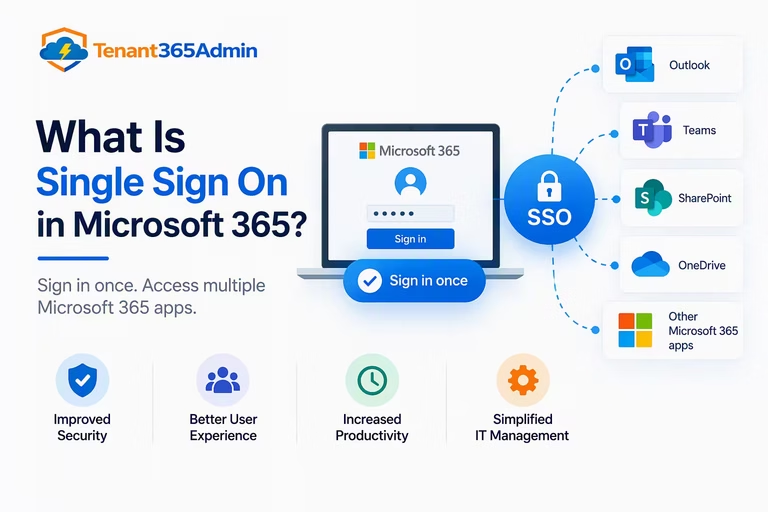
In the Microsoft ecosystem, Microsoft Entra ID (formerly Azure Active Directory, renamed in 2023) is that identity provider. Every Microsoft 365 tenant already has one. When a user opens Outlook, Teams, SharePoint or a third-party app such as Salesforce or ServiceNow, Entra ID authenticates them and issues a token the app accepts.
Three terms are worth getting straight:
- Identity provider (IdP): Entra ID, which authenticates users and issues tokens.
- Service provider (SP): the application the user wants to access.
- Token: a signed SAML assertion or an OpenID Connect ID token that proves who the user is.
Because every Microsoft 365 service already trusts Entra ID, you have SSO to Microsoft workloads from day one. The real work is extending that single sign on experience to everything else.
How Single Sign On Works with Entra ID
The flow is the same whether the app uses SAML or OpenID Connect:
- The user opens an application and has no active session.
- The app redirects the browser to Entra ID.
- Entra ID checks for an existing session. If there is none, it prompts for credentials and MFA.
- Conditional Access policies are evaluated: user, device, location, app and risk.
- If policies are satisfied, Entra ID issues a signed token and redirects the user back to the app.
- The app validates the signature and creates a session.
On a work device that is Entra joined or hybrid joined, the experience is smoother still. Windows stores a Primary Refresh Token (PRT) after the user signs in to the device. Browsers and apps use that token to get access tokens silently, which is why users on managed devices rarely see a login prompt at all.
Single Sign On Methods Supported in Entra ID
Entra ID supports several single sign on methods. Choosing the right one for each app is a core design decision.
SAML 2.0
The long-standing enterprise standard, using XML assertions. Most business SaaS applications support it, and the Entra gallery offers guided configuration for many of them.
OpenID Connect and OAuth 2.0
A lighter, JSON and JWT-based approach built for modern web, mobile and single-page apps. Applications you build in-house should normally use OpenID Connect with Microsoft Authentication Library (MSAL) rather than SAML.
Password-Based SSO
For apps that only offer a username and password form, Entra ID can store and replay credentials through a browser extension. It is a fallback, not a goal, because it keeps a shared password in play.
Header-Based and Kerberos SSO with Application Proxy
For on-premises web apps that cannot speak modern protocols, Microsoft Entra Application Proxy publishes the app securely without a VPN. It can pass identity through headers or Kerberos constrained delegation, bringing legacy apps under the same single sign on and Conditional Access umbrella.
Hybrid Environments: Seamless SSO and Entra Connect
Many organizations still run on-premises Active Directory. Hybrid identity connects the two worlds so users have one identity in both.
- Microsoft Entra Connect Sync or Cloud Sync synchronizes users and groups from on-premises AD to Entra ID.
- Password hash synchronization lets users authenticate in the cloud using a hash of a hash of their password. For most organizations, it is the simplest and most resilient option, and it also powers leaked-credential detection.
- Pass-through authentication validates passwords against on-premises AD through lightweight agents.
- Federation (AD FS) delegates authentication to your own federation servers. It adds infrastructure and complexity, so many organizations are migrating away from it.
- Seamless SSO signs in domain-joined users automatically on the corporate network using Kerberos, so they are not asked to type a password again.
For most tenants, my recommendation is password hash sync with Seamless SSO, or better, Entra joined and hybrid joined devices with PRT-based sign-in. Reserve federation for cases where a regulation or a third-party requirement truly demands it.
Why Single Sign On Matters: Benefits for Microsoft 365 Admins
Stronger Security
Passwords remain the primary target in identity attacks. With single sign on, you shrink the number of credentials in circulation and enforce MFA, device compliance and risk-based controls in one place instead of app by app.
Fewer Help Desk Tickets
Password resets are among the most common support requests. One identity and self-service password reset (SSPR) remove a large share of that load.
Faster Onboarding and Offboarding
When Entra ID is connected to your HR system and your apps through SCIM provisioning, a new hire receives the right access on day one. Disabling one account when someone leaves revokes access across the tenant, closing the window in which orphaned accounts become entry points.
Unified Auditing and Compliance
Sign-in logs and audit logs give you a single trail of who accessed what and when. That evidence supports frameworks such as ISO 27001, SOC 2, HIPAA and GDPR.
Better User Experience
Users get one login and one My Apps portal. Fewer prompts means fewer workarounds, which is a security benefit in itself.
Entra ID Licensing for Single Sign On
Licensing is where many SSO projects stall, so it deserves a clear explanation. Always confirm current details on Microsoft’s official licensing pages, because bundles and names change.
| Plan | Typical SSO-related capabilities |
|---|---|
| Entra ID Free | Included with any Microsoft 365 subscription. Provides SSO to apps, basic MFA and security defaults. |
| Entra ID P1 | Adds Conditional Access, dynamic groups, self-service password reset with writeback, Application Proxy and more. Included in Microsoft 365 Business Premium and E3. |
| Entra ID P2 | Adds Identity Protection (risk-based policies) and Privileged Identity Management (PIM). Included in Microsoft 365 E5. |
| Microsoft Entra Suite | An add-on bundle that extends into areas such as private and internet access and identity governance. |
The practical takeaway is that Conditional Access is the feature that turns single sign on from convenient into secure, and it requires P1 or higher. If your tenant is on Business Standard or a similar plan, budget for the upgrade or an add-on.
How to Set Up Single Sign On with Entra ID (Step by Step)
Here is the standard flow for a SAML-based gallery application.
- Sign in to the Microsoft Entra admin center with an account that holds the Cloud Application Administrator or Application Administrator role, rather than Global Administrator.
- Go to Enterprise applications and select New application.
- Search the gallery for your app. If it is listed, add it. If not, choose to create your own application.
- Open the app and select Single sign-on, then choose SAML (or OIDC if the app supports it).
- Configure the basic settings. Enter the Identifier (Entity ID) and Reply URL (Assertion Consumer Service URL) supplied by the app vendor.
- Review attributes and claims. Map the user attributes the app expects, such as email, name or group claims.
- Download the signing certificate or federation metadata and upload it to the application’s SSO settings.
- Assign users and groups. Use groups rather than individual assignments, and turn on “Assignment required” so only intended users can sign in.
- Test sign-in with a pilot user, then check the sign-in logs for errors.
- Enable provisioning (SCIM) if the app supports it, so accounts are created and removed automatically.
- Apply Conditional Access to the app, scoped to the right users and conditions.
Keep a calendar reminder for SAML certificate expiry. Expired signing certificates are a classic cause of sudden SSO outages, and Entra ID can send expiration notifications to a monitored mailbox.
Securing Single Sign On with Conditional Access and MFA
Single sign on concentrates trust in one identity, so that identity must be protected well. These are the controls that matter most.
Require MFA for Everyone
Microsoft has been moving toward mandatory MFA for administrative portals and is pushing the whole ecosystem the same way. Do not wait. Require MFA through Conditional Access for all users and apps. Security defaults provide a baseline if you do not have P1.
Prefer Phishing-Resistant Authentication
Use authentication strengths to require phishing-resistant methods, such as passkeys (FIDO2), Windows Hello for Business or certificate-based authentication, for administrators and sensitive applications. Passkeys in Microsoft Authenticator are a practical option for mobile-first users.
Evaluate Device and Risk Signals
Require compliant or hybrid joined devices for access to company data. With P2, add sign-in risk and user risk policies from Identity Protection to step up or block suspicious sessions automatically.
Block Legacy Authentication
Legacy protocols such as basic authentication, IMAP and POP cannot perform MFA. Block them with a Conditional Access policy so that attackers cannot bypass your single sign on controls.
Control Sessions and Token Risk
Set sensible sign-in frequency, and use Continuous Access Evaluation (CAE) so changes such as a disabled account or revoked session take effect quickly instead of waiting for token expiry.
Protect Administrators
Use separate admin accounts, assign roles through PIM (with P2) so privilege is just-in-time, and keep Global Administrators to a small number.
Create Break-Glass Accounts
Keep at least two emergency access accounts, cloud-only and excluded from Conditional Access, protected by long random passwords or FIDO2 keys, and monitored with alerts on every sign-in. If a policy mistake or an MFA outage locks everyone out, these accounts save you.
Entra ID vs Okta vs Ping Identity for Single Sign On
Many organizations ask whether they need a third-party IdP when they already run Microsoft 365.
| Factor | Microsoft Entra ID | Okta | Ping Identity |
|---|---|---|---|
| Fit with Microsoft 365 | Native, deepest integration | Strong, via federation | Strong, via federation |
| App catalog | Large gallery | Very large catalog | Broad enterprise coverage |
| Cost for M365 customers | Often already licensed | Additional per-user cost | Additional per-user cost |
| Device and endpoint signals | Excellent with Intune and Defender | Good, via integrations | Good, via integrations |
| Best for | Microsoft-centric organizations | Multi-cloud, vendor-neutral strategies | Complex hybrid and regulated estates |
For a Microsoft-centric organization, Entra ID usually wins on cost and integration because the licensing is often already in place and signals from Intune, Defender and Windows flow directly into Conditional Access. A third-party IdP can still make sense if you are deliberately multi-cloud or have strong standardization requirements elsewhere. Verify current pricing and features with each vendor before deciding.
Common Single Sign On Mistakes in Microsoft 365
- Leaving legacy authentication enabled, which lets attackers skip MFA.
- No break-glass accounts, or break-glass accounts that are not monitored.
- Too many Global Administrators with standing access.
- Assigning apps to “All users” instead of scoped groups.
- Ignoring SAML certificate expiry, causing surprise outages.
- Overly permissive app consent, letting users grant broad permissions to unknown third-party apps. Enable the admin consent workflow.
- Not deprovisioning, so former employees keep access to apps that do not use SCIM.
- Skipping Conditional Access report-only mode before enforcing a new policy, which risks locking out users.
- Weak change management, which drives users toward shadow IT.
A Practical Rollout Roadmap
Phase 1: Discover. Use the Entra sign-in logs and tools such as Microsoft Defender for Cloud Apps to inventory the applications in use. Classify them by sensitivity and by protocol support.
Phase 2: Design. Decide on your hybrid identity model, group strategy, Conditional Access baseline and break-glass approach.
Phase 3: Pilot. Start with IT and a small business unit. Test the sign-in experience on managed and personal devices.
Phase 4: Onboard apps in waves. Begin with high-risk and high-usage applications, then move through the long tail.
Phase 5: Close the gaps. Publish legacy apps through Application Proxy, enable SCIM provisioning and disable local password logins where the app allows it.
Phase 6: Monitor and improve. Review sign-in logs, run access reviews, tune policies and track metrics such as MFA coverage, ticket volume and the share of apps behind SSO.
The Future: Passwordless Single Sign On
The direction of travel is clear. Passkeys, Windows Hello for Business and phishing-resistant MFA are replacing passwords, and Microsoft continues to invest in continuous, signal-driven access decisions. Expect tighter links between identity, device posture and threat detection, plus growing attention to non-human identities such as service principals, managed identities and AI agents. Organizations that build a clean single sign on foundation in Entra ID now will adopt these capabilities with far less friction.
Frequently Asked Questions About Single Sign On with Entra ID
What is single sign on in Microsoft 365?
Single sign on in Microsoft 365 means users authenticate once with Microsoft Entra ID and then access Microsoft 365 services and connected applications without entering credentials again. Entra ID issues signed tokens that each application trusts.
Is Entra ID the same as Azure Active Directory?
Yes. Microsoft renamed Azure Active Directory to Microsoft Entra ID in 2023. The capabilities continued under the new name, with ongoing additions.
Is single sign on included with Microsoft 365?
Basic SSO to applications is available with Entra ID Free, which comes with Microsoft 365 subscriptions. Advanced controls such as Conditional Access require Entra ID P1 or P2, which are included in higher Microsoft 365 plans or available as add-ons. Confirm current details on Microsoft’s licensing pages.
What is the difference between SAML and OpenID Connect in Entra ID?
SAML is an XML-based standard widely used by enterprise SaaS apps. OpenID Connect is a newer JSON- and JWT-based protocol built on OAuth 2.0, better suited to mobile and modern web apps. Entra ID supports both, so choose based on what each application supports, preferring OpenID Connect for new development.
Does Entra ID single sign on work with on-premises apps?
Yes. Microsoft Entra Application Proxy publishes on-premises web apps securely, and Kerberos or header-based SSO brings legacy apps under Entra ID. Hybrid identity through Entra Connect also extends SSO to domain-joined users.
What is Seamless SSO?
Seamless SSO signs in users on domain-joined devices automatically, using Kerberos, when they are on the corporate network. It works with password hash sync or pass-through authentication.
How do I secure single sign on in Entra ID?
Require MFA for all users, use Conditional Access to evaluate device and risk, block legacy authentication, protect admin accounts with PIM and phishing-resistant methods, and maintain monitored break-glass accounts.
What happens if Entra ID is unavailable?
Users could lose access to apps that depend on it. Microsoft operates Entra ID with high availability, and you should prepare by keeping break-glass accounts, documenting recovery steps and monitoring service health.
Do I need a third-party SSO tool like Okta if I use Microsoft 365?
Usually not. Entra ID covers SSO, MFA and Conditional Access for most Microsoft-centric organizations. A third-party IdP can make sense for deliberately multi-cloud or vendor-neutral strategies.
How do I add a new application to Entra ID for SSO?
Open the Entra admin center, go to Enterprise applications, add the app from the gallery or create your own, and configure SAML or OpenID Connect under Single sign-on. Then assign users and groups, test sign-in and apply Conditional Access.
Final Thoughts
For a Microsoft 365 organization, single sign on with Entra ID is not just a convenience feature. It is the control plane for access across your whole environment. Pair it with Conditional Access, phishing-resistant MFA and automated provisioning, protect your administrators and break-glass accounts, and roll out in phases. Do that, and you get stronger security, a lighter help desk and a sign-in experience your users will actually appreciate.
Device-Bound Passkeys in Entra ID: Ultimate Setup Guide
Windows Hello for Business: Ultimate Intune Deployment Guide
Azure Active Directory Licensing: Ultimate Guide Free vs P1 vs P2
