Exchange Server Roles determine how every message, mailbox, and client connection moves through your messaging environment. Misjudging them is one of the costliest mistakes an administrator can make. After years of designing, migrating, and rescuing on-premises Exchange deployments, I’ve seen the same pattern repeatedly. Organizations that understand their server roles build resilient, secure, and affordable messaging platforms. Organizations that don’t end up with oversized hardware, unnecessary licensing costs, and avoidable outages.
This guide walks through the current architecture, how it evolved, where each role belongs in your network, and what it all means for licensing and migration planning.
Table of Contents
Why Exchange Server Roles Still Matter
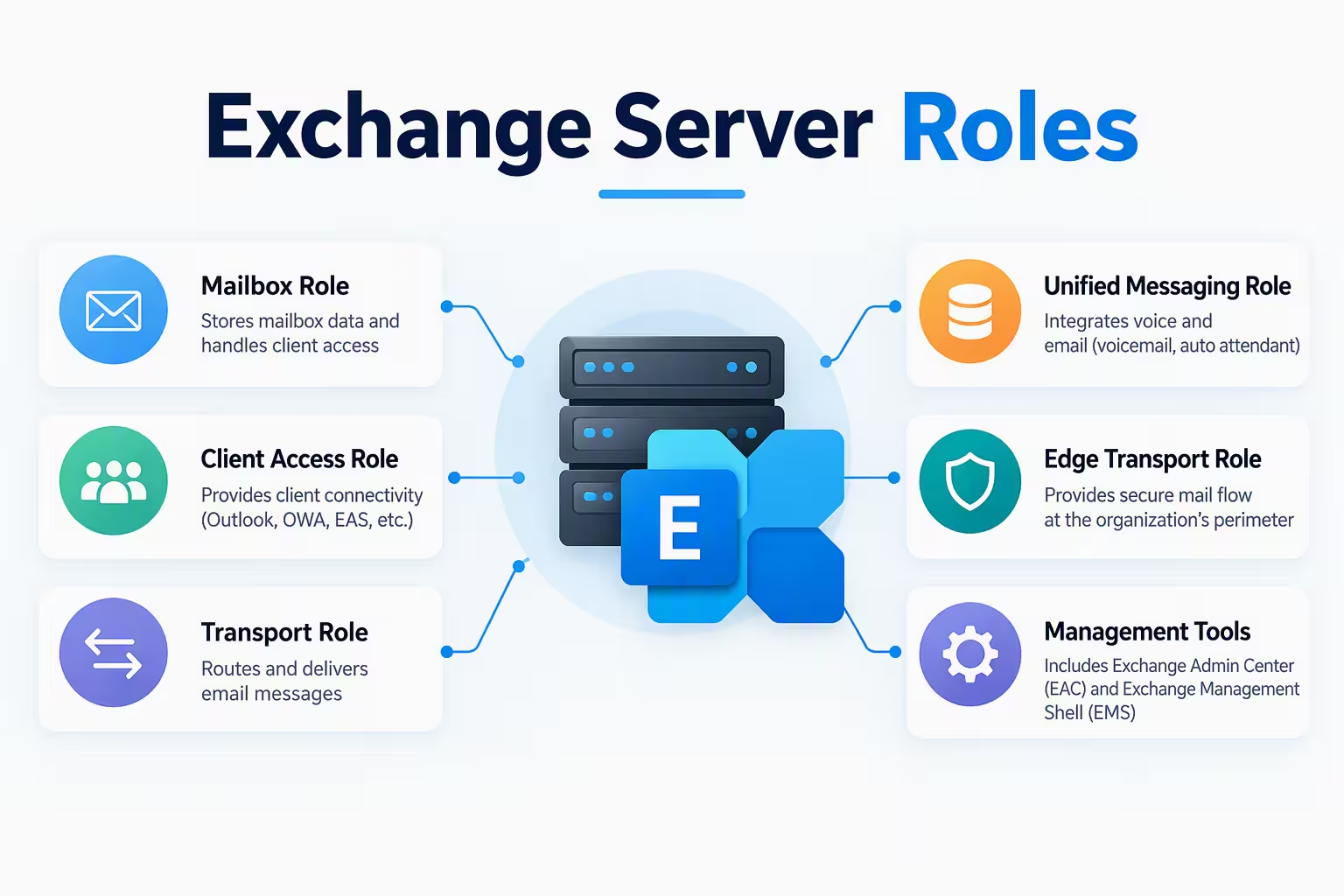
Many teams have moved to Microsoft 365 and assume server roles no longer concern them. That assumption is risky. Most enterprises still run at least one on-premises Exchange server, whether for hybrid coexistence, regulatory requirements, application relay, or a long migration runway. Even in a pure cloud tenant, an admin who understands Exchange Server Roles troubleshoots mail flow, hybrid connectors, and compliance routing far faster than one who treats Exchange as a black box.
The roles also drive three business outcomes:
- Security: Each role has a different attack surface, and placing it correctly shrinks exposure.
- Cost: Role consolidation changes how many servers, Windows licenses, and Exchange licenses you buy.
- Availability: Roles determine how you build redundancy, from Database Availability Groups to load-balanced front ends.
The Evolution of Exchange Server Roles
To understand today’s design, it helps to know how we got here. The history of Exchange Server Roles is a story of consolidation.
Exchange 2007 and 2010 used five distinct roles: Mailbox, Client Access, Hub Transport, Unified Messaging, and Edge Transport. This gave granular control but required many servers, complex sizing, and tricky dependencies between roles.
Exchange 2013 reduced the model to two core roles, Mailbox and Client Access. The Client Access role became a stateless proxy, while the Mailbox role absorbed transport and the Unified Messaging logic. The Edge Transport role was reintroduced in Exchange 2013 SP1.
Exchange 2016 went further and folded the Client Access role into the Mailbox role. Only Mailbox and Edge Transport remained.
Exchange 2019 kept that two-role model and dropped Unified Messaging entirely, pushing voice workloads to other platforms such as Skype for Business and Teams.
Exchange Server Subscription Edition (SE) is the successor to Exchange 2019 and keeps the same two-role architecture. The meaningful changes are in lifecycle and licensing rather than in the role model, which is why understanding Exchange Server Roles at this level makes upgrades far easier.
The Mailbox Role: The Heart of the Platform
The Mailbox role is where nearly everything happens. It is the only role you must install in an on-premises Exchange organization, and it contains several distinct services that are worth understanding separately.
Client Access Services
The Client Access services accept and proxy client connections to the correct mailbox server, which holds the active copy of the user’s database. They handle:
- Outlook connectivity over MAPI/HTTP
- Outlook on the web (OWA) and the Exchange Admin Center
- Exchange ActiveSync for mobile devices
- Exchange Web Services (EWS)
- Autodiscover
- POP3 and IMAP4, where enabled
These services are stateless, so a load balancer can distribute traffic across them without session affinity in most designs. That is a key reason the Mailbox role scales so cleanly.
Transport Services
Transport on the Mailbox role is split into several components:
- Front End Transport service: Listens on port 25 for inbound SMTP from the internet or other servers and acts as a stateless proxy.
- Transport service: Handles message categorization, routing, and content conversion, and replaces the old Hub Transport role.
- Mailbox Transport service: Includes submission and delivery components that communicate with the local mailbox databases.
If you have ever asked where the Hub Transport role went, this is the answer: it lives inside the Mailbox role now.
Mailbox Databases and the DAG
The Mailbox role hosts the databases themselves, running the Information Store and the Replication service. High availability comes from the Database Availability Group (DAG), which can span up to 16 mailbox servers. Each database can have multiple copies distributed across servers and sites, with automatic failover when a copy becomes unhealthy.
Edition limits matter here. In Exchange 2019, Standard edition supports up to 5 databases per server, while Enterprise edition supports up to 100. Many organizations buy Enterprise purely for database count, so check your actual requirement before purchasing.
The Edge Transport Role: Your Perimeter SMTP Gateway
Of all Exchange Server Roles, Edge Transport is the one most often misunderstood. It is an optional, hardened SMTP gateway designed for your perimeter network (DMZ).
Key characteristics:
- It must not be domain-joined, which keeps AD credentials away from the perimeter.
- It stores configuration in Active Directory Lightweight Directory Services (AD LDS), not in your production AD.
- It synchronizes recipient and configuration data from the internal organization through EdgeSync and an Edge Subscription.
- It provides connection filtering, sender filtering, recipient filtering, sender reputation, and content filtering.
- It cannot host mailboxes or run on the same server as the Mailbox role.
So should you deploy it? If you need an on-premises, Microsoft-native filtering layer that reduces your internal attack surface, Edge Transport is a solid choice. If you already use a cloud filtering service or Exchange Online Protection for inbound and outbound mail, you likely don’t need it. Many modern designs skip Edge Transport entirely and place a secure mail gateway or a cloud service in front of the Mailbox role instead.
What Happened to the Legacy Roles?
Admins maintaining older environments still ask about retired roles, so here is a quick reference for where each one went.
| Legacy Role | Current Location |
|---|---|
| Client Access | Client Access services within the Mailbox role |
| Hub Transport | Transport service within the Mailbox role |
| Unified Messaging | Removed in Exchange 2019, and not available in Subscription Edition |
| Edge Transport | Still available as a standalone role |
If you are still running Exchange 2010 or 2013, the gap between those models and the current one is substantial. The migration involves not only new servers but a fundamentally different way of thinking about Exchange Server Roles.
Role Placement and Sizing: Lessons from the Field
Microsoft’s Preferred Architecture is a useful starting point for sizing and placement, even if you don’t follow it exactly. These principles hold up in the real world:
- Deploy multi-role servers. Because the Mailbox role contains Client Access and Transport, you install one server type for internal workloads. This simplifies patching, sizing, and capacity planning.
- Use physical servers or well-provisioned virtual machines. If you virtualize, avoid CPU overcommit, avoid dynamic memory, and keep storage latency low. Exchange is sensitive to all three.
- Plan for at least four database copies where the business demands resilience. Two copies in the primary site and two in the secondary site give you site-level protection without backups being your only safety net.
- Use lagged copies deliberately. A lagged copy can rescue you from logical corruption, but it adds management overhead and should be a conscious decision.
- Balance memory and cores. Exchange is memory-hungry. Right-size using Microsoft’s Exchange Server Role Requirements Calculator before you buy hardware.
- Put the load balancer in front of the Client Access services. Layer 7 balancing with health probes gives the best control, though Layer 4 works in simpler designs.
Document your design decisions as you go. Six months later, no one remembers why a server was placed where it was.
Licensing: Where Exchange Server Roles Meet Your Budget
Licensing is often where high-impact decisions get made, and it is where confusion costs real money. Here is the framework I use with clients.
- Server license: Every Exchange server needs one, regardless of the roles installed on it. Since the Mailbox role is the workhorse and Edge Transport is optional, a smaller design means fewer server licenses.
- Client Access Licenses (CALs): Users or devices accessing Exchange need Standard CALs, with Enterprise CALs adding features such as advanced compliance and archiving capabilities.
- Edition choice: As noted above, database count has historically separated Standard from Enterprise.
- Subscription Edition: Exchange SE moves toward a subscription-aligned licensing model. Confirm the exact requirements, such as Software Assurance or a qualifying subscription, with your Microsoft licensing partner, because terms can change.
A practical tip: do not buy based on user count alone. Count servers, databases, and the compliance features you actually use. I have saved organizations five-figure sums simply by showing that Standard edition covered their database needs.
Note: I’m not a licensing advisor, so validate your specific scenario with Microsoft or a certified reseller before purchasing.
Exchange Server Roles in a Hybrid Deployment
Hybrid is now the dominant pattern, and your on-premises roles remain central to it. In a hybrid deployment:
- The Mailbox role hosts the hybrid endpoints, publishes Autodiscover and EWS, and handles free/busy and mailbox moves.
- Hybrid mail flow can route through on-premises servers or directly through Exchange Online, and you can centralize transport through your on-premises environment if compliance requires inspection.
- Edge Transport may sit in the path if you want on-premises filtering before mail reaches the cloud.
- The Hybrid Configuration Wizard configures connectors, organization relationships, and federation. The Hybrid Agent can simplify publishing in environments where inbound firewall changes are difficult.
One important point: keep at least one supported Exchange server on-premises for recipient management if you synchronize identities from Active Directory. Removing the last server without understanding the consequences leads to painful attribute-management problems.
Security Hardening by Role
A mature design treats each of the Exchange Server Roles with a different security posture.
Mailbox role:
- Keep the latest Cumulative Update and Security Update installed. Exchange has been a recurring target for serious vulnerabilities, so patch cadence is not optional.
- Enable Extended Protection, modern TLS, and certificate-based signing for PowerShell serialization.
- Run the Exchange Health Checker script regularly.
- Restrict administrative access using Role-Based Access Control (RBAC) and split permissions where possible.
Edge Transport role:
- Keep it off the domain, patch it on the same schedule, and lock down the management interface.
- Allow only the required SMTP and EdgeSync ports through firewalls.
General:
- Remove legacy authentication and restrict anonymous relay connectors.
- Publish only the Client Access endpoints you actually need to the internet.
- Monitor with centralized logging, and review transport rules and inbox rules for signs of compromise.
Planning Your Migration to Subscription Edition
Exchange 2016 and Exchange 2019 have both reached the end of mainstream support, so continuing to run them carries real risk. Here is a migration approach that works.
- Inventory everything. Document servers, roles, certificates, connectors, send and receive configurations, public folders, and third-party integrations such as backup, journaling, and archiving.
- Check prerequisites. Verify Active Directory functional levels, Windows Server versions, and the cumulative update level required for your upgrade path.
- Choose your path. Depending on your current version, you may upgrade in place or do a side-by-side migration. Confirm supported paths in Microsoft documentation before committing.
- Right-size the target. Re-run the sizing calculator with real usage data instead of assuming the old hardware profile.
- Pilot first. Move a test group of mailboxes, validate Outlook, mobile, and hybrid free/busy, then expand in waves.
- Decommission properly. Remove old servers using supported procedures. Never just power them off.
If your long-term plan is to leave on-premises Exchange entirely, you can still do this deliberately: upgrade to a supported version first, then migrate mailboxes to Exchange Online on your timeline rather than under pressure.
Common Mistakes with Exchange Server Roles
These are the problems I see most often during assessments:
- Treating Edge Transport as mandatory. It isn’t, and many environments are safer and cheaper without it.
- Domain-joining an Edge server. This defeats its security purpose.
- Skipping the sizing calculator. Undersized memory is the most common cause of poor performance.
- Ignoring certificates. A single expired or mismatched certificate breaks Outlook, mobile, hybrid, and mail flow at once.
- Deploying a DAG without testing failover. An untested high-availability design is just an assumption.
- Leaving unsupported versions in production. The risk grows every month after support ends.
- Poor patch hygiene. Exchange sits on the internet edge for many organizations, so delayed patching is an invitation to attackers.
Quick Best-Practice Checklist
- Use multi-role Mailbox servers for internal workloads.
- Add Edge Transport only if you genuinely need on-premises perimeter filtering.
- Size with the Microsoft calculator and validate with real data.
- Build a DAG with tested failover and monitored replication health.
- Keep the Cumulative Update and Security Update level current.
- Verify licensing against actual server, database, and feature requirements.
- Plan migration waves and communicate with users early.
Frequently Asked Questions
How many Exchange Server Roles exist today?
Two: Mailbox and Edge Transport. The Client Access and Hub Transport functions now live inside the Mailbox role.
Can I install Mailbox and Edge Transport on the same server?
No. Edge Transport must run on its own non-domain-joined server in the perimeter.
Is Unified Messaging still available?
Not in Exchange 2019 or Subscription Edition. It was removed after Exchange 2016.
Do I still need an on-premises server in a hybrid environment?
In most cases involving directory synchronization, yes, at least one supported Exchange server should stay for recipient management.
Final Thoughts
Mastering Exchange Server Roles is about making deliberate choices. Know what the Mailbox role contains, decide honestly whether Edge Transport earns its place, size with real data, and align your licensing with how you actually use the platform. Do that, and your messaging environment will be more secure, more resilient, and easier to migrate when the next version arrives.
If you’re planning an upgrade or hybrid redesign, start with an architecture review of your current roles. It is the cheapest step in the whole project and prevents the most expensive mistakes.
Exchange Online Connector: Proven Guide to Secure Mail Flow
Exchange Online Archive: The Ultimate Guide to Stop Losing Critical Emails Forever
Exchange Online PowerShell Cheat Sheet: Ultimate Admin Guide
