The Microsoft 365 Tenant Admin is the person, or small group of people, with the highest level of control over your organization’s entire Microsoft 365 environment. Every mailbox, Teams workspace, SharePoint site, license, security policy and user identity sits under their authority. If you are asking who your Microsoft 365 Tenant Admin is, you are really asking who holds the keys to your company’s digital workplace.
Whether you are a business owner who just signed up, an IT manager inheriting a messy environment, or an employee who needs something fixed, understanding this role matters. It affects your security posture, your compliance obligations and your day-to-day support experience. This guide covers what a tenant is, who qualifies as the tenant admin, what the role can do, how to identify your admins, and how to protect the role from the risks that come with it.
Table of Contents
What Is a Tenant in Microsoft 365?
A tenant is your organization’s dedicated, isolated instance of Microsoft cloud services. When a company signs up for Microsoft 365, Microsoft creates a tenant backed by Microsoft Entra ID (formerly Azure Active Directory). Your tenant gets an initial domain such as yourcompany.onmicrosoft.com, and you can add custom domains like yourcompany.com on top of it.
Your tenant holds:
- User accounts, groups and devices
- Licenses and subscriptions (Microsoft 365 Business, E3, E5 and others)
- Exchange Online, SharePoint Online, OneDrive and Teams data
- Security, compliance and identity policies
- Enterprise applications and their permissions
Most organizations have one tenant, though mergers, acquisitions and regulatory needs sometimes lead to multi-tenant setups. Whoever administers the tenant controls everything inside it.
Who Is the Microsoft 365 Tenant Admin?
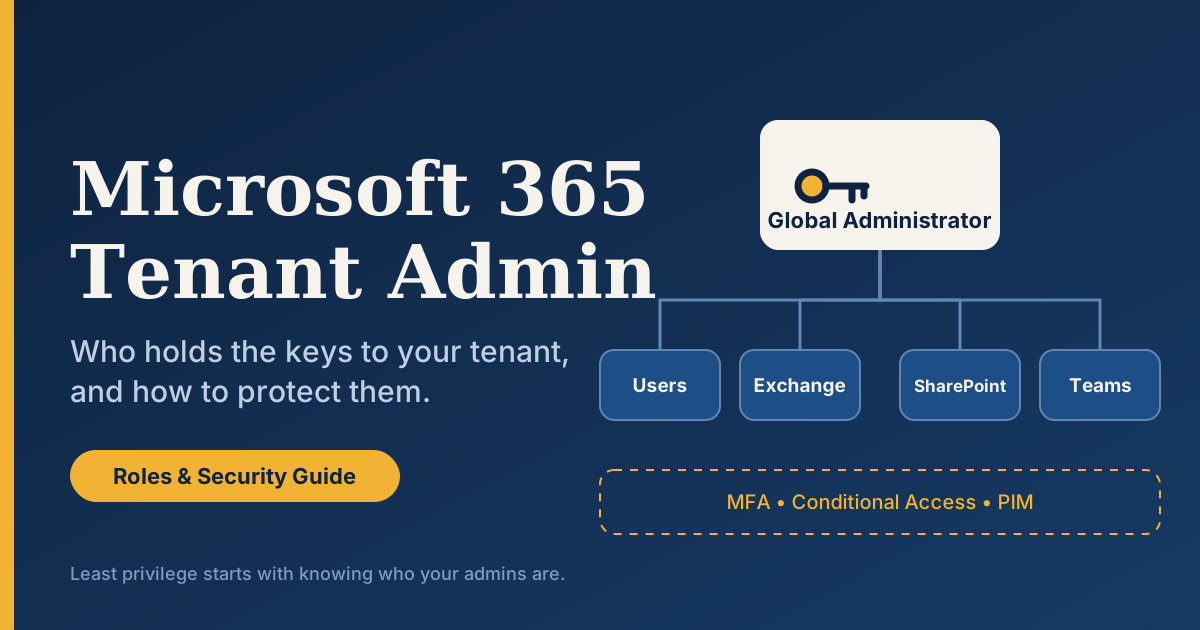
“Tenant Admin” is not an official role name in the Microsoft admin centers, which surprises many people. In practice, the Microsoft 365 Tenant Admin is whoever holds the Global Administrator role in Microsoft Entra ID. Some organizations also loosely apply the term to a broader set of privileged administrators, but the Global Administrator is the true top of the hierarchy.
The Global Administrator can access nearly every administrative feature across Microsoft 365, and can assign administrator roles to others, including other Global Administrators. Only a Global Administrator can perform certain tasks, such as resetting passwords for every type of admin, modifying certain organization-wide settings, and managing some tenant-level configurations.
The person who first signs up for the Microsoft 365 subscription is automatically made a Global Administrator. For many small businesses, that is the owner, an office manager, or an outside IT consultant who set things up.
What Can a Microsoft 365 Tenant Admin Do?
A Global Administrator’s reach is extensive, which is exactly why the role demands care. A Microsoft 365 Tenant Admin can:
- Manage identities: create, delete and restore users, reset passwords, and manage groups and guest access.
- Control licensing and billing: assign or remove licenses, change subscriptions, and manage payment details.
- Configure security: set up multifactor authentication, Conditional Access, password policies and threat protection.
- Govern data: configure retention, sensitivity labels, data loss prevention and eDiscovery.
- Manage services: administer Exchange, SharePoint, Teams, Intune and other workloads.
- Delegate authority: assign any administrator role, or create additional Global Administrators.
- Register and consent to apps: grant tenant-wide consent to applications, which can expose data if abused.
Two nuances are worth knowing. First, a Global Administrator does not automatically have access to Azure subscriptions, though they can elevate their access in the Azure portal to manage all subscriptions in the tenant. Second, while a Global Administrator does not read everyone’s email by default, they can grant themselves the permissions to do so. Treat the role as having effectively unlimited access, because it does.
Microsoft 365 Tenant Admin vs. Other Admin Roles
Microsoft offers dozens of built-in Entra roles specifically so that not everyone needs Global Administrator rights. Here is how the most common ones compare:
| Role | Primary Scope | Typical Use |
|---|---|---|
| Global Administrator | Everything in the tenant | Tenant owner, break-glass accounts |
| User Administrator | Users, groups, licenses | Onboarding and offboarding |
| Exchange Administrator | Exchange Online | Mailbox and mail flow management |
| SharePoint Administrator | SharePoint and OneDrive | Site and sharing governance |
| Teams Administrator | Microsoft Teams | Policies, meetings, voice |
| Security Administrator | Security features | Threat response, policies |
| Billing Administrator | Purchases and invoices | Finance staff |
| Helpdesk Administrator | Password resets, limited support | Service desk |
| Global Reader | Read-only view of everything | Auditors, reviewers |
The principle behind these roles is least privilege: give each person only the permissions needed for their job. A service desk technician resetting passwords does not need the power to delete your tenant’s security policies.
How to Find Your Microsoft 365 Tenant Admin
If you have administrative access, finding your admins takes about a minute. If you do not, your path is different.
Method 1: Microsoft 365 Admin Center
- Sign in to the Microsoft 365 admin center at
admin.cloud.microsoft.com. - Go to Roles and select Role assignments.
- Open Global Administrator and review the assigned users.
Method 2: Microsoft Entra Admin Center
- Sign in to the Microsoft Entra admin center.
- Navigate to Roles & admins and select Global Administrator.
- Review the Assignments tab, which also shows eligible assignments if you use Privileged Identity Management.
Method 3: Microsoft Graph PowerShell
For a scriptable approach, connect and query the role members:
Connect-MgGraph -Scopes "RoleManagement.Read.Directory","Directory.Read.All"
$role = Get-MgDirectoryRole -Filter "displayName eq 'Global Administrator'"
Get-MgDirectoryRoleMember -DirectoryRoleId $role.Id
If You Are Not an Admin
Regular users cannot open the admin center, so the practical route is to ask your internal IT team or help desk who administers the tenant. If you work with a managed service provider, they will typically hold delegated admin rights. When you contact Microsoft Support, they generally cannot tell you who your admins are without verifying you as an authorized contact.
How Someone Becomes the Microsoft 365 Tenant Admin
There are four common paths:
- They created the tenant. The original sign-up account keeps Global Administrator rights.
- Another Global Administrator promoted them. Any Global Administrator can assign the role.
- They arrived through a partner relationship. Consultants and Microsoft partners sometimes receive high privileges, though modern partner access is governed by granular delegated admin privileges (GDAP), which limit scope and duration.
- They were assigned through PIM. Organizations with Privileged Identity Management can make users eligible for the role and let them activate it only when needed.
The Risk of Too Many Global Administrators
Over-provisioning is the most common mistake in Microsoft 365 environments. Accounts with Global Administrator rights are the top target for attackers, because compromising one account can mean total tenant takeover. Ransomware operators, business email compromise groups and nation-state actors all pursue admin credentials.
Microsoft’s own guidance recommends keeping the number of Global Administrators small, with fewer than five as the general benchmark and at least two for redundancy so you are never locked out. If your audit finds ten or fifteen Global Administrators, you have a serious exposure to reduce. The fix is usually to move most of those people into narrower roles, such as User Administrator or Exchange Administrator, that match the work they actually do.
Best Practices to Secure Your Microsoft 365 Tenant Admin Accounts
Securing the Microsoft 365 Tenant Admin role is one of the highest-return security investments you can make. These are the practices I recommend to every organization.
1. Use Dedicated, Cloud-Only Admin Accounts
Never use a daily-driver account for administration. Create separate admin accounts with no mailbox and no email exposure, and keep them cloud-only rather than synced from on-premises Active Directory. This limits the damage from a phishing email or a compromised workstation.
2. Enforce Phishing-Resistant MFA
Multifactor authentication is non-negotiable for any Microsoft 365 Tenant Admin. Microsoft has been rolling out mandatory MFA for admin portals, but you should go further than the minimum. Prefer phishing-resistant methods such as FIDO2 security keys, passkeys or certificate-based authentication over SMS codes.
3. Apply Conditional Access
Conditional Access policies, available with Microsoft Entra ID P1 (included in Microsoft 365 Business Premium and E3), let you require compliant devices, block risky sign-ins, restrict admin sign-ins to trusted locations and demand stronger authentication for privileged roles.
4. Adopt Privileged Identity Management
With Entra ID P2, Privileged Identity Management provides just-in-time elevation. Admins hold eligible roles and activate them for a limited time, with approval workflows and justification requirements. This keeps standing privilege close to zero and creates a clear audit trail.
5. Create Emergency Access Accounts
Set up two cloud-only “break-glass” Global Administrator accounts with long, complex passwords stored securely offline. Exclude them from Conditional Access policies that could lock everyone out during an outage, and monitor them with alerts so any sign-in triggers immediate attention.
6. Monitor, Audit and Review Regularly
Enable and review the unified audit log, configure alerts for role changes, and run access reviews on privileged roles at least quarterly. Check Microsoft Secure Score for recommendations targeted at admin hygiene. Regular reviews catch stale admin accounts before attackers do.
7. Limit Application Consent
Restrict who can grant tenant-wide consent to applications. Malicious OAuth apps are a well-documented way to gain data access without ever stealing a password.
What If Your Microsoft 365 Tenant Admin Left the Company?
This scenario is more common than it should be. A consultant disappears, an employee leaves without a handover, or the only Global Administrator loses their credentials. Here is how to respond:
- Check for other administrators first. Another Global Administrator or Privileged Role Administrator may be able to reassign roles.
- Use your break-glass account if you set one up.
- Contact Microsoft Support. If nobody in your organization can access an admin account, Microsoft has a process to help you regain control, which typically requires proving ownership of your domain by adding a DNS record and verifying your identity as an authorized representative.
- Secure the departing admin’s account immediately. Disable sign-in, revoke sessions, and review recent activity and app registrations they created.
Prevention beats recovery. Document who your admins are, maintain a written offboarding checklist for anyone with privileged access, and never let a single individual be the only path to your tenant.
Delegated Admin Access for Partners
Many small and mid-sized businesses rely on a Microsoft partner or managed service provider. Historically, partners received broad delegated admin privileges (DAP) that acted like standing Global Administrator access. Microsoft has been moving partners to granular delegated admin privileges (GDAP), which grant only specific roles, for a defined period, with customer approval.
If your environment still shows older delegated partner relationships, review them. Confirm that each partner still needs access, that the roles are appropriately narrow, and that expiry dates are set. A Microsoft 365 Tenant Admin should know exactly which external parties can touch the tenant.
Quick Tenant Admin Security Checklist
Use this list for your next audit:
- Fewer than five Global Administrators, with a minimum of two
- Two monitored emergency access accounts
- Separate, unlicensed admin accounts for privileged work
- Phishing-resistant MFA on every privileged account
- Conditional Access policies scoped to admin roles
- PIM configured for just-in-time access (where licensing allows)
- Quarterly access reviews and audit log monitoring
- Partner and guest access reviewed and documented
- Documented handover and offboarding procedure for admins
Frequently Asked Questions (FAQ)
1. Who is the Tenant Admin in Microsoft 365?
The tenant admin is typically the user assigned the Global Administrator role in Microsoft Entra ID. This person has the broadest permissions across the entire Microsoft 365 environment, including users, licenses, security settings and services.
2. How do I find out who my Microsoft 365 Tenant Admin is?
If you have admin access, open the Microsoft 365 admin center, go to Roles, then Role assignments, and select Global Administrator. Non-admin users should ask their internal IT team or help desk.
3. Is the Global Administrator the same as the Tenant Admin?
In practice, yes. “Tenant Admin” is an informal term, and the Global Administrator is the role that holds full control over the tenant. Other administrator roles have narrower scopes.
4. How many Global Administrators should a tenant have?
Microsoft recommends keeping the number small, generally fewer than five, with at least two so you have redundancy. Add two dedicated emergency access accounts on top of that.
5. Can a Global Administrator read all employee emails?
Not by default, but a Global Administrator can grant themselves the permissions needed to access mailboxes. That is why the role should be tightly controlled and its activity audited.
6. What should I do if I cannot access any admin account?
First check for other administrators or emergency access accounts. If none exist, contact Microsoft Support, which can guide you through regaining control after you verify domain ownership and your identity.
7. Do I need a license to be a Microsoft 365 Tenant Admin?
Administrative roles do not require a license for role assignment in many cases, and Microsoft recommends using unlicensed, dedicated admin accounts. Some advanced security features, such as Conditional Access and PIM, require Entra ID P1 or P2 licensing for the users they cover.
8. What is the difference between a Tenant Admin and a Global Reader?
A Global Reader can view settings and configuration across Microsoft 365 services but cannot change them. A Global Administrator can view and modify everything, making Global Reader a safer choice for auditors and reviewers.
Final Thoughts
The Microsoft 365 Tenant Admin is more than a job title. It is the single most powerful and most targeted identity in your organization. Knowing who holds the Global Administrator role, keeping that group small, and protecting those accounts with modern controls will do more for your security than almost any other configuration change.
Start by confirming who your admins are today. Then reduce standing privilege, harden authentication, and document your recovery plan. An hour spent on this now can spare you a very expensive incident later. If your team lacks the time or expertise, a qualified Microsoft 365 security partner can run an admin-role audit and remediate the gaps quickly.
Proven Conditional Access Policy Best Practices for Stronger Cloud Security
Retention Labels vs Retention Policies – Guide to Avoid Compliance Mistakes
Microsoft 365 Copilot for Small Business – Powerful AI to Grow Faster
