Purview Content Search Returns 0 Items is a frustrating issue that can completely block administrators from performing Preview and Purge operations in Microsoft 365. While the Purview portal may show hundreds of matching results, PowerShell can display Items=0, Size=0, and empty search statistics, making it impossible to execute compliance actions.
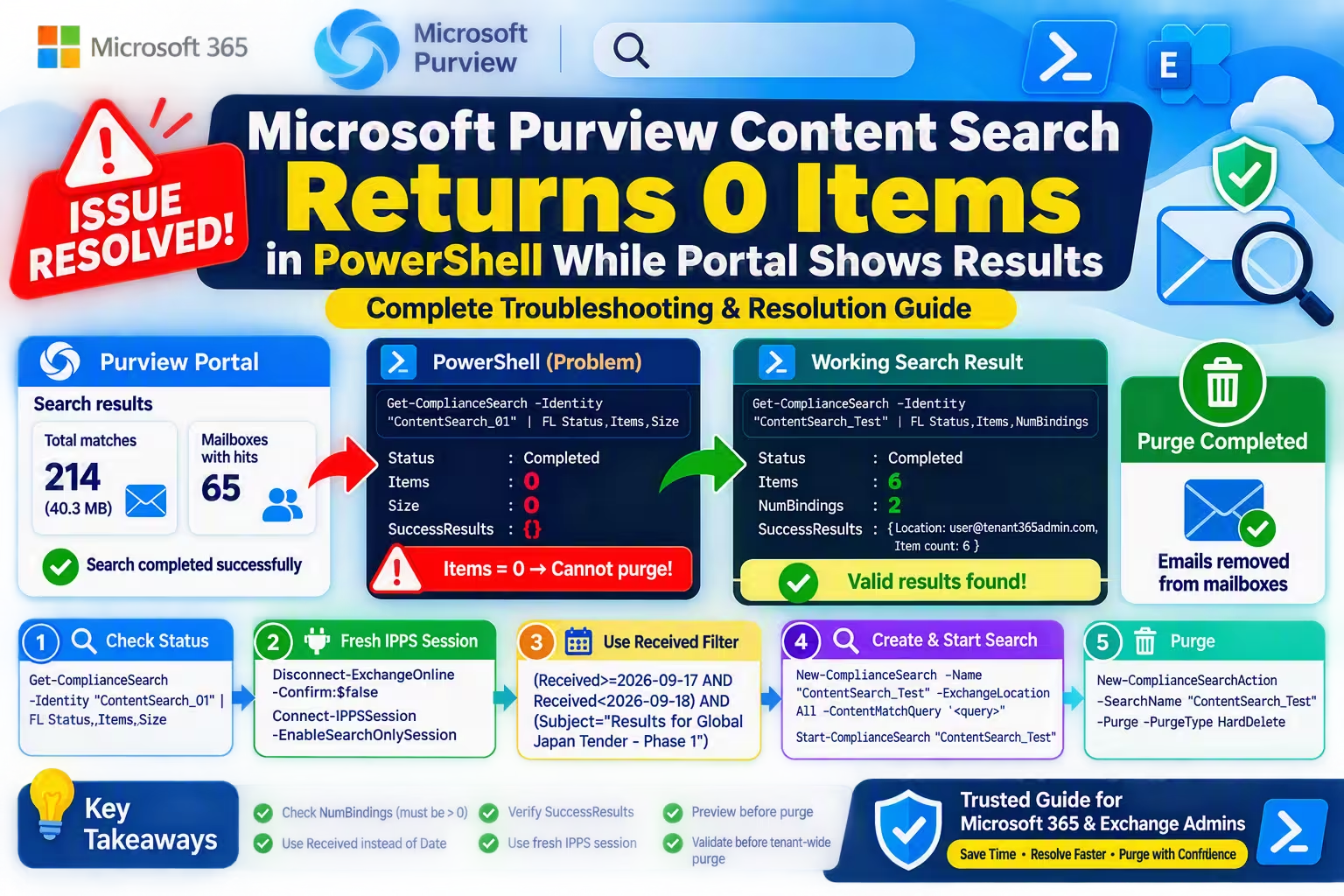
Recently, I faced this exact scenario while attempting a tenant-wide email purge for a suspicious email campaign. The Microsoft Purview portal clearly showed matching emails across multiple mailboxes, yet PowerShell reported that the search contained no results. After extensive troubleshooting, log analysis, and testing, the issue was successfully identified and resolved.
In this article, I will walk through the complete troubleshooting journey, including every PowerShell command used, the observations made at each step, the root cause, and the final solution.
Table of Contents
Issue Description Purview Content Search Returns 0 Items
A suspicious email was distributed across the organization with the following subject:
Results for Global Japan Tender – Phase 1
The objective was to identify and permanently remove all instances of this email from Microsoft 365 mailboxes using Microsoft Purview Compliance Search and Purge functionality. A Content Search was created in the Purview portal and successfully completed.
The Purview portal displayed:
Total Matches: 214
Locations with Hits: 65
Total Size: 40.3 MB
Everything appeared normal from the graphical interface. However, when validating the same search using PowerShell, the results were completely different.
Symptoms Observed
The following command was executed:
Get-ComplianceSearch -Identity "KhabirH" | FL Status,Items,Size,SuccessResultsOutput:
Status : Completed
Items : 0
Size : 0
SuccessResults : {}
Although the portal showed 214 matching items, PowerShell displayed:
Items : 0
Size : 0
At this point, Preview and Purge actions started failing.
Purge Action Failure
The following command was executed:
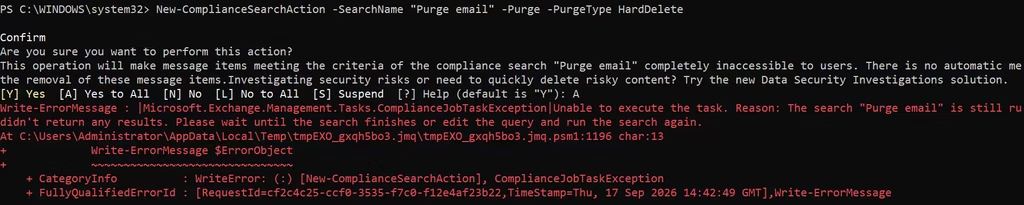
New-ComplianceSearchAction -SearchName "KhabirH" -Purge -PurgeType HardDeleteError:
Unable to execute the task.
Reason:
The search is still running or it didn’t return any results.The same issue occurred when attempting to create a Preview action. This created a confusing situation because:
- Search status was Completed
- Purview portal showed valid results
- PowerShell returned zero results
- Purge operation was blocked
Environment Information
Before beginning troubleshooting, validate the environment.
Check Exchange Online Module
Get-Module ExchangeOnlineManagement -ListAvailableOutput:
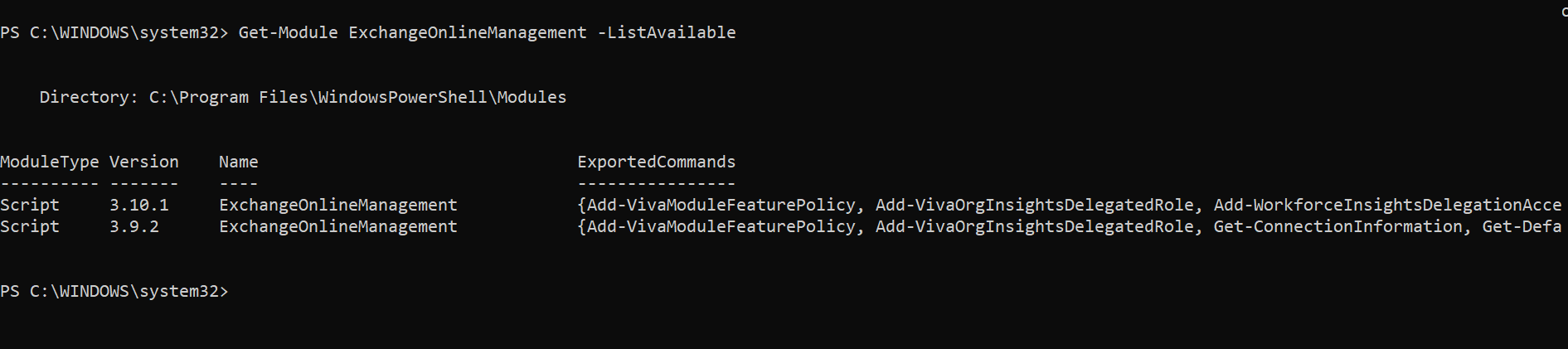
The latest Exchange Online Management module was already installed. Therefore, the issue was not related to an outdated module version.
Troubleshooting Step 1: Verify Search Status
First, verify that the search has completed successfully.
Get-ComplianceSearch -Identity "KhabirH" | FL Name,Status,Items,Size,JobProgressOutput:
Status : Completed
Items : 0
Size : 0
JobProgress : 100
Observation:
The search was fully completed. The problem was not related to indexing delays or an unfinished search process.
Troubleshooting Step 2: Verify Success Results
Next, review search statistics.
(Get-ComplianceSearch -Identity "KhabirH").SuccessResultsOutput:

Observation:
PowerShell could not retrieve search result metadata. This explained why Preview and Purge were failing.
Troubleshooting Step 3: Attempt a Preview Action
Before investigating further, attempt a Preview action.
New-ComplianceSearchAction -SearchName "KhabirH" -PreviewResult:
Unable to execute the task.
Reason:
The search “KhabirH” is still running or it didn’t return any results. This confirmed that Compliance Search Actions could not see any valid results.
Troubleshooting Step 4: Validate Existing Session
Session issues can sometimes cause unusual behavior. Check active connection information:
(Get-ConnectionInformation).ModuleVersionUnexpectedly, no output was returned. This prompted further testing.
Troubleshooting Step 5: Create a Fresh IPPS Session
A fresh Compliance PowerShell session was established.
Disconnect:
Disconnect-ExchangeOnline -Confirm:$falseReconnect:
Connect-IPPSSession -EnableSearchOnlySessionVerify:
Get-ConnectionInformationAlthough this did not immediately resolve the issue, it ruled out stale session problems.
Troubleshooting Step 6: Inspect Complete Search Properties
At this stage, the full search object was examined.
Get-ComplianceSearch -Identity "KhabirH" | FL *Important output:
Items : 0
Size : 0
SuccessResults : {}
NumBindings : 0
Status : Completed
ExchangeLocation : {KhabirH@tenant365admin.com}
The Critical Finding
The most important property discovered during troubleshooting was:
NumBindings : 0
Many administrators overlook this property. However, it indicates how many content locations were successfully processed.
Expected value: NumBindings : 1 or higher.
Actual value:
NumBindings : 0
This explained everything:
Items : 0
Size : 0
SuccessResults : {}
Without mailbox bindings, there were effectively no searchable results from PowerShell’s perspective.
Root Cause Analysis
The original Content Search query was:
(Date=2026-09-17..2026-09-17) AND (Subject:"Results for Global Japan Tender - Phase 1")Although this query displayed results inside the Microsoft Purview portal, it did not generate usable search statistics for Compliance Search PowerShell operations.
The result was:
- Portal displayed hits
- PowerShell displayed zero items
- Preview failed
- Purge failed
- NumBindings remained zero
Resolution
The solution was surprisingly simple. Instead of using the Date property, the search was recreated using the Exchange mailbox property:
ReceivedStep 7: Create a New Compliance Search
New-ComplianceSearch -Name "KhabirH_Test" -ExchangeLocation KhabirH@Tenant365admin.com -ContentMatchQuery '(Received>=2026-09-17 AND Received<2026-09-18) AND (Subject="Results for Global Japan Tender - Phase 1")'Output: Status : NotStarted

Step 8: Start Compliance Search
Start-ComplianceSearch -Identity "KhabirH_Test"Step 9: Verify Search Results
Get-ComplianceSearch -Identity "KhabirH_Test" | FL Status,Items,Size,NumBindings,SuccessResultsOutput:
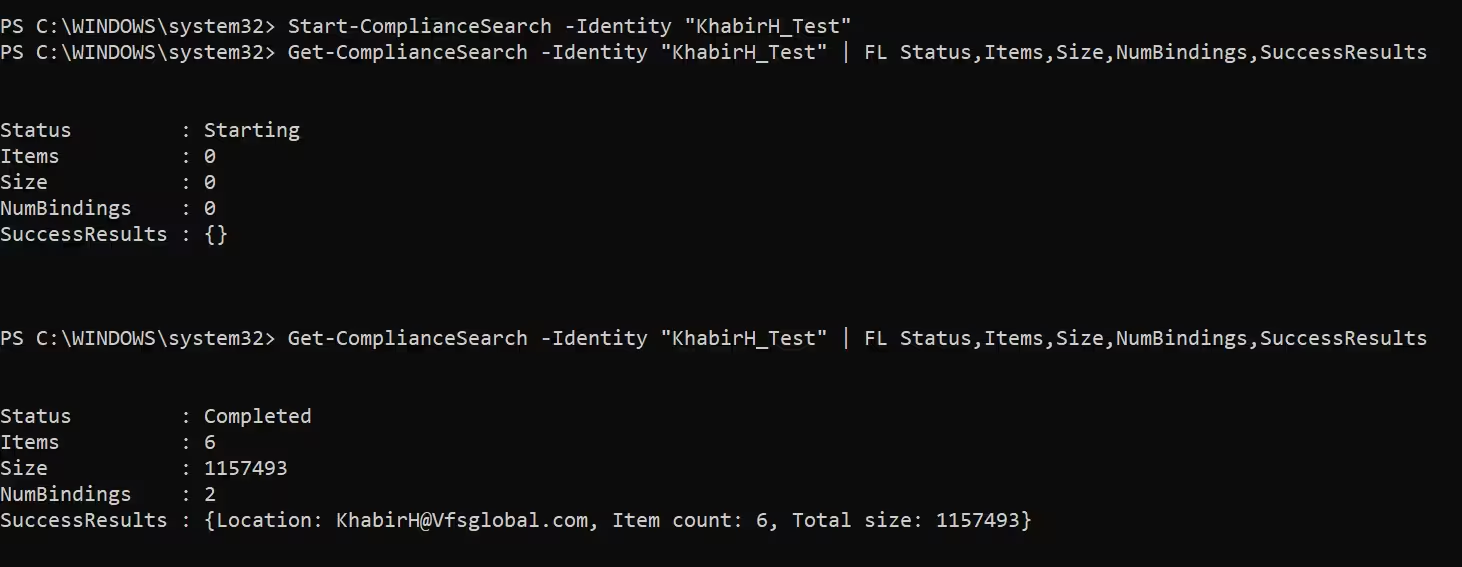
Status : Completed
Items : 6
Size : 1157493
NumBindings : 2
SuccessResults :
Location: KhabirH@Tenant365admin.com
Item count: 6
Total size: 1157493
Success!
Immediately after recreating the search using the Received property:
- Search statistics appeared
- SuccessResults populated
- NumBindings increased
- Compliance Actions became available
Step 10: Execute Hard Delete Purge
New-ComplianceSearchAction -SearchName "KhabirH_Test" -Purge -PurgeType HardDeleteOutput:

Name : KhabirH_Test_Purge
Action : Purge
Status : Starting
Step 11: Verify Purge Completion
Get-ComplianceSearchAction -Identity "KhabirH_Test_Purge"Output:

Status : Completed
The purge successfully completed.
Tenant-Wide Purge Command
After successful validation, a tenant-wide search can be executed.
New-ComplianceSearch -Name "GlobalJapanTender_Purge" -ExchangeLocation All -ContentMatchQuery '(Received>=2026-09-17 AND Received<2026-09-18) AND (Subject="Results for Global Japan Tender - Phase 1")'Start search:
Start-ComplianceSearch -Identity "GlobalJapanTender_Purge"Verify:
Get-ComplianceSearch -Identity "GlobalJapanTender_Purge" | FL Status,Items,Size,NumBindings,SuccessResultsPurge:
New-ComplianceSearchAction -SearchName "GlobalJapanTender_Purge" -Purge -PurgeType HardDeleteLessons Learned
Always Check NumBindings
Get-ComplianceSearch -Identity "<SearchName>" | FL NumBindingsIf:
NumBindings : 0
Preview and Purge actions will likely fail.
Validate SuccessResults
Get-ComplianceSearch -Identity "<SearchName>" | FL SuccessResultsThe field should contain actual search statistics.
Use Received Instead of Date
Problematic query:
(Date=2026-09-17..2026-09-17)
Working query:
(Received>=2026-09-17 AND Received<2026-09-18)
Validate Before Purging
Before any purge operation, ensure:
Status : Completed
Items : Greater than 0
NumBindings : Greater than 0
SuccessResults : Populated
Frequently Asked Questions (FAQ)
Why does Microsoft Purview show results but PowerShell shows Items=0?
This usually occurs when the search has not generated a valid result set for Compliance Search Actions. Checking NumBindings and SuccessResults can help identify the problem.
What does NumBindings mean in Compliance Search?
NumBindings represents the number of content locations successfully processed by the search. A value of 0 often indicates that the search cannot be used for Preview or Purge actions.
Why does New-ComplianceSearchAction fail with “search is still running or it didn’t return any results”?
This error appears when PowerShell cannot retrieve search statistics even if the search status shows Completed.
Which date property should be used in Compliance Search?
For Exchange Online mailbox searches, use: Received instead of: Date when filtering email messages.
How do I verify that a search is ready for purge?
Run:
Get-ComplianceSearch -Identity "<SearchName>" | FL Status,Items,Size,NumBindings,SuccessResultsEnsure:
Status = Completed
Items > 0
NumBindings > 0
SuccessResults populated before creating a Preview or Purge action.
Final Thoughts
Purview Content Search Returns 0 Items can be a difficult issue to troubleshoot because the Purview portal may display valid results while PowerShell reports an empty search. In this case, analyzing NumBindings, reviewing SuccessResults, creating a fresh IPPS session, and replacing the Date filter with the Received property ultimately resolved the issue. Following the troubleshooting methodology outlined in this guide can help Microsoft 365 administrators quickly identify the root cause and execute successful tenant-wide purge operations.
Email Header Analysis for Phishing: Powerful Ways to Identify Malicious Emails
How to Secure a New Microsoft 365 Tenant From Scratch: The Ultimate Guide
Top Microsoft 365 Compliance Features Every IT Admin Should Enable
