If you’re searching for an Outlook Running Slow Fix, you’re not alone. As someone who has diagnosed and resolved thousands of Outlook performance issues across enterprises and personal systems, I can confidently say: slow Outlook is almost always fixable—and often faster to resolve than people expect.
Whether Outlook takes forever to open, freezes when switching folders, or lags during email searches, these issues stem from identifiable causes. In this comprehensive guide, I’ll walk you through why Outlook becomes slow and provide expert-level solutions to restore its speed and performance.
Table of Contents
Why Is Outlook Running Slow?
Before applying any Outlook Running Slow Fix, it’s critical to understand the root causes. Outlook performance issues are usually tied to configuration, system resources, or data file problems.
1. Large PST or OST Files
Outlook stores data in PST or OST files. Once these files grow beyond 10–20 GB, performance degradation becomes noticeable.
Symptoms:
- Delayed email loading
- Slow search results
- Frequent freezing
2. Too Many Add-ins
Add-ins extend Outlook functionality, but poorly optimized or excessive add-ins consume memory and processing power.
Common culprit examples:
- CRM plugins
- Antivirus email scanning add-ins
- Synchronization tools
3. Corrupted Outlook Profile
A damaged profile can cause erratic behavior and severe slowdowns.
4. Outdated Outlook or Windows Version
Running older versions can significantly reduce performance and compatibility with modern servers.
5. Slow Network or Exchange Server Issues
If you’re connected to Exchange or Microsoft 365, slow server response time can affect Outlook performance directly.
6. Inefficient Search Indexing
Windows Search indexing is essential for fast Outlook search. If indexing is incomplete or broken, searches become slow.
7. Hardware Limitations
Low RAM, slow HDDs, or overloaded CPUs can impact Outlook performance, especially with large mailboxes.
Expert Outlook Running Slow Fix Solutions
Now let’s dive into proven solutions. These are prioritized based on impact and ease of implementation.
1. Reduce Mailbox Size
This is one of the most effective Outlook Running Slow Fix methods.
How to do it:
- Archive old emails
- Empty Deleted Items and Junk folders
- Save attachments externally
- Reduce OST offline time to 1 month or 3 months
Pro Tip: Enable auto-archive to keep mailbox size manageable over time.
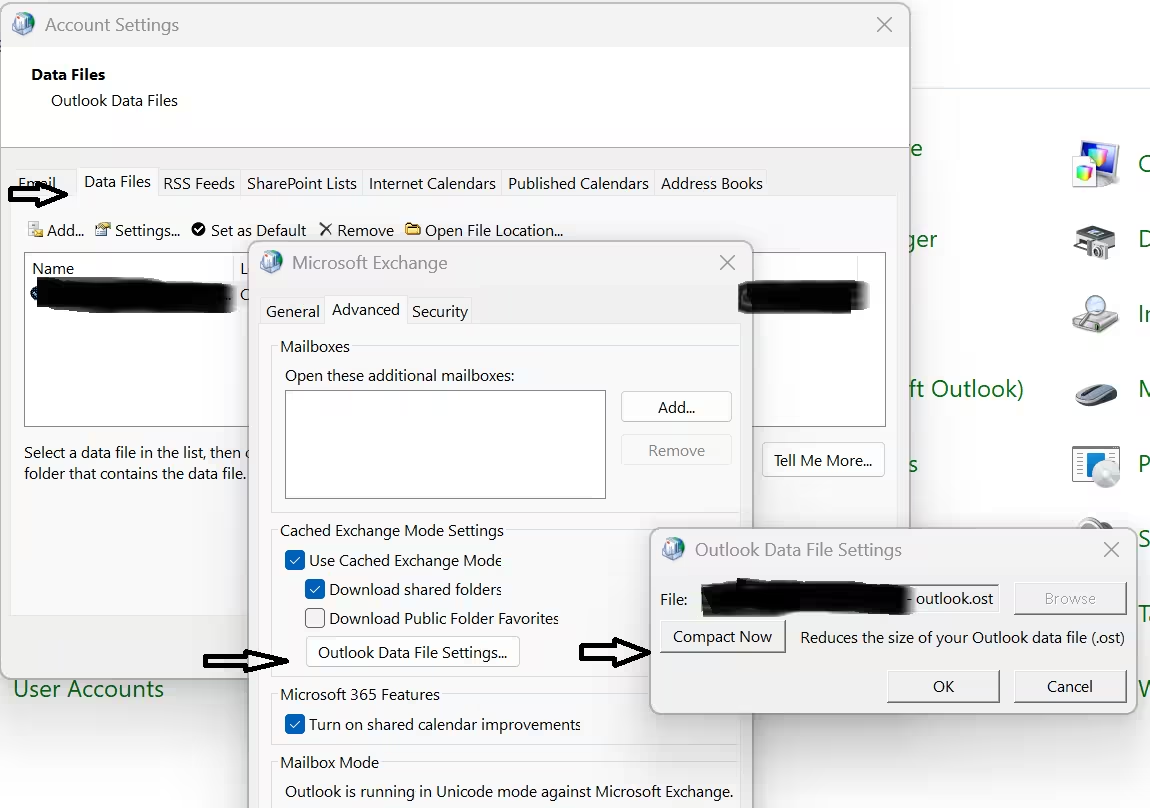
2. Compress PST/OST Files
Even after deleting emails, file size doesn’t shrink automatically.
Steps for compress PST file
- Go to Account Settings
- Select Data Files
- Click Settings → Compact Now
3. Disable Unnecessary Add-ins
Too many add-ins = slow Outlook.
Steps:
- Go to File → Options → Add-ins
- Select COM Add-ins → Go
- Uncheck non-essential add-ins
Expert Insight: Start Outlook in Safe Mode (
outlook.exe /safe) to test performance without add-ins.
4. Repair Outlook Data Files
Corrupted data files can significantly slow performance.
Use Inbox Repair Tool (SCANPST.exe):
- Locate SCANPST.exe (C:\Program Files\Microsoft Office\root\Office16)
- Run it
- Repair detected issues
5. Rebuild Outlook Profile
A fresh profile often resolves hidden issues.
Steps:
- Open Control Panel
- Go to Mail → Show Profiles
- Create a new profile
- Set it as default
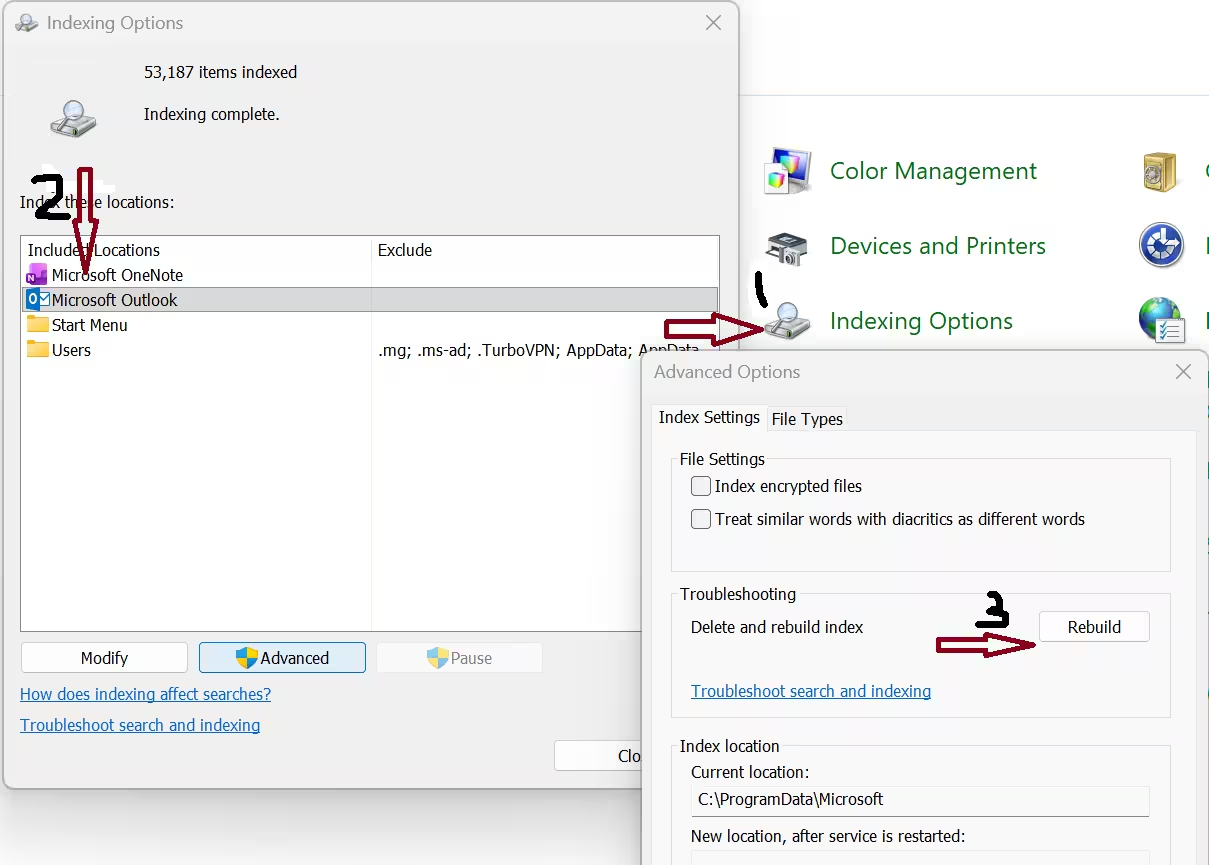
6. Optimize Windows Search Indexing
Search delays are often due to indexing problems.
Fix it by:
- Open Indexing Options
- Click Advanced → Rebuild
7. Update Outlook and Windows
Updates include performance improvements and bug fixes.
Steps:
- In outlook go to File → Office Account → Update Options
- Install latest updates
8. Disable Hardware Graphics Acceleration
Surprisingly, this can help fix lag issues.
Steps:
- File → Options → Advanced
- Enable “Disable hardware graphics acceleration”
9. Use Cached Exchange Mode
If you’re on Exchange, this improves performance.
Steps:
- File → Account Settings → Change
- Enable Cached Exchange Mode
10. Upgrade Hardware (if needed)
If none of the above works, your system might be the bottleneck.
Recommended specs:
- SSD instead of HDD
- Minimum 8 GB RAM (16 GB ideal)
Advanced Outlook Performance Optimization Tips
To truly master the Outlook Running Slow Fix, implement these advanced techniques:
Split Large PST Files
Divide large PST files into smaller ones for better manageability.
Disable RSS Feeds
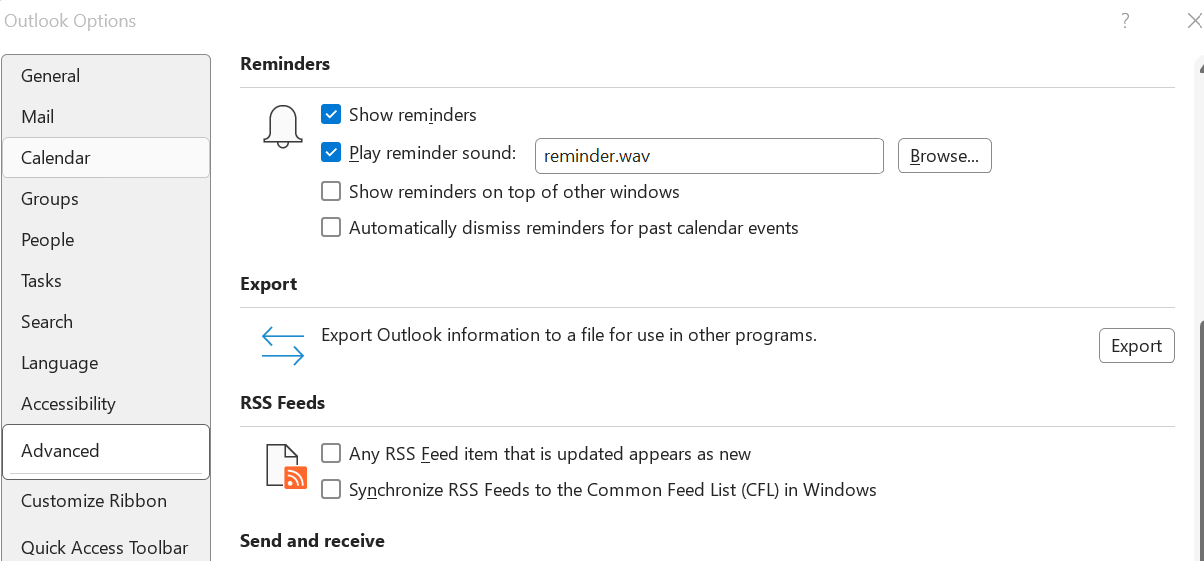
RSS syncing can slow Outlook down unnecessarily.
Clean Up Rules and Alerts
Too many rules can increase processing time.
Disable Auto-Send/Receive Frequency
Set it to longer intervals instead of every few minutes.
Common Mistakes to Avoid
Even experienced users make mistakes that worsen performance:
- Installing too many third-party plugins
- Ignoring mailbox size warnings
- Running Outlook on outdated systems
- Not maintaining regular cleanup
Avoiding these will reduce the need for repetitive Outlook Running Slow Fix actions.
Real-World Scenario: Enterprise Outlook Optimization
In a recent enterprise case, a user with a 45 GB mailbox experienced severe lag. By applying the following:
- Archiving 20 GB of emails
- Disabling 6 add-ins
- Rebuilding the profile
Outlook startup time reduced from 2 minutes to 12 seconds.
This demonstrates how effective the right Outlook Running Slow Fix strategy can be.
Frequently Asked Questions (FAQ)
Why is my Outlook running slow all of a sudden?
Sudden slowness usually occurs due to large mailbox size, newly installed add-ins, or corrupted profiles.
What is the fastest Outlook Running Slow Fix?
Disabling unnecessary add-ins and reducing mailbox size are the quickest and most effective fixes.
How do I fix Outlook slow startup?
- Disable add-ins
- Repair PST files
- Use a new Outlook profile
Does reinstalling Outlook fix performance issues?
It can help, but usually the issue lies in data files or configuration. Rebuilding the profile is often more effective.
How large should my Outlook PST file be?
Keep PST files under 10 GB for optimal performance.
Can antivirus software slow down Outlook?
Yes, especially email-scanning features. Disabling Outlook integration can improve performance.
If you consistently apply these best practices, you won’t just fix Outlook—you’ll optimize it for peak performance.
Final Thoughts
If Outlook is slowing you down, don’t ignore it. Performance issues tend to escalate over time. The good news is that most Outlook problems are predictable and solvable.
By applying this expert-led Outlook Running Slow Fix guide, you can:
- Restore speed
- Improve productivity
- Prevent future issues
Remember: proactive maintenance is the key to long-term in outlook performance.
Microsoft 365 Business vs Google Workspace: The Ultimate Power Comparison for Smart Businesses
SMTP Relay Office 365: Ultimate Expert Guide to Secure & Powerful Email Delivery
How to Become a Microsoft 365 Support Engineer: Step-by-Step Career Guide
