Password hash synchronization is the simplest and most resilient way to give hybrid users one password across on-premises Active Directory and Microsoft Entra ID. Yet it remains one of the most misunderstood features in identity engineering. Security teams hear “passwords in the cloud” and recoil. Administrators hear “one checkbox” and skip the design work. Both reactions miss the point.
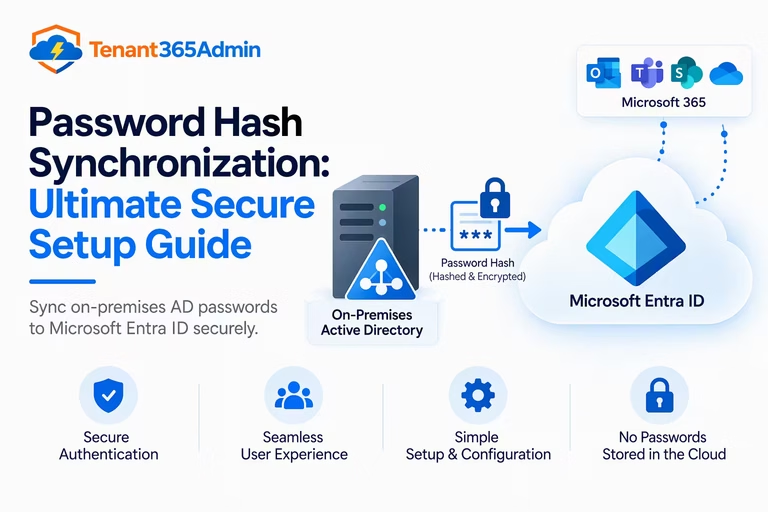
Done well, password hash synchronization removes a whole class of availability risk, cuts help desk tickets, and powers protections such as leaked credential detection. Done carelessly, it leaves stale accounts, silent sync failures and a false sense of security.
This guide covers what the feature actually does, the cryptography behind it, how it compares with pass-through authentication (PTA) and federation, a step-by-step setup path, hardening practices and the troubleshooting checks experienced administrators run in production. By the end, you will know whether password hash synchronization is the right sign-in method for your tenant and how to operate it like an expert.
Table of Contents
What Is Password Hash Synchronization?
Password hash synchronization (PHS) is a way to let people use one password for both their office network and their cloud apps, such as Microsoft 365. A few terms need unpacking first, so here is the vocabulary in plain English:
- On-premises Active Directory: the server in your company’s own building or datacenter that stores user accounts and checks passwords.
- Microsoft Entra ID (formerly Azure AD): Microsoft’s cloud directory. It checks sign-ins for Microsoft 365 and other cloud apps.
- Hybrid identity: using the on-premises directory and the cloud directory together.
- Hash: a scrambled, one-way version of a password. It is easy to create from the password and practically impossible to turn back into it.
Think of a hash as a fingerprint of your password. The system never keeps the password itself. It keeps the fingerprint, and at sign-in it takes a fresh fingerprint of whatever you typed and checks whether the two match.
So what does password hash synchronization actually do?
A tool called Microsoft Entra Connect takes the fingerprint of each user’s password from on-premises Active Directory, scrambles it once more for extra safety, and sends it to Entra ID. When someone signs in to Microsoft 365, Entra ID compares what they typed with that stored copy. The result is one password for everything, and cloud sign-in keeps working even if your office servers are offline.
Microsoft recommends password hash synchronization as the starting point. It has the fewest parts that can break, and it stays available when your on-premises systems go down.
How Password Hash Synchronization Works, Step by Step
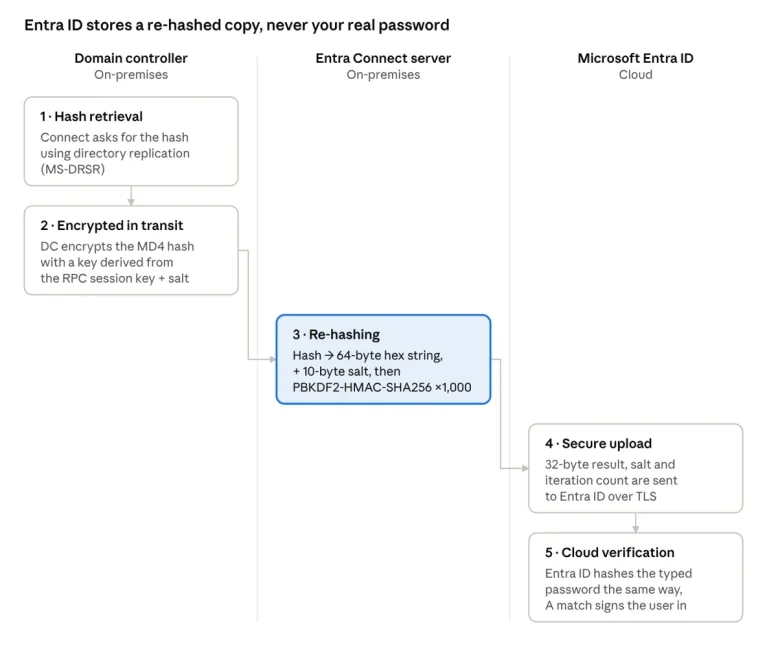
Understanding the pipeline separates a confident design from a guess. This is how password hash synchronization runs in a typical Entra Connect deployment:
- Hash retrieval. The Entra Connect server requests password hashes from a domain controller using the same directory replication protocol (MS-DRSR) that domain controllers use with each other. The connector account needs the Replicating Directory Changes and Replicating Directory Changes All permissions, which the installer grants.
- Transport protection. The domain controller encrypts the MD4 password hash with a key derived from the RPC session key and a salt. Connect decrypts it in memory only.
- Re-hashing. Connect converts the 16-byte hash into a 64-byte hexadecimal string, adds a per-user 10-byte salt, and runs the result through PBKDF2 with HMAC-SHA256 for 1,000 iterations.
- Secure upload. The final 32-byte value, with its salt and iteration count, travels to Entra ID over TLS.
- Cloud verification. At sign-in, Entra ID hashes the typed password using the stored salt and iteration count, then compares the result. A match authenticates the user.
Password changes move quickly. The password hash synchronization cycle runs roughly every two minutes, independent of the 30-minute delta sync that handles attribute changes. A user who resets a password on premises can usually sign in to the cloud with it within a few minutes.
This design is why the stored value is often called a hash of a hash. Even if an attacker obtained it, it is not the NT hash, so it cannot be replayed as a pass-the-hash credential against your domain.
Password Hash Synchronization vs Pass-Through Authentication vs Federation
Choose password hash synchronization unless you have a concrete requirement it cannot meet. The table summarizes the trade-offs.
| Criteria | PHS | PTA | Federation (AD FS) |
|---|---|---|---|
| Where passwords are validated | Microsoft Entra ID | On-premises domain controller, via agents | On-premises federation servers |
| On-premises dependency at sign-in | None | Agents and domain controllers must be online | AD FS farm, proxies and domain controllers must be online |
| Infrastructure to run | Entra Connect only | Entra Connect plus lightweight agents (three or more recommended) | Farm, Web Application Proxy, certificates, load balancers |
| Leaked credential detection | Supported | Not supported | Not supported |
| Smart card or third-party MFA at the IdP | Not natively | Not natively | Supported |
| Operational cost | Lowest | Low to medium | Highest |
When PTA or federation is still the right call
Three situations justify leaving the default: a regulatory mandate that passwords be validated on premises, a need to enforce account state and logon hours in real time, or a requirement for smart card authentication or a third-party identity provider.
Even then, enable password hash synchronization as a backup. If AD FS or your PTA agents fail, you can switch the tenant’s sign-in method to PHS in minutes rather than rebuilding infrastructure during an outage.
The one genuine trade-off is timing. With password hash synchronization, an account disabled on premises is not blocked in the cloud until the next sync cycle runs. Pair it with a documented offboarding runbook that disables the account and revokes active sessions in Entra ID.
Is Password Hash Synchronization Secure?
Yes, when implemented correctly, and the cryptography is stronger than most critics assume. Because password hash synchronization transmits a salted PBKDF2 derivative rather than the NT hash, a copy of the cloud-side value cannot be used for pass-the-hash attacks against Active Directory. Sign-in traffic is protected by TLS, and Microsoft layers Entra ID Protection, Conditional Access and Smart Lockout on top.
The real risks sit elsewhere. The Entra Connect server is a Tier 0 asset: anyone who compromises it can tamper with synchronization and reach sensitive directory data. Treat it exactly like a domain controller. Restrict administrative logon, patch aggressively, run endpoint detection, and monitor the connector account.
Password hash synchronization also strengthens your defense. Entra ID Protection can compare synchronized credentials against known leaked-credential data and raise a risk detection on a match, which can trigger a forced reset through risk-based Conditional Access. This requires Microsoft Entra ID P2 licensing and is unavailable to PTA-only and federation-only tenants.
Key Benefits of Password Hash Synchronization
- Highest availability. There is no on-premises dependency at sign-in, so cloud access survives a datacenter outage.
- Lower cost and complexity. One synchronization server replaces farms, proxies and certificate renewals.
- Better user experience. Users keep one password, and Seamless SSO removes repeat prompts on domain-joined devices.
- Stronger security signals. Leaked credential detection feeds risk-based policies automatically.
- Built-in disaster recovery. It works as a standby method for PTA and federation.
Few identity features deliver this much resilience per hour of administration, which is why password hash synchronization is the default recommendation for hybrid tenants.
How to Enable Password Hash Synchronization
Start with the prerequisites. You need a Microsoft Entra tenant with a verified domain, a domain-joined server running a supported Windows Server version, the Hybrid Identity Administrator role in Entra, and an Active Directory account with enough rights to install Connect. The server must reach Microsoft endpoints over HTTPS (port 443) and your domain controllers over standard AD ports.
- Download Microsoft Entra Connect and run the installer on a domain-joined member server, not on a domain controller.
- Choose Express Settings for a single forest, where password hash synchronization is enabled by default. Choose Customize for multiple forests, OU filtering or group scoping.
- On the user sign-in page of the Customize path, select Password Hash Synchronization.
- Enter your Entra and Active Directory credentials. Connect creates the connector account with the required replication permissions.
- Optionally tick Enable single sign-on to deploy Seamless SSO.
- Complete the wizard and confirm the initial synchronization finishes without errors.
To turn on password hash synchronization on an existing server, open Microsoft Entra Connect, choose Change user sign-in, select the method and apply it. Then verify the configuration from PowerShell on the Connect server:
Get-ADSyncAADPasswordSyncConfiguration -SourceConnector "contoso.com"
Invoke-ADSyncDiagnostics -PasswordSync
Best Practices From Production Deployments
- Add a staging server. A second Connect server in staging mode gives you fast failover and a safe place to test configuration changes.
- Scope what you sync. Filter by OU or group, and do not synchronize privileged on-premises administrator accounts to the cloud.
- Enable password writeback. Pair it with self-service password reset so cloud resets flow back to Active Directory.
- Never rely on the hash alone. Password hash synchronization is a sign-in method, not a security control. Require MFA through Conditional Access.
- Monitor continuously. Use Microsoft Entra Connect Health to alert on sync failures and stale cycles.
- Ban weak passwords. Combine Smart Lockout with Microsoft Entra Password Protection on your domain controllers.
- Stay current. Keep automatic upgrade enabled for Connect, and patch the host monthly.
Troubleshooting Password Hash Synchronization
When users report that passwords are not updating in the cloud, work through these checks in order:
- Confirm the feature and service. Run Get-ADSyncAADPasswordSyncConfiguration, check that the sync service is running, and review Connect Health for sync errors.
- Read the logs and diagnostics. Run Invoke-ADSyncDiagnostics -PasswordSync, then check the Application event log for entries from the Directory Synchronization source.
- Verify permissions. A missing Replicating Directory Changes All permission on the domain partition causes silent failures.
- Check scope. Make sure the user is inside the sync scope and not excluded by an OU or attribute filter.
- Test connectivity. Confirm the server reaches your domain controllers and Microsoft endpoints, and that TLS 1.2 is enabled.
- Resync as a last resort. Toggle the feature off and on with Set-ADSyncAADPasswordSyncConfiguration to force a full resync of every hash. Run it off-hours.
One frequent surprise: by default, synchronized passwords do not expire in the cloud, regardless of your on-premises policy, unless you enable the EnforceCloudPasswordPolicyForPasswordSyncedUsers feature. Many teams leave password hash synchronization at its defaults and never notice, so decide on purpose rather than by accident.
Conclusion
Password hash synchronization earns its place as the default hybrid sign-in method because it delivers resilience, simplicity and security signals that heavier architectures struggle to match. Treat the Entra Connect server as a Tier 0 asset, scope your sync deliberately, require MFA, and keep PHS enabled as a fallback even if you run PTA or federation. Do that, and your hybrid identity will be easier to run, cheaper to maintain and far more likely to stay online when it matters.
Frequently Asked Questions
What is password hash synchronization in simple terms?
It copies a secure, one-way derivative of each user’s on-premises password hash to Microsoft Entra ID. Users sign in to cloud apps with their usual password, and Entra ID validates it without contacting your servers.
Does password hash synchronization send my actual password to the cloud?
No. Active Directory never stores plaintext passwords, and only a salted PBKDF2 hash of the original hash is uploaded. Entra ID cannot recover the password from it.
How often does password hash synchronization run?
Password changes are picked up roughly every two minutes. This cycle is separate from the 30-minute delta sync used for attribute changes.
Can I use PHS together with pass-through authentication or federation?
Yes, and it is recommended. Running PHS alongside PTA or AD FS gives you a standby sign-in method and enables leaked credential detection.
Does it work with multifactor authentication?
Yes. Entra ID evaluates Conditional Access and MFA after the password is verified, so MFA protection is unaffected by the sync method you choose.
What happens if the Entra Connect server goes down?
Cloud sign-in keeps working with the last synchronized hashes. New password changes queue until the server returns, which is why a staging server is worth having.
Do I still need it if I am moving to passwordless?
Often, yes. Passwordless methods such as FIDO2 keys and Windows Hello reduce password use, but most hybrid estates keep password hash synchronization for legacy applications, break-glass scenarios and the transition period.
Azure Active Directory as a Service: Ultimate Pricing Guide
Single Sign On with Entra ID: Best Microsoft 365 SSO Guide
Device-Bound Passkeys in Entra ID: Ultimate Setup Guide
