Azure Active Directory is the cloud identity and access management backbone behind Microsoft 365, Azure, and thousands of third-party SaaS applications. If you run IT for a business of any size, understanding Azure Active Directory is no longer optional: it decides who gets into your systems, from which devices, under which conditions, and with what level of privilege. In this guide, I’ll walk you through everything I’ve learned deploying and hardening tenants in production, from core concepts to access methods, user accounts, licensing, and security best practices.
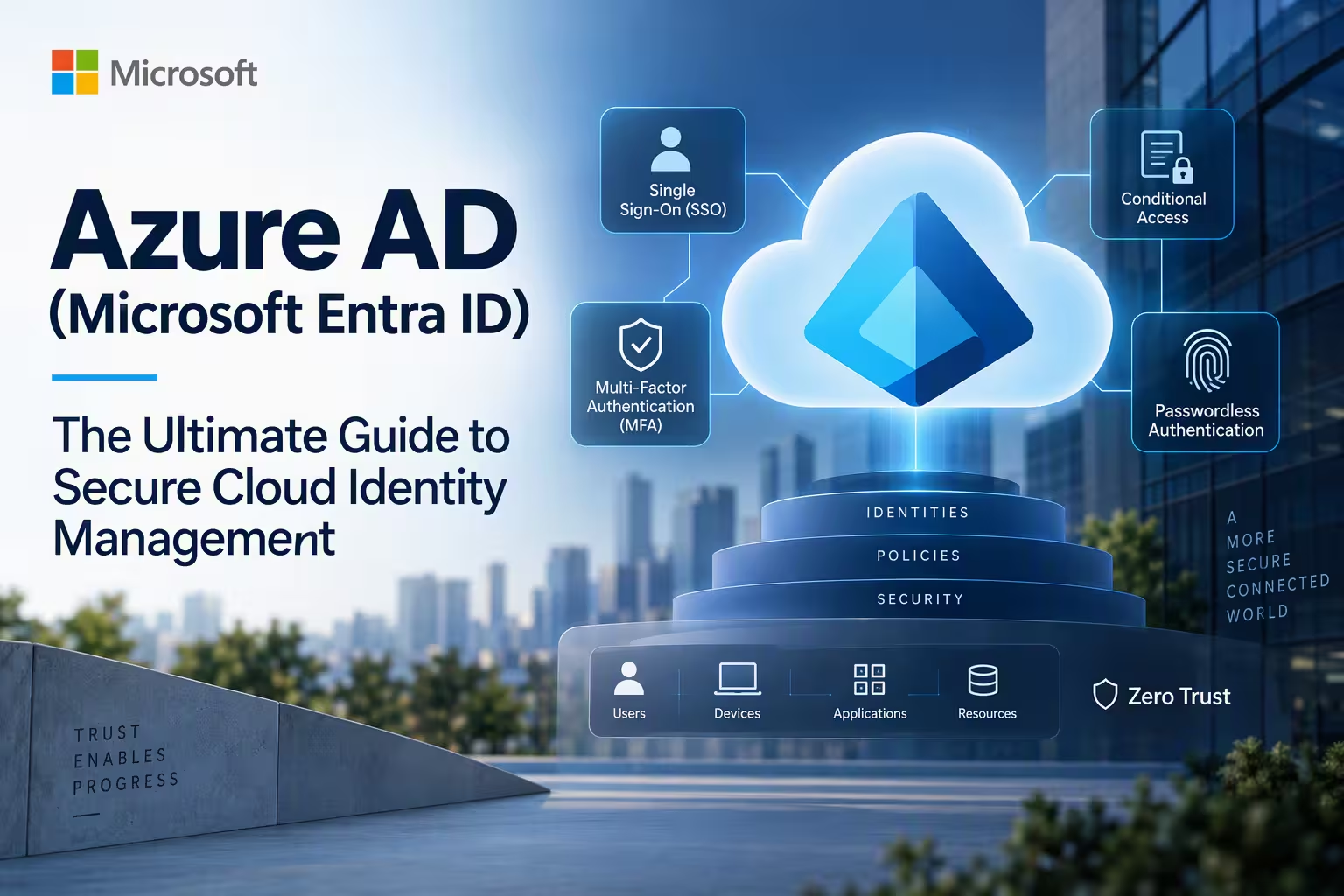
One quick note on naming before we start. In July 2023, Microsoft rebranded Azure AD as Microsoft Entra ID. The technology, APIs, and licensing model are the same, and you’ll still see “Azure AD” in documentation, PowerShell modules, job descriptions, and search results. Throughout this article I use Azure AD and Entra ID interchangeably.
Table of Contents
What Is Azure Active Directory?
Entra AD (Azure AD) is Microsoft’s cloud-based identity and access management (IAM) service. It authenticates users, devices, and applications, and then authorizes what they’re allowed to do. Think of it as the digital front door and security guard for your organization’s cloud resources.
Every organization that signs up for Microsoft 365, Dynamics 365, or an Azure subscription automatically receives an Azure Active Directory tenant. A tenant is a dedicated, isolated instance of the service that holds your users, groups, devices, applications, and policies. It’s identified by a unique Tenant ID (a GUID) and a default domain such as contoso.onmicrosoft.com, and you can attach your own custom domains like tenant365admin.com.
Here’s what Azure Active Directory gives you:
- Single sign-on (SSO): One identity to access Microsoft 365, Salesforce, ServiceNow, Slack, Zoom, AWS, and thousands more gallery applications and Entra registered application.
- Multi-factor authentication (MFA): Verification through the Microsoft Authenticator app, FIDO2 security keys, SMS, voice, or Windows Hello for Business.
- Conditional Access: Policy-driven access decisions based on user, location, device state, application, and real-time risk.
- Identity protection: Machine-learning-based detection of leaked credentials, impossible travel, and anonymous IP sign-ins.
- Privileged Identity Management (PIM): Just-in-time, time-bound, approval-based elevation for admin roles.
- B2B collaboration and external identities: Securely invite partners, vendors, and customers using their own identities.
- Hybrid identity: Synchronization with on-premises Active Directory so users keep one identity across both worlds.
- Application management: Register apps, publish on-premises apps with Application Proxy, and secure APIs with OAuth 2.0 tokens.
A common misconception is that Azure AD is simply “Active Directory in the cloud.” It isn’t. Windows Server Active Directory Domain Services (AD DS) is a directory built around domain controllers, organizational units, Group Policy, Kerberos, NTLM, and LDAP. Azure AD is a flat, multi-tenant identity platform built for the internet, using modern, HTTP-based protocols. They complement each other, but they are different products that solve different problems.
What Is Azure Active Directory and How It Works
To really understand what Azure Active Directory is and how it works, you need to follow what happens when a user signs in. The platform is built on token-based authentication, which means applications never see the user’s password. Instead, they trust cryptographically signed tokens issued by Azure AD.
The Core Authentication Flow
- The user attempts to access an application, for example Outlook on the web or a custom line-of-business app.
- The application redirects the user to the Azure Active Directory sign-in endpoint (
login.microsoftonline.com). - Azure AD authenticates the user. It verifies the password (or passwordless credential), evaluates MFA requirements, and checks every applicable Conditional Access policy.
- A security token is issued. Depending on the protocol, this is an ID token, access token, or SAML assertion, signed by Azure AD with a private key.
- The application validates the token using Microsoft’s published public keys and grants access based on the claims inside (user identity, groups, roles, and scopes).
- A refresh token lets the user stay signed in without repeated prompts until a policy or risk signal forces re-authentication.
Supported Protocols
Azure AD supports the major modern identity standards:
- OAuth 2.0 for delegated authorization and API access
- OpenID Connect (OIDC) for authentication on top of OAuth 2.0
- SAML 2.0 for enterprise SSO with older and commercial SaaS apps
- WS-Federation for legacy federated scenarios
The Building Blocks
- Tenant: Your dedicated directory instance and security boundary.
- Users and groups: Cloud-only, synced, or guest identities, organized into security groups, Microsoft 365 groups, and dynamic groups.
- App registrations and enterprise applications: The app registration is the definition of your application; the enterprise application (service principal) is its instance within your tenant.
- Managed identities: Automatically managed credentials for Azure resources such as virtual machines and Functions, so you never store secrets in code.
- Devices: Azure AD joined, hybrid joined, or registered devices, which can be marked compliant through Microsoft Intune.
- Roles: Built-in directory roles (Global Administrator, User Administrator, Security Administrator and many more) and Azure role-based access control (RBAC) for resources.
Hybrid Identity: How Azure AD Connects to On-Premises AD
Most real-world environments are hybrid. Azure AD integrates with on-premises Active Directory through Microsoft Entra Connect (or the lighter Entra Cloud Sync), which synchronizes identities to the cloud. You choose an authentication method:
- Password Hash Synchronization (PHS): A hash of the password hash is synced to the cloud. It’s the simplest option, it’s resilient, and it enables leaked-credential detection. It’s what I recommend in most cases.
- Pass-through Authentication (PTA): Cloud sign-ins are validated against on-premises domain controllers through lightweight agents.
- Federation (AD FS): Authentication is redirected to your on-premises federation servers. It adds infrastructure and complexity and is usually only justified by specific requirements.
The key architectural idea is that Azure Active Directory becomes the single control plane for authentication and policy, even when identities originate on-premises.
Microsoft Azure Active Directory: Editions, Licensing, and Pricing
When people search for Microsoft Azure Active Directory, they’re often trying to work out which edition they need. Microsoft offers several tiers, and the differences matter for both security and budget. Prices change, so always confirm current figures on Microsoft’s official pricing page, but the structure below is stable.
| Edition | Best For | Key Capabilities |
|---|---|---|
| Free | Small teams, Azure subscribers | Basic user and group management, SSO for a limited number of apps, security defaults, cloud authentication, MFA via security defaults |
| Microsoft 365 Apps (Office 365) | Microsoft 365 customers | Everything in Free plus company branding, self-service password change, and SLA-backed availability |
| Premium P1 | Most businesses | Conditional Access, dynamic groups, self-service password reset with writeback, Application Proxy, hybrid identity features, group-based licensing |
| Premium P2 | Regulated or security-focused organizations | Everything in P1 plus Identity Protection (risk-based policies), Privileged Identity Management, and access reviews |
| Entra ID Governance (add-on) | Large enterprises | Lifecycle workflows, entitlement management, advanced access reviews |
In practice, I advise most organizations to start with Premium P1, because Conditional Access is the single most valuable feature in the platform. Premium P2 pays for itself in any environment with privileged accounts or compliance requirements. Many companies already have P1 or P2 bundled in Microsoft 365 E3/E5, Enterprise Mobility + Security, or Microsoft 365 Business Premium, so audit your existing licenses before buying anything new.
Why Azure AD Beats Legacy Identity Approaches
- Reduced attack surface: No domain controllers or VPN-dependent authentication to maintain for cloud apps.
- Zero Trust alignment: Every sign-in is verified explicitly using identity, device, location, and risk.
- Scalability: Microsoft handles billions of authentications daily with a financially backed availability SLA for paid tiers.
- Lower operational cost: No patching, backups, or capacity planning for the identity infrastructure itself.
- Ecosystem breadth: The gallery contains thousands of pre-integrated applications.
How to Access Azure Active Directory
There are several ways to access Azure Active Directory, depending on whether you’re a casual admin, an automation engineer, or a developer. Whichever you choose, you need an account with sufficient permissions, such as Global Reader for viewing or User Administrator and Global Administrator for changes.
1. The Microsoft Entra Admin Center
This is the modern, recommended console. Go to entra.microsoft.com, sign in with your work or school account, and open Identity. From there you can manage users, groups, devices, applications, protection policies, and governance in one place.
2. The Azure Portal
Sign in at portal.azure.com, search for Microsoft Entra ID (formerly Azure Active Directory) in the top search bar, and select it. The Azure portal is useful when you need to work with Azure resources and directory settings side by side, or when you’re assigning Azure RBAC roles.
3. The Microsoft 365 Admin Center
At admin.microsoft.com, administrators can create users, reset passwords, and assign licenses. Behind the scenes, these actions are changes to Azure AD, which is why Microsoft 365 admins are already Azure AD admins whether they realize it or not.
4. Microsoft Graph PowerShell
For automation and bulk operations, use the Microsoft Graph PowerShell SDK, which replaces the older, deprecated AzureAD and MSOnline modules:
Install-Module Microsoft.Graph -Scope CurrentUser
Connect-MgGraph -Scopes "User.Read.All"
Get-MgUser -Top 10
5. Azure CLI
If you prefer a cross-platform command line:
az login
az ad user list --output table
6. Microsoft Graph API
Developers can manage the directory programmatically through https://graph.microsoft.com, using delegated or application permissions granted through an app registration. This is the foundation for most custom provisioning, reporting, and integration work.
Access Best Practices
- Never use day-to-day accounts for administration. Create separate, cloud-only admin accounts without mailboxes or licenses.
- Require phishing-resistant MFA (FIDO2 keys or Windows Hello) for every administrator.
- Maintain two emergency “break-glass” accounts, excluded from Conditional Access, with long random passwords stored securely offline, and monitor them for any sign-in.
- Use PIM for just-in-time elevation rather than permanent Global Administrator assignments.
- Limit Global Administrators to fewer than five people; use least-privileged roles for everything else.
What Is an Azure Active Directory User Account?
An Azure Active Directory user account is the identity object that represents a person (or occasionally a service) in your tenant. It’s what authenticates when someone signs in, and it’s the anchor for licenses, group memberships, role assignments, and audit logs.
Key Attributes of a User Account
- User Principal Name (UPN): The sign-in name, formatted like an email address (
jane.doe@contoso.com). - Object ID: An immutable GUID that uniquely identifies the account in your tenant.
- Display name, job title, department, manager, and location: Attributes used for dynamic groups, address lists, and policy targeting.
- Authentication methods: Registered passwords, authenticator apps, security keys, and phone numbers.
- Assigned licenses and roles: What the user can access and administer.
Types of User Accounts
- Cloud-only users: Created directly in Azure AD. They exist solely in the cloud and are managed there.
- Synchronized users: Created in on-premises Active Directory and synced through Entra Connect. The on-premises directory remains the source of authority, so you edit core attributes there.
- Guest (B2B) users: External collaborators invited with their own email or identity provider. They appear in your directory with a user type of Guest and carry restricted default permissions.
- Service accounts and workload identities: Service principals and managed identities that represent applications and automation. These should be used instead of human-style accounts for non-interactive processes.
How to Create a User Account
- Sign in to the Microsoft Entra admin center.
- Go to Identity > Users > All users > New user > Create new user.
- Enter the UPN, display name, and an initial password (or let the system generate one).
- Fill in job information, usage location, and group memberships.
- Assign a license under Licenses, which is required for services such as Exchange Online and Teams.
- Review and create. The user will be prompted to change their password and register MFA at first sign-in.
For bulk creation, use the Bulk create CSV template in the portal or script it through Microsoft Graph PowerShell.
User Account Lifecycle Management
A mature Azure AD deployment treats the user account as having a full lifecycle:
- Joiner: Automated provisioning from your HR system with birthright access via dynamic groups.
- Mover: Role changes trigger group and license updates automatically.
- Leaver: Accounts are disabled immediately, sessions revoked, and licenses reclaimed. Use “Revoke sessions” to invalidate existing tokens.
Manual lifecycle management is where most identity security gaps come from. Orphaned accounts and stale guest users are among the most common findings in tenant security reviews.
Azure Active Directory Security Best Practices
After years of reviewing tenants, I see the same weaknesses repeatedly. Here is the checklist I use:
- Enable MFA for all users. At a minimum, turn on security defaults; ideally, enforce MFA through Conditional Access.
- Block legacy authentication. Protocols like IMAP, POP, and SMTP basic auth bypass MFA and are a leading cause of account compromise.
- Deploy baseline Conditional Access policies: require MFA for admins, require MFA for risky sign-ins, require compliant devices for sensitive apps, and block sign-ins from countries where you have no users.
- Adopt passwordless authentication with the Authenticator app, FIDO2 keys, or Windows Hello for Business.
- Microsoft Entra: Authenticated password change in My Sign-Ins Enable Microsoft Entra will enable users to change passwords after secure sign-in using strong credentials (passkey, FIDO2, Windows Hello) without knowing the current password or using SSPR.
- Use PIM and access reviews to keep privileged roles and guest access fresh and justified.
- Restrict user consent to applications. Limit who can grant permissions to third-party apps to prevent consent-phishing attacks.
- Monitor sign-in and audit logs. Stream them to Microsoft Sentinel or a Log Analytics workspace, and alert on unusual admin activity.
- Review guest users quarterly. Remove those who no longer need access.
- Protect your hybrid sync server. Treat the Entra Connect server as a Tier 0 asset, because compromising it can compromise the tenant.
Frequently Asked Questions (FAQ)
1. Is Azure Active Directory free?
Yes, there’s a Free edition included with any Azure or Microsoft 365 subscription, offering basic user management and SSO. Advanced features like Conditional Access, Identity Protection, and PIM require Premium P1 or P2 licenses.
2. Is Azure Active Directory the same as Microsoft Entra ID?
Yes. Microsoft renamed Azure AD to Microsoft Entra ID in 2023. The service, features, and APIs are the same, though some older tools and documentation still use the Azure AD name.
3. What is the difference between Azure Active Directory and Active Directory Domain Services?
Active Directory Domain Services is the traditional on-premises directory using Kerberos, NTLM, LDAP, and Group Policy. Azure AD is a cloud identity service using OAuth 2.0, OpenID Connect, and SAML. Many organizations run both and synchronize them in a hybrid setup.
4. Can Azure AD replace on-premises Active Directory?
For cloud-first organizations, yes. With Azure AD join, Intune, and cloud-based apps, you can operate without domain controllers. If you depend on legacy applications, file servers, or Group Policy, you may still need AD DS, or Microsoft Entra Domain Services as a managed alternative.
5. How do I log in to Azure Active Directory?
Go to entra.microsoft.com or portal.azure.com and sign in with your work or school account. You’ll need an administrative role to make changes, though standard users can see limited information.
6. What is a tenant in Azure AD?
A tenant is a dedicated instance of the service that represents your organization. It contains your users, groups, apps, devices, and policies, and it acts as a security and administrative boundary.
7. How much does Azure AD cost?
The Free edition costs nothing, while Premium P1 and P2 are priced per user per month. Check Microsoft’s current pricing page for exact figures, and verify whether your Microsoft 365 or EMS license already includes P1 or P2.
8. How do I secure Azure AD accounts?
Enforce MFA (preferably phishing-resistant), block legacy authentication, use Conditional Access, apply least-privilege roles with PIM, and monitor sign-in logs for suspicious activity.
9. Can external users access my Azure Active Directory resources?
Yes, through B2B collaboration. You can invite guests with their own credentials, limit what they can see, and use access reviews to remove them when they no longer need access.
10. What happens if a user leaves the company?
Disable the account, revoke active sessions, remove licenses and group memberships, and reassign data ownership. Automating this through HR-driven provisioning keeps it consistent and quick.
Final Thoughts
Azure Active Directory has evolved from a directory service into the identity control plane of the Microsoft cloud. Whether you call it Azure AD or Microsoft Entra ID, the fundamentals are the same: authenticate strongly, authorize with least privilege, and verify continuously. Start by understanding your tenant, enforce MFA everywhere, deploy Conditional Access, and automate the user lifecycle. Do those four things well and you’ll have eliminated the majority of identity-based risk in your environment.
If you’re planning a migration, a hybrid deployment, or a security hardening project, treat Azure Active Directory as the foundation. Every other security investment you make is only as strong as the identity layer underneath it.
Microsoft 365 E1 vs E3 vs E5 — Expert Guide to Choosing the Right Plan
Microsoft O365 Plans: A Complete Expert Guide for Businesses and Professionals
Microsoft 365 Login Issues – A Quick Troubleshooting Guide
