Exchange Online Archive is one of the most underused yet powerful features inside Microsoft 365, and if you’re not using it correctly, you’re probably sitting on a ticking time bomb of mailbox quota errors, compliance gaps, and painful PST file sprawl. As someone who has architected, migrated, and troubleshot Exchange environments for years, I can tell you that Exchange Online Archive is not just a “nice to have” — it’s a foundational piece of any serious email governance strategy.
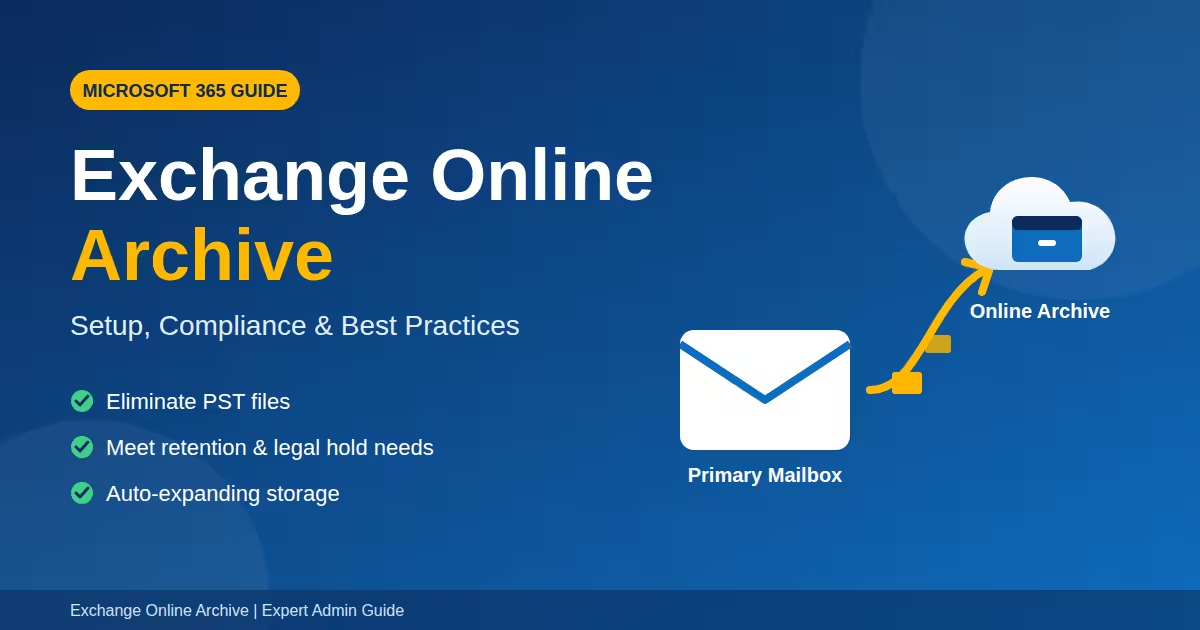
In this guide, I’ll break down exactly what Exchange Online Archive is, how it works under the hood, why it matters for compliance and storage management, and how to configure it correctly the first time.
Table of Contents
What Is Exchange Online Archive?
Exchange Online Archive, also known as the “In-Place Archive” or “Online Archive,” is a secondary mailbox that Microsoft 365 provisions alongside a user’s primary mailbox. Its purpose is simple: give users and administrators a place to store older or less-frequently-accessed email without bloating the primary mailbox or forcing users to rely on risky local PST files.
Unlike a traditional archive solution that lives on-premises or requires third-party software, the Exchange Online Archive is fully cloud-hosted, seamlessly integrated into Outlook and Outlook on the Web, and searchable through the same interface users already know. When enabled, it appears as a separate folder tree in Outlook labeled “Online Archive – [username],” sitting right alongside the user’s regular Inbox.
Why Exchange Online Archive Matters More Than Ever
Email volume has exploded. The average knowledge worker now sends and receives hundreds of messages a day, and mailbox sizes are ballooning as a result. Without a proper archiving strategy, organizations run into three recurring problems:
- Mailbox quota exhaustion — Users hit storage limits and can’t send or receive mail.
- Uncontrolled PST proliferation — Employees export old mail to local PST files, creating massive compliance and eDiscovery blind spots.
- Poor Outlook performance — Bloated primary mailboxes slow down search, sync, and load times.
Exchange Online Archive directly solves all three. By offloading older items into the archive mailbox, IT teams eliminate the need for PSTs entirely, keep primary mailboxes lean and fast, and ensure that every piece of mail — old or new — remains centrally managed, searchable, and subject to the organization’s compliance policies.
How Exchange Online Archive Works
When Online Archive is enabled for a mailbox, Microsoft 365 provisions an additional mailbox database entry tied to the user’s identity. This isn’t a separate account — it’s an extension of the same mailbox, meaning:
- Permissions and access controls mirror the primary mailbox.
- The archive is fully indexed and searchable via Outlook search, In-Place eDiscovery, and Content Search in the Microsoft Purview compliance portal.
- Retention policies can move items automatically from the primary mailbox into the archive based on age.
- Litigation hold and retention hold policies apply equally to archived content.
There are two main flavors of Exchange Online Archive depending on licensing:
- Standard Online Archive — Typically included with most Microsoft 365 Business and Enterprise plans, offering a defined storage quota (commonly 100 GB or more depending on license tier).
- Auto-Expanding Archive — Available with certain E3/E5 or add-on licenses, this variant automatically grows storage capacity as needed, which is critical for organizations with regulatory retention obligations spanning many years.
Setting Up Exchange Online Archive: Step-by-Step
Enabling Online Archive is straightforward, but doing it correctly requires attention to a few details administrators frequently overlook.
Step 1: Verify Licensing
Before enabling the archive mailbox, confirm the user is assigned a license that includes Online Archive (e.g., Exchange Online Plan 2, Microsoft 365 E3/E5, or an Exchange Online Archiving add-on for Plan 1 users).
Step 2: Enable the Archive via Exchange Admin Center
Navigate to the Exchange Admin Center, select the target mailbox, and toggle on “Archive Mailbox.” This process typically completes within a few minutes but can take up to 24 hours to fully propagate in larger tenants.
Step 3: Configure Retention Policies
This is where most organizations fall short. Simply enabling Exchange Online Archive without a retention policy means nothing gets moved automatically. Create a Retention Policy in the Microsoft Purview compliance portal with a Move to Archive tag (commonly set to move items older than 2 years, though this is fully customizable).
Step 4: Apply the Policy and Communicate to Users
Assign the retention policy to affected mailboxes and notify end users that older mail will begin appearing in a new “Online Archive” folder in Outlook. This small communication step prevents a flood of confused help desk tickets.
Step 5: Enable Auto-Expanding Archiving (If Needed)
For regulated industries — legal, healthcare, financial services — enable auto-expanding archiving via PowerShell (Enable-Mailbox -Identity <user> -AutoExpandingArchive) to ensure storage never becomes a bottleneck for compliance retention.
Exchange Online Archive vs. PST Files
I still see organizations relying on PST files as their “archive strategy,” and it’s one of the riskiest habits in enterprise IT. PST files:
- Are not centrally searchable during eDiscovery.
- Can become corrupted or lost if stored on local drives.
- Fall outside retention and legal hold enforcement.
- Create massive liability in litigation scenarios.
Exchange Online Archive eliminates every one of these risks. Because the archive mailbox lives in the cloud and is governed by the same compliance framework as the primary mailbox, it is fully discoverable, protected under litigation hold, and immune to the “laptop got stolen” nightmare scenario that haunts PST-based archiving.
Exchange Online Archive and Compliance
For compliance officers and legal teams, Exchange Online Archive is a critical enabler. Content stored in the archive mailbox is:
- Included in Content Search and eDiscovery cases.
- Subject to Litigation Hold and In-Place Hold policies.
- Covered by Data Loss Prevention (DLP) policies where applicable.
- Retained according to organization-wide retention labels and policies.
This means legal and compliance teams don’t need a separate tool to search archived mail — it’s part of the same unified search experience across the Microsoft 365 compliance ecosystem. When regulators or opposing counsel request historical communications, Exchange Online Archive ensures nothing falls through the cracks.
Common Issues and How to Troubleshoot Them
Even with a mature deployment, administrators run into a handful of recurring issues with Exchange Online Archive:
Archive folder not appearing in Outlook
Usually caused by cached Outlook profiles. Recreating the Outlook profile or waiting for the next Autodiscover sync typically resolves this.
Items not moving to the archive automatically
This almost always traces back to a missing or misconfigured retention policy — remember, enabling the archive mailbox alone does not move anything.
Auto-expanding archive not triggering
Auto-expansion only kicks in once the archive mailbox approaches its storage limit; it won’t pre-allocate space, so don’t be alarmed if quota still shows the original size until it’s nearly full.
Best Practices for Managing Exchange Online Archive
After years of managing Exchange environments, here are the practices I recommend to every organization deploying Exchange Online Archive:
- Standardize retention policies tenant-wide rather than leaving archive behavior to individual user preference.
- Educate end users on how to search across both primary and archive mailboxes so nothing feels “lost.”
- Monitor archive mailbox growth quarterly, especially for auto-expanding archives tied to regulatory retention windows.
- Combine with Litigation Hold for any mailbox subject to legal or regulatory scrutiny, ensuring archived content can never be altered or deleted.
Frequently Asked Questions (FAQ)
1. What is the difference between Exchange Online Archive and a regular mailbox?
A regular mailbox is the primary mail store users interact with daily, while Exchange Online Archive is a secondary, cloud-based mailbox designed to store older or less-active email, keeping the primary mailbox lean while remaining fully searchable and compliant.
2. Does Exchange Online Archive count against my mailbox storage quota?
No. Exchange Online Archive has its own separate storage allocation, distinct from the primary mailbox quota, which is one of the biggest advantages over simply expanding primary mailbox storage.
3. Can users manually move emails to the Exchange Online Archive?
Yes. Users can drag and drop items into the archive folder in Outlook, though most organizations rely on automated retention policies to handle this at scale.
4. Is Online Archive included in all Microsoft 365 plans?
Not all plans include it by default. Business Standard and some entry-level plans require an Exchange Online Archiving add-on, while most Enterprise plans (E3/E5) include it natively.
5. Does Litigation Hold apply to items in the Exchange Online Archive?
Yes. Litigation Hold, In-Place Hold, and retention policies apply equally to both the primary mailbox and the archive mailbox, ensuring complete legal defensibility.
6. What happens if the Online Archive runs out of space?
If Auto-Expanding Archiving is enabled, Microsoft automatically increases the archive’s storage capacity as needed. Without it, administrators must manage growth manually or request additional storage.
7. Can I disable online Archive after enabling it?
Yes, but doing so can affect access to archived content, so it’s important to back up or migrate archived data before disabling the feature for any mailbox.
Final Thoughts
Exchange Online Archive is one of the most cost-effective and operationally important features available in Microsoft 365, yet it remains underconfigured in far too many tenants. Whether your goal is reducing mailbox bloat, eliminating risky PST files, or satisfying strict compliance mandates, a properly configured Online Archive gives you a scalable, secure, and fully searchable solution — without the overhead of third-party archiving tools.
If your organization hasn’t reviewed its Online Archive configuration in the last year, now is the time. A few hours of setup and policy tuning today can save your legal, compliance, and IT teams from major headaches down the road.
Exchange Online PowerShell Cheat Sheet: Ultimate Admin Guide
Conditional Access Interview Questions: Proven Answers 2026
Microsoft 365 Tenant Admin: Ultimate Security & Roles Guide
