Microsoft 365 Email Encryption is one of the most effective, user-friendly ways to protect sensitive messages in transit and at rest, while giving your organization the controls it needs for governance, compliance, and user experience. In this lesson, I’ll teach you—like I would in a live workshop—how to plan, configure, deploy, and troubleshoot encryption in Microsoft 365, using both the Microsoft 365 admin center and PowerShell. We’ll cover Office Message Encryption (OME), S/MIME, Sensitivity Labels with encryption (AIP/RMS), Data Loss Prevention (DLP) triggers, user experience on different devices, and what to monitor after rollout.

By the end, you’ll be able to ship a secure, compliant, and low-friction Microsoft 365 Email Encryption rollout that your security team, auditors, and end users will love.
Table of Contents
What is Microsoft 365 Email Encryption?
At its core, Microsoft 365 Email Encryption ensures only your intended recipients can access message content—even if the email traverses untrusted networks. Microsoft provides several mechanisms:
- Office Message Encryption (OME): Azure Rights Management–based protection that works natively in Outlook and for external recipients via a secure web portal.
- Sensitivity Labels with Encryption: Policy‑driven protection embedded into the message content and attachments, controlling read/forward/print and expiration.
- S/MIME: Standards-based public key encryption and signing for orgs that require certificate‑based controls.
- Transport Rules & DLP: Server‑side policies to auto‑apply encryption based on content, recipients, or sensitivity.
Most organizations start with OME and Sensitivity Labels, then add S/MIME for regulated teams that need certificate‑based workflows.
Licensing & prerequisites
Before you begin deploying Microsoft 365 Email Encryption, validate the following:
- Licensing
- OME and Rights Management are included in Microsoft 365 E3/E5 and Enterprise Mobility + Security (EMS) E3/E5 (via Azure Information Protection / Purview Information Protection).
- Sensitivity Labels with encryption require Azure Rights Management (now part of Microsoft Purview Information Protection).
- DLP requires Microsoft 365 E3/E5 (advanced features in E5).
- Tenant configuration
- Azure Rights Management (a.k.a. Microsoft Purview Information Protection protection service) enabled.
- Modern authentication (OAuth 2.0) enabled for Exchange Online
- Outlook clients updated to current channels supported by Microsoft 365 Email Encryption..
- External DNS configured for Exchange Online (SPF, DKIM, DMARC recommended but not required for encryption).
How to Check if Modern Authentication Is Enabled in Exchange Online
Microsoft provides two official methods:
- Check via PowerShell
- Check via Microsoft 365 Admin Center
Both methods are supported and documented in Microsoft Learn.
Method 1: Check Using Exchange Online PowerShell (Most Accurate)
Step 1 — Connect to Exchange Online PowerShell
Connect-ExchangeOnlineStep 2 — Run this command to check the Modern Auth status
Get-OrganizationConfig | Format-Table Name,OAuth2ClientProfileEnabled -AutoInterpret the result
- If
OAuth2ClientProfileEnabled = True→ Modern Authentication is ENABLED - If
False→ Modern Authentication is DISABLED
Method 2: Check Through the Microsoft 365 Admin Center
Step‑by‑Step
- Go to Microsoft 365 Admin Center:
https://admin.microsoft.com - Navigate to:
Settings → Org Settings → Modern Authentication - Look for the option:
“Turn on modern authentication for Outlook 2013 for Windows and later (recommended)”
Interpretation
- If the option is checked → Modern Authentication is Enabled
- If unchecked → It is Disabled
Tip: If you’re unsure about SKU entitlements, check your tenant subscriptions in the Microsoft 365 admin center under Billing > Your products.
Planning your encryption strategy
A successful Microsoft 365 Email Encryption rollout starts with clear objectives:
- Data Profiles: Identify data requiring protection—PII, PHI, financials, source code, legal docs.
- Protection model: Choose where to start: OME for broad coverage, Sensitivity Labels for granularity, S/MIME for specific teams.
- User experience: Prefer labels (user-applied) + policy (auto-labeling/auto-encryption) for simplicity.
- External recipients: Decide whether recipients must sign in (Microsoft or one‑time passcode), or if you’ll allow “Do Not Forward” experiences only for internal users.
- Governance & compliance: Define retention, auditing, key management (BYOK/DKE if needed), and incident response processes.
- Rollout plan: Pilot with 5–10% of users across roles, validate UX and deliver training.
Enable Office Message Encryption (OME)
Microsoft 365 Email Encryption with OME is the fastest way to start.
Microsoft 365 Message Encryption (OME)
Step 1: Ensure the protection service is activated
- In Microsoft 365 admin center: go to Compliance (Purview) > Information protection.
- Confirm Activate protection (Azure Rights Management) is enabled for your tenant.
- If not, activate it from the Purview portal under Information protection > sensitivity label.
Step 2: Configure OME branding (optional but recommended)
Custom branding helps recipients trust your messages.
- Go to Exchange admin center (EAC) → Mail flow → Rules.
- Create or edit an Apply Office 365 Message Encryption action.
- In OME portal branding, add your logo, help URL, and disclaimer text.
Step 3: Test manual encryption from Outlook
- In Outlook for Windows/Mac/Web, compose a message → Options → Encrypt.
- Choose Encrypt-Only or Do Not Forward.
- Send to an external account (e.g., personal Gmail) to experience the secure portal.
Use Sensitivity Labels to apply encryption
Sensitivity Labels are the modern, policy-driven backbone of Microsoft 365 Email Encryption.
Step 1: Create Labels
- In Microsoft Purview → Information protection → Sensitivity Labels → Create a label.
- Add label “Confidential – External” with encryption:
- Assign permissions:
- Internal: All Authenticated Users (Read) or specific groups.
- External: Restrict or allow domains with time‑bound access.
- Forward/Reply: Disable if needed (Do Not Forward equivalent).
- Content expiration: Optional (e.g., expires in 90 days).
- Assign permissions:
Step 2: Publish a Label Policy
- Publish labels to a pilot group first.
- Set default label for new emails if your policy requires it.
- Enable mandatory labeling if you want users to classify every email.
- Optionally, auto-labeling: Configure conditions (keywords, sensitive info types) to suggest or auto-apply labels.
Step 3: Client experience
- In Outlook, users see labels in the ribbon (e.g., Public, General, Confidential).
- When a user picks an encrypted label, the email is automatically protected.
Configure S/MIME (optional)
If your compliance team mandates certificate‑based encryption:
- Issue S/MIME certificates to users from your internal CA or a public CA.
- Publish user certificates to the Exchange Global Address List (GAL) so senders can find recipient public keys.
- Client configuration:
- Outlook desktop: Import the user’s S/MIME certificate under File > Options > Trust Center > Email Security.
- Outlook on the web: Enable S/MIME add‑in if required by your policy.
- Pilot test: Verify encryption/signing between internal users and with trusted external partners who share certificates.
Note: S/MIME is powerful but adds operational overhead. Most organizations achieve policy goals with Microsoft 365 Email Encryption via OME and Sensitivity Labels alone.
Create mail flow rules to auto-encrypt
You can enforce Microsoft 365 Email Encryption without relying on users to click Encrypt.
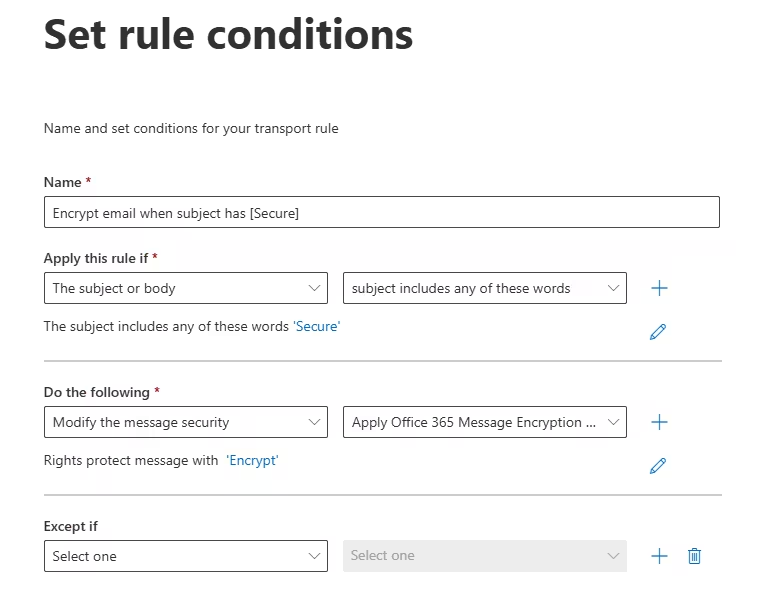
Example: Encrypt when subject contains “[Secure]”
- EAC → Mail flow → Rules → + Add a rule.
- Name: Encrypt email when subject has [Secure].
- Condition: Subject includes →
[Secure]. - Action: Apply Office 365 Message Encryption and rights protection → Encrypt-Only.
- Save and test.
Example: Encrypt when sending to external recipients
- Condition: The recipient is external.
- Action: Apply OME with Do Not Forward or Encrypt-Only.
- Add exception for trusted partners if needed.
Example: Enforce label‑based encryption
If a user selects Confidential – External, set a rule to reject if encryption is missing (defense‑in‑depth), or to re‑apply Encrypt‑Only.
Recipient experience (internal & external)
A standout feature of Microsoft 365 Email Encryption is a smooth recipient journey:
- Internal Recipients (same tenant): Fully native. The email opens in Outlook with ribbons showing the applied label or Encrypt status.
- External Recipients:
- If using Encrypt-Only, recipients get a branded message with a “Read the message” link, authenticating with a Microsoft account or one‑time passcode (OTP).
- If using Do Not Forward, recipients can view but can’t forward/print/cop y (policy enforced by RMS).
- Sensitivity Labels with encryption can allow domain-based access (
@partner.com) without requiring Microsoft accounts, using OTP.
Pro tip: Add a simple help paragraph to the OME portal branding (“You’ll be asked for a one‑time code. It expires in 15 minutes.”) to reduce helpdesk calls.
Mobile & Outlook experience
Microsoft 365 Email Encryption works across:
- Outlook Desktop (Win/Mac): Best experience with current builds.
- Outlook on the Web: Full support for OME and labels.
- Outlook for iOS/Android: Users can read encrypted mail; capabilities improve steadily with app updates.
- Non‑Outlook clients: Fall back to secure portal (OME) for viewing.
Ensure your pilot includes at least one heavy mobile user to validate OTP flows.
Auditing, reporting & governance
To operate Microsoft 365 Email Encryption at scale, enable monitoring:
- Unified Audit Log (Purview → Audit): Track label applied, protection events, and access attempts.
- Message trace (EAC): Verify OME application via transport rules or DLP.
- Purview Content Explorer: See where sensitive labels are used.
- Alerting: Create alerts for failed policy applications or unusual spikes in encrypted mail.
- Key Management: Consider BYOK or Double Key Encryption (DKE) if regulatory regimes require you to hold keys on‑prem.
Document retention decisions: encrypted content should still comply with Retention Policies and eDiscovery requirements. Test searchability of encrypted mail for your legal team.
Troubleshooting & common errors
Even well‑planned Microsoft 365 Email Encryption deployments run into edge cases. Here’s how to fix them fast:
- Recipient can’t open encrypted message
- Ask them to use the “Read the message” link and choose One‑time passcode.
- Check if your rule applied Do Not Forward to a mailbox that forwards (blocked by policy).
- If using S/MIME, confirm the recipient’s public key is available and current.
- Label is applied but not encrypted
- Verify the label’s encryption settings in Purview.
- Confirm the published policy includes the user and that Outlook has refreshed policy (restart client).
- Check for a mail flow rule that strips or overrides headers.
- DLP didn’t trigger encryption
- Set the policy to Audit/Enforce and re‑test with clear sample data.
- Confirm the message location is Exchange and the rule priority isn’t shadowed by other rules.
- External OTP not received
- Ask recipient to check Spam/Junk.
- Verify your tenant’s outbound reputation (SPF/DKIM/DMARC good).
- Resend the message or switch the recipient to Microsoft sign‑in if they have an account.
- Transport rule conflicts
- Use rule priority and stop processing more rules to avoid double‑encryption or contradictory actions.
Security best practices & tips
- Least privilege: Restrict who can create/modify labels that include encryption.
- Use Sensitivity Labels instead of manual “Encrypt” where possible—policy is more consistent.
- Prefer Encrypt‑Only for partners; reserve Do Not Forward for internal comms to reduce friction.
- DLP + Labels: Combine for robust enforcement of Microsoft 365 Email Encryption across your org.
- Training: Teach users how to choose labels and recognize encrypted mail.
- Key strategy: If you have strict sovereignty needs, evaluate BYOK or DKE early.
- Test eDiscovery: Validate that legal hold, search, and export processes support your protected emails.
- Brand the OME portal: Trustworthy look reduces phishing confusion and support calls.
FAQ
Q: Do recipients need a Microsoft account to open encrypted mail?
A: No. With Microsoft 365 Email Encryption, external recipients can authenticate using a one‑time passcode if they don’t have a Microsoft account.
Q: What’s the difference between Encrypt‑Only and Do Not Forward?
A: Encrypt‑Only protects content and limits access to intended recipients without restricting forwarding once decrypted (depending on policy). Do Not Forward strictly prevents forwarding/printing/copying via Rights Management.
Q: Should I use S/MIME or OME?
A: Most orgs lead with OME and Sensitivity Labels. Use S/MIME for regulated teams that need PKI‑based controls or when partners mandate S/MIME.
Q: Can I auto‑encrypt based on content?
A: Yes. Use DLP to detect sensitive info types and automatically enforce Microsoft 365 Email Encryption.
Q: Will encryption break search or retention?
A: Properly configured, Microsoft 365 Email Encryption works with retention, auditing, and eDiscovery—validate in your pilot and with your legal team.
Deployment checklist
Use this to ship your Microsoft 365 Email Encryption project confidently:
- Licensing confirmed (E3/E5 or EMS equivalents).
- Azure Rights Management activated (Purview).
- Sensitivity Labels created (at least: Public, Internal, Confidential – External).
- Label Policies published to pilot users.
- OME enabled; branding configured.
- Mail flow rules in place (subject tag, external recipients).
- DLP policy created to auto‑encrypt regulated data.
- S/MIME planned (if required) and certificates deployed.
- User training delivered (Quick Start guide + 5‑minute video).
- Audit & alerting enabled; message trace procedures documented.
- Pilot validation completed: internal, external, mobile, and eDiscovery.
- Gradual rollout to remaining users; helpdesk runbook updated.
Teaching notes & rollout advice
When I teach Microsoft 365 Email Encryption, I emphasize three pillars:
- Clarity beats complexity: Start with two or three labels and expand later.
- Policy over habit: Let DLP and mail flow rules do the heavy lifting.
- Empathy for recipients: Make the external flow obvious—brand your portal and explain OTP in the footer of encrypted emails.
A small pilot, clear comms, and post‑deployment telemetry will give you a secure, low‑friction encryption program.
Final Takeaway
Microsoft 365 Email Encryption gives you robust protections without sacrificing user experience. Start with OME and Sensitivity Labels, layer in DLP for consistency, and use S/MIME only where it’s truly required. With the steps in this guide, you can move from planning to production confidently—and prove it with audit trails and great recipient experiences.
