Email Retention Policy Not Working is one of the most common — and most frustrating — issues faced by Microsoft 365 administrators. You carefully configure retention tags, apply the policy to mailboxes, wait patiently… and then nothing happens. Emails don’t archive. Messages don’t delete. Mailbox sizes keep growing.
If you’re facing an Email Retention Policy Not Working problem in Exchange Online, this deep‑dive guide will walk you through exactly how Microsoft 365 retention works, why it often appears broken, and how to fix it using proven, real‑world troubleshooting steps.
Table of Contents
Understanding How Email Retention Works in Microsoft 365
Before fixing an Email Retention Policy Not Working issue, it’s essential to understand how email retention actually operates behind the scenes.
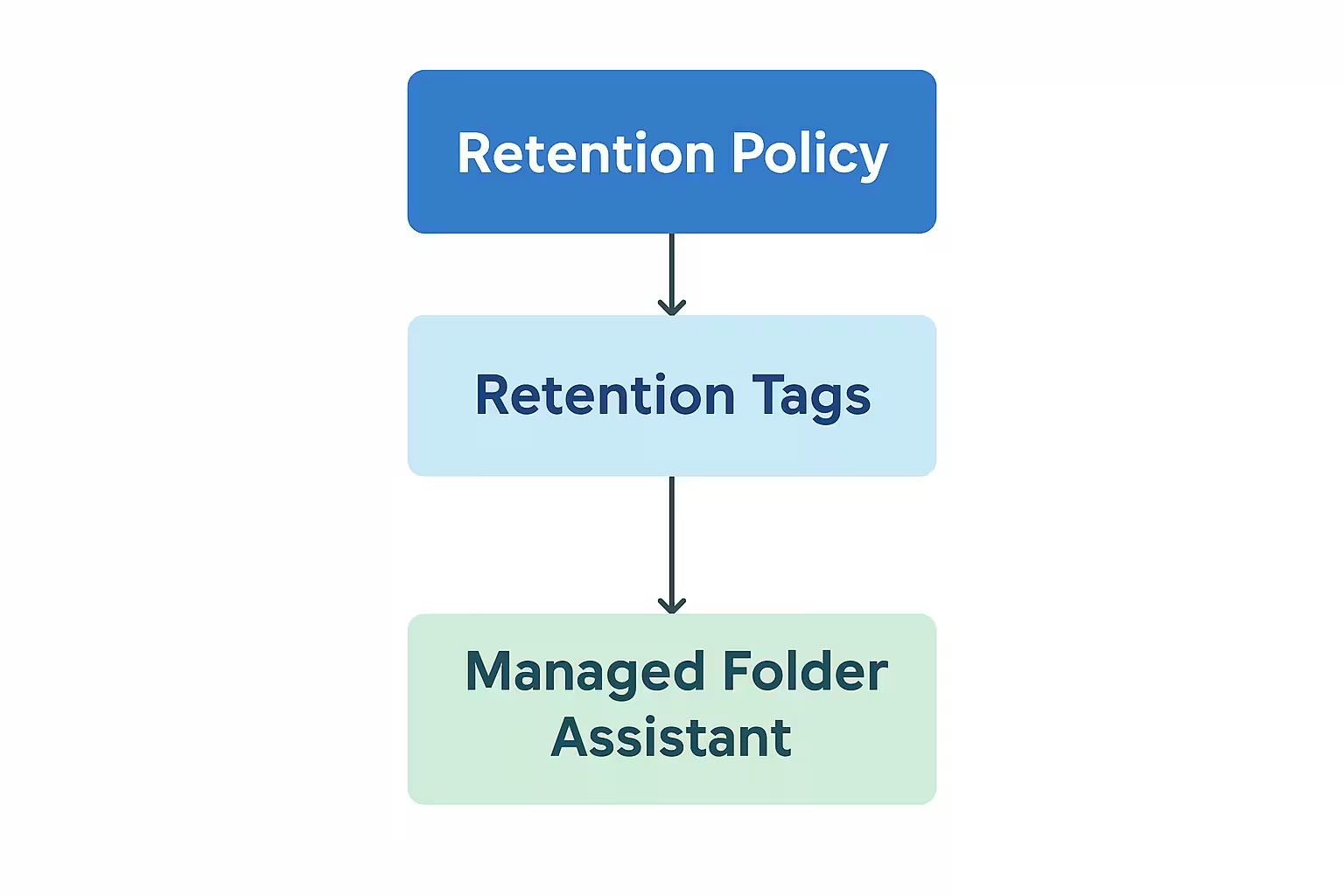
Microsoft 365 email retention is built on a framework called Messaging Records Management (MRM). This framework consists of three critical components:
- Retention Tags
- Retention Policies
- Managed Folder Assistant (MFA)
If any one of these components is misconfigured or delayed, your Email Retention Policy will not work as expected.
Retention Tags Explained (The Core of Email Retention)
Retention tags define what action should happen to an email and when. A common reason for an Email Retention Policy Not Working is misunderstanding how these tags behave.
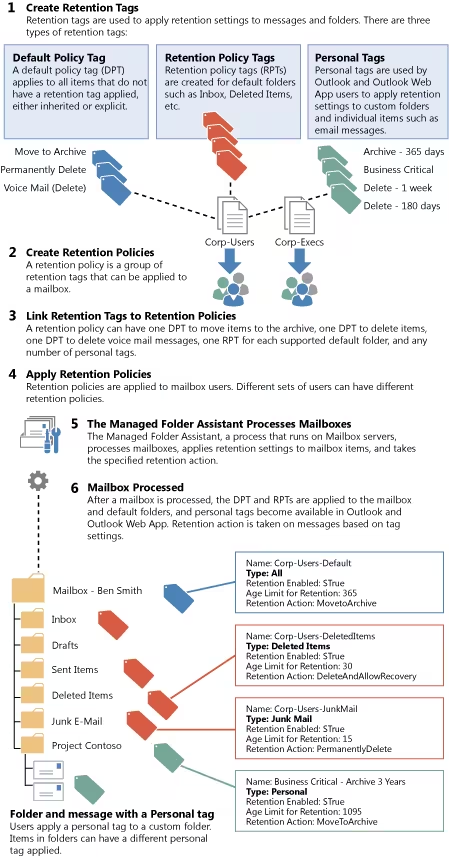
Types of Retention Tags
1. Default Policy Tag (DPT)
- Applies to the entire mailbox
- If no other tag is applied, this one wins
- Supported actions:
- Move to Archive
- Delete and Allow Recovery
- Permanently Delete
2. Retention Policy Tags (RPT)
- Apply to default folders only
- Inbox
- Sent Items
- Deleted Items
- Used mostly for cleanup scenarios
- Supports deletion actions
3. Personal Tags
- Created by admins, applied by users
- Can be applied at:
- Folder level
- Individual email level
- Override all other tags
🔴 Personal tags are a very common hidden reason for an Email Retention Policy Not Working.
Retention Policies: Why They Matter
A retention policy is simply a container that holds retention tags.
Important rules:
- A mailbox can have only one retention policy
- Tags inside the policy do NOT stack
- The most specific tag always wins
If your Email Retention Policy is not working, always check:
- Which policy is applied
- Which tags exist inside the policy
- Whether tags conflict with each other
Managed Folder Assistant (MFA): The Silent Worker
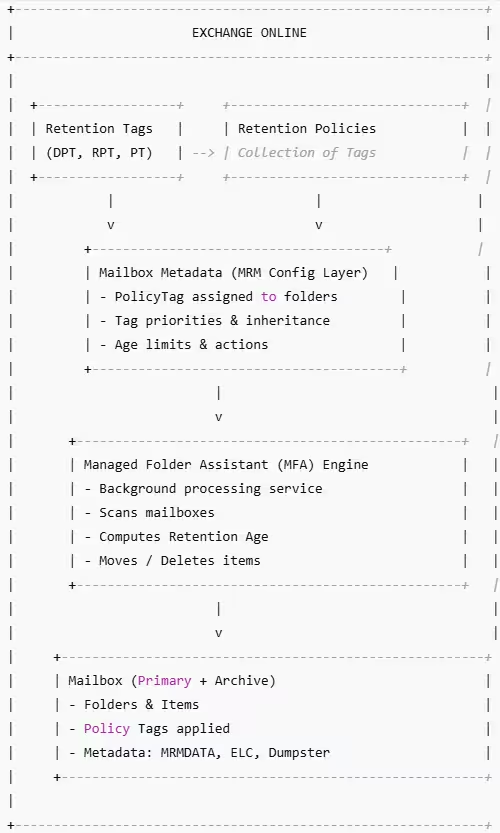
The Managed Folder Assistant (MFA) is the main background service in Exchange Online that applies Messaging Records Management (MRM) and enforces email retention and archive policies on user mailboxes.
MFA runs as part of Microsoft’s cloud‑based Mailbox Assistant Service and works automatically in the background. It does not run on a fixed schedule. Instead, it processes mailboxes on a variable cycle, usually every 1 to 7 days, depending on system load, mailbox activity, and Microsoft’s internal workload balancing. MFA exlcude those mailboxes whose mailbox size is less that 10 MB. If a mailbox size is less than 10 MB in that case retention policy will not work on that mailbox.
When MFA runs, it quietly scans the mailbox and reads retention information such as:
- Applied retention tags
- Folder inheritance rules
- Retention policy timestamps
It then calculates the retention age of each email using either the received date or last modified date (whichever is newer). Based on this evaluation, MFA checks which tag applies to the item — Default Policy Tag (DPT), Retention Policy Tag (RPT), or Personal Tag — and decides what action to take.
Depending on the tag and retention age, MFA may:
- Move the email to the Online Archive
- Delete the email to the Recoverable Items folder
- Permanently delete the email
- Or simply mark the email as past its retention period
Behind the scenes, MFA works with hidden mailbox components such as MRM folders, ELC metadata tables, and the Recoverable Items subsystem. These components help MFA record processing results, track timestamps like LastProcessedTime and LastSuccessTime, and maintain retention settings at the item level.
If the mailbox is under any compliance controls — such as Litigation Hold, In‑Place Hold, Retention Hold, or Preservation Lock — MFA automatically changes its behavior. In these cases, it continues to evaluate and tag emails but stops all deletion actions to ensure compliance.
Administrators do not have to wait for the automatic cycle. They can manually force MFA to process a mailbox immediately by running the following command:
Start-ManagedFolderAssistant user@domain.comThis command places the mailbox in the processing queue so MFA can apply retention actions as soon as resources allow.
Below is a conceptual architecture of how MRM operates inside Exchange Online:
Step‑by‑Step Troubleshooting: Email Retention Policy Not Working
Let’s now fix the problem properly.
Step 1: Verify Archive Mailbox Is Enabled
If your Email Retention Policy moves mail to archive, verify the archive mailbox exists and is active.
Get-Mailbox "user@domain.com" | Select ArchiveStatus,ArchiveNameOutput Should return: Active

If the archive mailbox is disabled or not provisioned, archive retention actions will never occur.
Step 2: Check if emails are moving to Online Archive
Once you verify that online archive mailbox is enabled for the user, run below PowerShell command and check if emails are moving to online archive:
Get-MailboxStatistics "user@domain.com" -Archive | select ItemCount,TotalItemSizeThe output of above command will show the total item count in online archive mailbox as shown below:

Step 3: Identify the Retention Policy Applied
A very common Email Retention Policy Not Working scenario is simply the wrong policy applied.
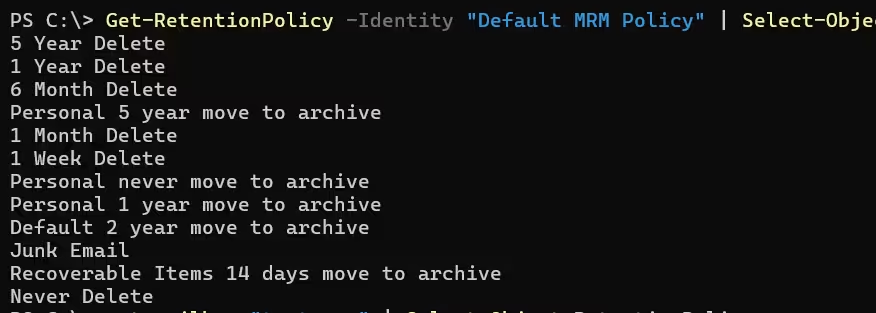
get-mailbox "user@domain.com" | Select-Object RetentionPolicyTo find out what tags this policy includes, run below PowerShell command:
Get-RetentionPolicy -Identity "Policy Name" | Select-Object -ExpandProperty RetentionPolicyTagLinksConfirm:
- DPT exists
- Expected retention action is correct
- No overlapping tag durations
Step 4: Check for Mailbox Holds (CRITICAL)
Holds override retention deletion. Always.
If a mailbox is under:
- Litigation Hold
- eDiscovery Hold
- Microsoft Purview retention hold
Emails will never delete, even if your Email Retention Policy is configured correctly.
Get-Mailbox "user@domain.com" | fl holdThe above PowerShell command will show all types of holds on a mailbox and if they are enabled or not as shown below:

If holds exist, deletion is blocked by design. In my case litigation hold is on so in this case my email will not deleted even if correct retention policy is applied.
Step 5: Confirm Email Age and Modification Date
Once you confirm that Retention Hold is not enabled on the mailbox but emails are still not moving to the online archive or not getting deleted as per retention tag, the next thing you should check is the Last Modified Date of the emails.
In Exchange Online, the retention age of an email is calculated based on the item’s retention start date. For most emails, this is the Date Received, but only if the email has never been changed. If the email is modified in any way — such as being moved to another folder, marked as read or unread, flagged, categorized, or updated by Outlook, mobile devices, or third‑party applications — the Last Modified Date is updated.
When this happens, Exchange uses the Last Modified Date as the new starting point for retention calculations. As a result, an email that looks old based on its received date may still not qualify for archiving because its modified date is recent. This is a common reason why emails do not move to the online archive even though the retention policy appears to be configured correctly.
You can also run below PowerShell command to check last modified date for all items of a mailbox:
Get-MailboxFolderStatistics -Identity "user@domain.com" -IncludeOldestAndNewestItems | Export-CSV -NoTypeInformation -Path C:\Temp\Lastmodifydate.csvStep 6: Validate Mailbox Size and Health
If a mailbox is full or its storage usage goes above 90%, retention processing and mailbox cleanup can become slow or may stop working properly.
In this situation, the user should first move some emails manually to the Online Archive mailbox. This helps reduce pressure on the primary mailbox. Once the mailbox size drops to a normal level, an administrator should run the following command to force retention processing:
Start-ManagedFolderAssistant -Identity user@domain.comRunning this command triggers the Managed Folder Assistant (MFA) to reprocess the mailbox and continue moving eligible emails to the Online Archive based on the assigned retention policy.
Additionally, the mailbox must be larger than 10 MB. Very small mailboxes may not contain enough data for retention or archive policies to take effect. When this happens, it can appear as though Messaging Records Management (MRM) is not working, even though it is functioning correctly.
Step 7: Check ELC Processing status
To confirm whether Email Lifecycle (ELC) processing is working correctly for a specific mailbox, you can check its ELC processing status using PowerShell.
Run the following command:
Export-MailboxDiagnosticLogs -Identity "user@domain.com" -ExtendedPropertiesThe output of this command contains several ELC‑related attributes that help you understand whether retention processing is running correctly.
Key Attributes to Review
Look for the following values in the output:
- ELCLastSuccessTimestamp – Shows the last time ELC processing completed successfully
- ElcLastRunTaggedFolderCount – Number of folders processed during the last run
- ElcLastRunTotalProcessingTime – Total time taken for the last ELC run
- ElcLastRunTaggedWithArchiveItemCount – Number of items tagged for archive
- ElcLastRunUpdatedItemCount – Number of items updated during processing
These values help determine whether ELC is actively processing the mailbox or failing silently
Identifying If ELC Is Disabled
If ELCLastSuccessTimestamp does not show any date or time, it usually means that ELC processing is disabled either at the organization level or for the specific mailbox.
To verify this, run the following commands:
Get-OrganizationConfig | Select-Object ElcProcessingDisabledGet-Mailbox "user@domain.com" | Select-Object ElcProcessingDisabledMake sure the ElcProcessingDisabled value is set to False in both outputs.
Re‑Enable ELC Processing (If Disabled)
If ElcProcessingDisabled is set to True for the mailbox, you can re‑enable ELC processing by running:
Set-Mailbox "user@domain.com" -ElcProcessingDisabled $falseOnce enabled, you can trigger retention processing again using the Managed Folder Assistant if needed.
Stepe 7: Force MFA on Mailbox
If the ELCLastSuccessTimestamp does not show a recent date and time, it means that Email Lifecycle (ELC) processing has not run successfully on the mailbox for some time.
To address this, you can manually force the Managed Folder Assistant (MFA) to reprocess the mailbox by running the following PowerShell command:
Start-ManagedFolderAssistant -Identity "user@domain.com" -FullCrawlThe ‑FullCrawl switch tells MFA to scan the entire mailbox instead of only processing recently changed items. This is useful when retention or archive actions have been delayed or skipped. After running this command, MFA will reevaluate all mailbox items and apply the appropriate retention or archive actions based on the assigned retention policy.
This step is often effective when emails are not moving to the Online Archive even though retention settings appear to be configured correctly.
Step 8: Look for Personal Tag Overrides
If a user has applied a personal tag:
- Folder‑level tags override DPT
- Item‑level tags override everything
This leads admins to believe the Email Retention Policy is not working, when it’s actually behaving correctly.
Advanced detection requires tools like MFCMAPI.
Step 9: Remove Corrupt MRM Metadata (Advanced)
In rare cases, MRM metadata becomes stale or corrupted.
Symptoms:
- MFA runs but does nothing
- No errors in logs
- Retention never triggers
Advanced remediation may include:
- Clearing MRM properties via MFCMAPI
- Reassigning the retention policy
- Forcing MFA again
Common Misconceptions About Email Retention
| Myth | Truth |
|---|---|
| Retention runs instantly | MFA runs on schedule |
| Policy applied = processed | MFA must execute |
| Retention deletes hold items | Holds override deletion |
| Archive is immediate | Archive follows MFA |
These misunderstandings account for most Email Retention Policy Not Working complaints.
Best Practices to Prevent Retention Failures
To avoid Email Retention Policy Not Working issues in the future:
- Test on pilot mailboxes
- Avoid overlapping retention tags
- Document all mailbox holds
- Educate users on personal tags
- Monitor MFA processing routinely
Final Thoughts
When an Email Retention Policy Not Working issue occurs, it is rarely a bug. Almost always, the cause lies in:
- MFA processing delays
- Hidden mailbox holds
- Tag precedence conflicts
- Misunderstood retention behavior
By understanding how retention truly works and following a structured troubleshooting approach, you can fix Email Retention Policy Not Working issue confidently.
Privileged Identity Management Setup Guide
M365 Copilot Use Cases That Radically Transform Finance & Healthcare
Mailbox Auditing in Exchange Online: A Positive Guide for Secure Compliance
