Accepted Domain vs Remote Domain is one of the most misunderstood yet mission‑critical concepts in Microsoft Exchange Online. Configure these incorrectly, and you invite mail flow outages, phishing risks, winmail.dat complaints, auto‑reply storms, and even data leaks. Configure them correctly, and a large percentage of Exchange mail flow issues simply disappear.
This deep dive guide is built entirely on real enterprise scenarios, production misconfigurations, and exam‑grade fundamentals from Exchange Online environments. Whether you are an L1 admin, an L3 architect, or preparing for MS‑203, understanding Accepted Domain vs Remote Domain is non‑negotiable.
Table of Contents
Why Accepted Domain vs Remote Domain Is So Critical
In real-world Exchange Online troubleshooting, most incidents trace back to one of two root causes:
- Exchange does not recognize a recipient domain as internal
- Exchange behaves incorrectly when sending email externally
These issues map directly to Accepted Domains (inbound control) and Remote Domains (outbound behavior control).
Think of Accepted Domain vs Remote Domain as the difference between:
- Who you accept mail for
- How you send mail out
Confuse the two, and Exchange will behave in ways that feel almost unpredictable.
Understanding Accepted Domains (Inbound Control)
What Is an Accepted Domain?
An Accepted Domain is an SMTP namespace that Exchange Online is explicitly told it “owns.” Any email addressed to that domain is accepted and processed by Exchange Online.
If a domain is not configured as an Accepted Domain, Exchange Online Protection (EOP) rejects the email immediately—before spam filtering, transport rules, or recipient validation.
This is why Accepted Domain vs Remote Domain always starts with understanding inbound traffic.
Why Accepted Domains Are the First Gate
Exchange Online processes inbound mail in a strict order:
- Accepted Domain check
- Recipient lookup
- Spam and malware inspection
- Transport rules
If the domain fails step one, everything else is skipped. The sender receives an NDR 5.1.10—domain not accepted.
Accepted Domain Types Explained
There are two Accepted Domain types, and choosing the wrong one is one of the most common enterprise mistakes.
1. Authoritative Domain
Authoritative means Exchange Online is the final destination.
- Unknown recipients get an immediate NDR
- Best for cloud‑only organizations
- Safest default after migration is complete
Authoritative is ruthless but predictable.
2. Internal Relay Domain
Internal Relay tells Exchange Online to accept mail but forward unknown recipients elsewhere—typically an on‑premises Exchange server.
- Required during hybrid or staged migrations
- Prevents email bounces for users still on‑prem
- Can cause mail loops if misconfigured
Internal Relay is the most dangerous Accepted Domain type if you forget to clean it up.
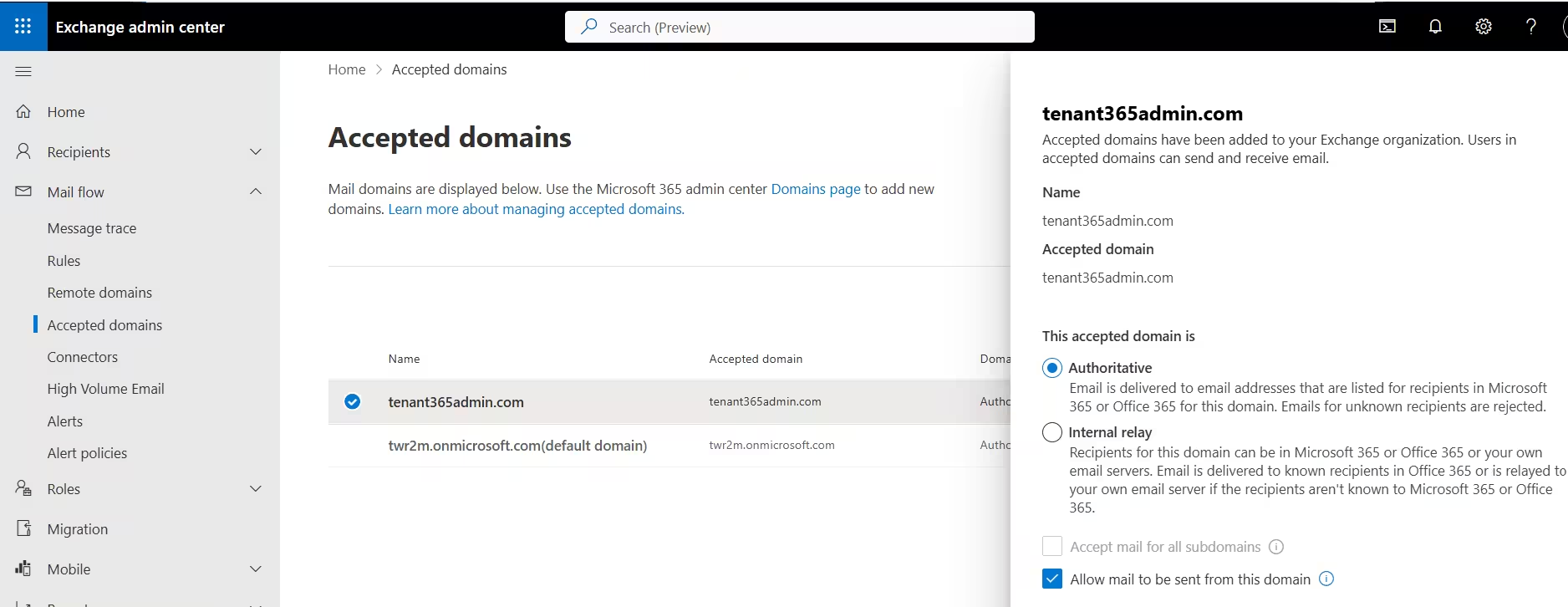
Accepted Domains List View (Authoritative Selected)
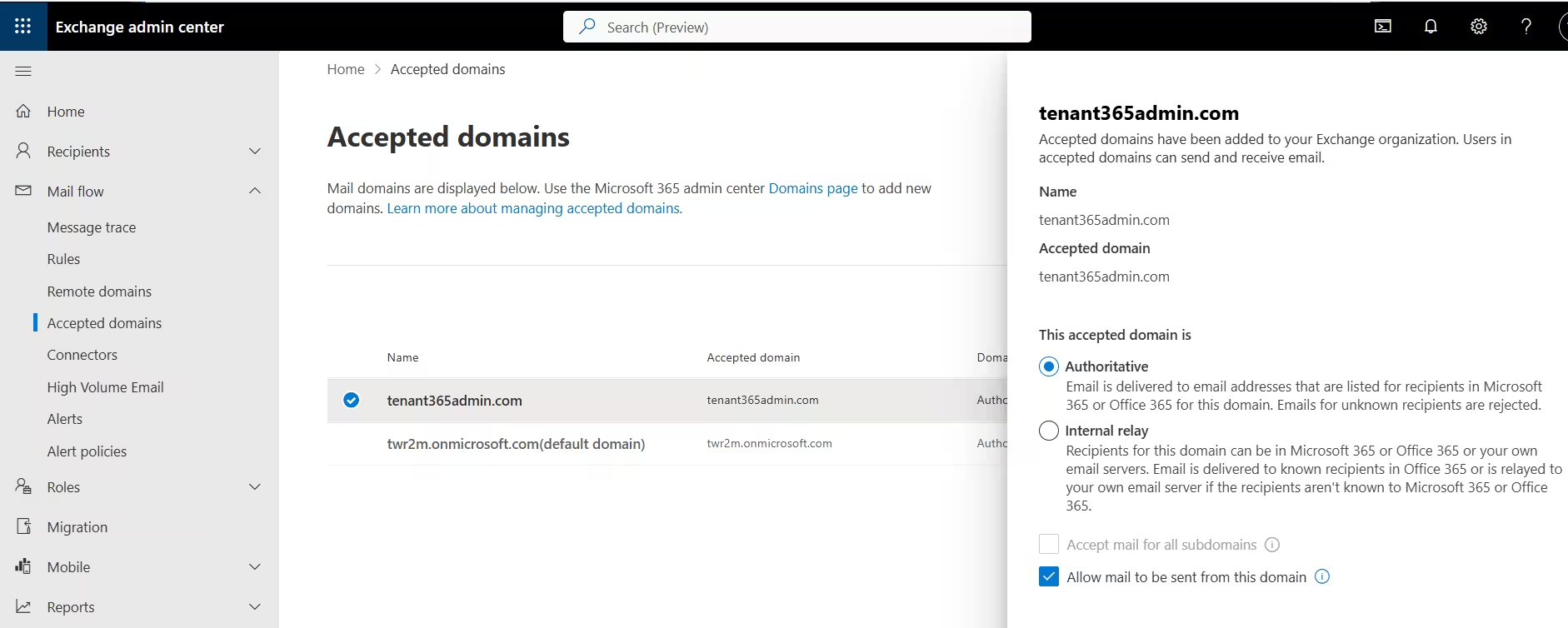
Domain type: ‘Authoritative’ — Exchange is the final destination. NDR fires immediately for any unknown recipient.
Allow Sending: ‘Yes’ — this domain can be used in outbound email address policies.
Right panel — radio buttons: Authoritative is selected (default). Internal Relay is the alternative.
‘Accept mail for all subdomains’: Greyed out — this checkbox only activates when Internal Relay is selected.
‘Allow mail to be sent from this domain’: Ticked — controls whether EAP can stamp @Tenant365admin.com addresses on mailboxes.
Internal Relay Selected (Subdomain Checkbox Revealed)
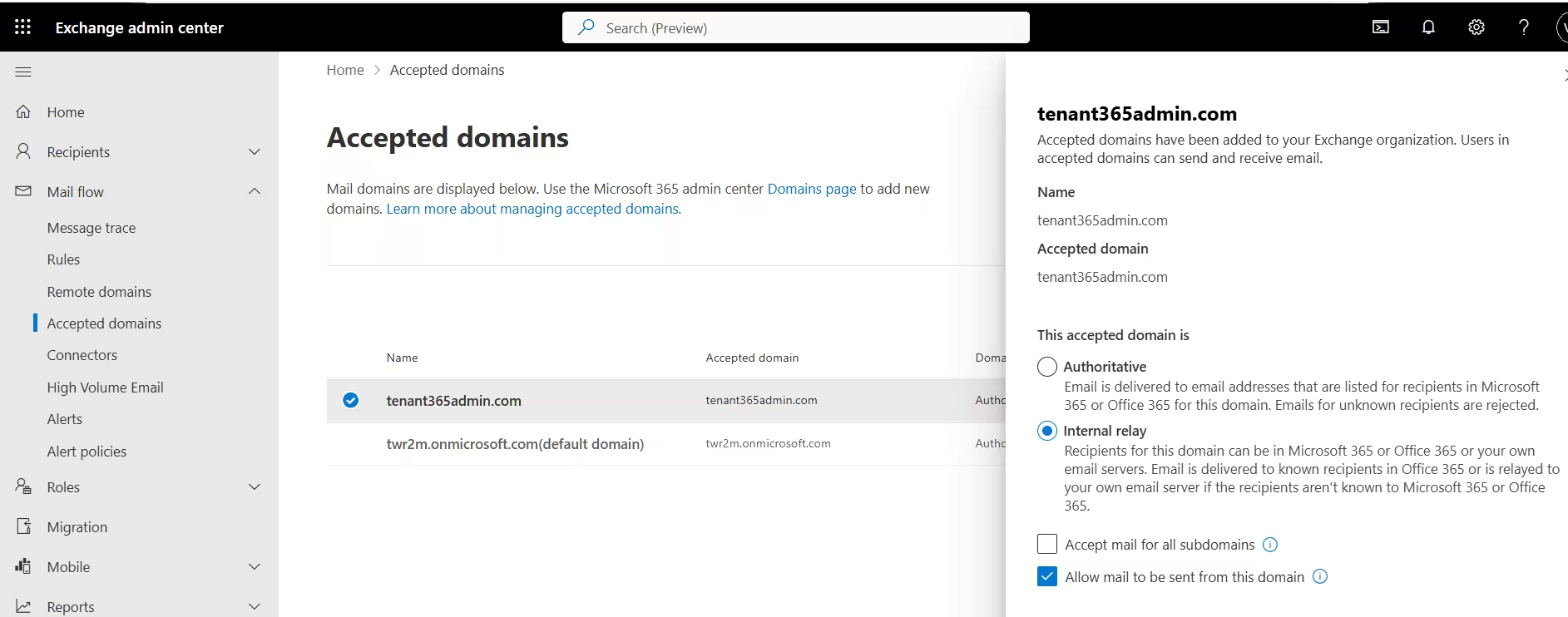
Internal relay selected: Description: ‘Email is delivered to known recipients in Office 365 OR relayed to your own email server if the recipients aren’t known.’ This is the hybrid lifeline.
‘Accept mail for all subdomains’ is now clickable: Only becomes available when Internal Relay is chosen. Subdomain wildcard matching is only relevant in relay scenarios.
‘Allow mail to be sent from this domain’ remains checked: Sending permissions are independent of the inbound routing type.
Critical Distinction — What ACTUALLY Changes When You Switch to Internal Relay
When you switch from Authoritative to Internal Relay, Exchange stops issuing NDRs for unknown recipients and starts forwarding. THIS IS THE ONLY DIFFERENCE — spam filtering, transport rules, and connectors remain unchanged. Practical impact: During a phased migration, this single setting is the difference between onprime users bouncing mail and a smooth hybrid coexistence.
Real‑World Accepted Domain Failure Scenario
During a hybrid migration, admins often leave a domain as Authoritative too early.
Result:
Half the users still on‑premises start bouncing mail with NDR 5.1.1 because Exchange Online cannot find their mailboxes.
Fix:
Switch the domain to Internal Relay, ensure Send Connectors are correct, and complete the migration before reverting to Authoritative.
Accepted Domain Workflow — Adding a New Custom Domain
Scenario: The M365 admin team at Visa travel needs to onboard subsidiary domain contosovisa.com into their existing M365 tenant. Follow these steps in order.
STEP 1: Verify Domain Ownership in M365 Admin Centre
- Verify Domain Ownership in M365 Admin Centre Navigate to admin.cloud.microsoft.com → Settings → Domains → Add domain.
- Enter the domain name and complete the DNS TXT verification challenge.
- Verification can take up to 72 hours depending on DNS TTL, but usually completes within minutes.
- Purpose: Proves you control the domain before Exchange will accept mail for it. DNS TXT record: MS=msXXXXXXXX added to domain registrar, then verified in portal.
STEP 2: Add the Accepted Domain in Exchange Admin Centre
- Add the Accepted Domain in Exchange Admin Centre Navigate to EAC → Mail flow → Accepted Domains → Add.
- Enter domain name, choose domain type.
- Choose Authoritative if all mailboxes will be in the cloud.
- Choose Internal Relay if some mailboxes remain on-prem (hybrid migration in progress).
New-AcceptedDomain -Name 'contosovisa.com' -DomainName 'contosovisa.com' -DomainType AuthoritativeSTEP 3: Update MX Records at DNS Registrar
- Update MX Records at DNS Registrar Point the domain’s MX record to Exchange Online Protection. Without this, mail still goes to the old destination regardless of the Accepted Domain config.
- Critical: The Accepted Domain tells EOP what to accept. The MX tells the internet WHERE to send it. Both must be set.
- Verify: Resolve-DnsName -Name contosovisa.com -Type MX MX record: contosovisa.com → contosovisa-com.mail.protection.outlook.com (priority 0)
STEP 4: Publish SPF, DKIM, and DMARC Records
- Publish email authentication records to prevent spoofing and pass external spam filters.
- Enable DKIM: New-DkimSigningConfig -DomainName ‘contosovisa.com’ -Enabled $true
- DMARC: v=DMARC1; p=quarantine; rua=mailto:dmarc@contosovisa.com
- SPF: v=spf1 include:spf.protection.outlook.com -all
STEP 5: Test and Validate End-to-End
- Send test emails from an external account. Use Message Trace to verify delivery path.
- NDR 5.1.10 = domain not yet accepted / still propagating.
- NDR 5.1.1 = domain accepted but mailbox address not yet assigned.
- Confirm SPF/DKIM pass in message headers.
Get-MessageTraceV2 -RecipientAddress vishal.prajapati@contosovisa.com -StartDate (Get-Date).AddHours(-1)PowerShell Command Reference — Accepted Domains
#Connect first
Connect-ExchangeOnline -UserPrincipalName admin@yourdomain.com

# List all accepted domains
Get-AcceptedDomain | Format-Table Name, DomainType, Default, MatchSubDomains

# Filter for Authoritative only
Get-AcceptedDomain | Where-Object {$_.DomainType -eq 'Authoritative'} | Format-Table Name, DomainName, Default

# Add Authoritative domain
New-AcceptedDomain -Name 'contoso.com' -DomainName 'contoso.com' -DomainType Authoritative

# Add Internal Relay (hybrid)
New-AcceptedDomain -Name 'legacy.contoso.com' -DomainName 'legacy.contoso.com' -DomainType InternalRelay

# Switch domain type post-migration
Set-AcceptedDomain -Identity 'contoso.com' -DomainType Authoritative

# Enable subdomain matching (Internal Relay only)
 Set-AcceptedDomain -Identity 'contoso.com' -MatchSubDomains $true

# Set as default domain
Set-AcceptedDomain -Identity 'contoso.com' -MakeDefault $true

# Remove domain
Remove-AcceptedDomain -Identity 'old-domain.com'
Remote Domains (Outbound Behavior Control)
What Is a Remote Domain?
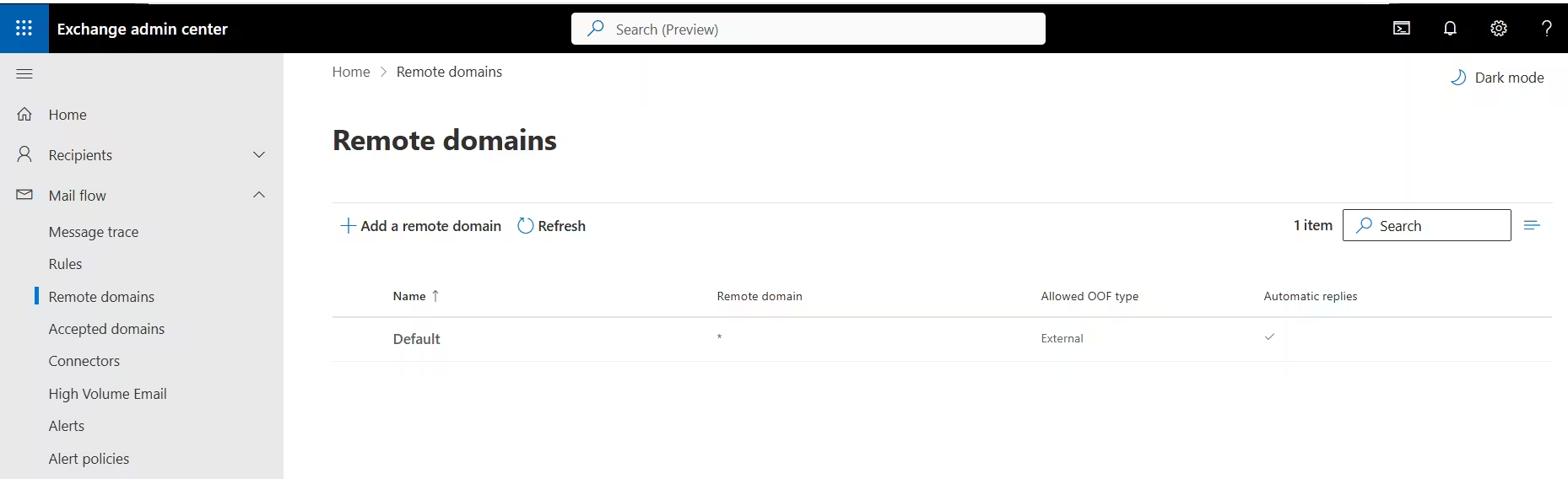
A Remote Domain defines how Exchange Online behaves when sending email to external domains.
Remote Domains do not control mail acceptance. This distinction is the heart of the Accepted Domain vs Remote Domain confusion.
Remote Domains control:
- Out‑of‑Office replies
- Auto‑replies
- Delivery reports
- Message formatting (RTF vs HTML)
- Auto‑forwarding behavior
- Character sets
The Default Remote Domain (The Wildcard Rule)
Every tenant has a built‑in Remote Domain called Default (*).
This wildcard applies to:
- Every external domain
- Every outbound email
- Every misconfiguration you make
Changing Default Remote Domain settings affects your entire external mail surface.
Treat it like a loaded weapon.
Understand Default Remote Domain Settings Detail Panel
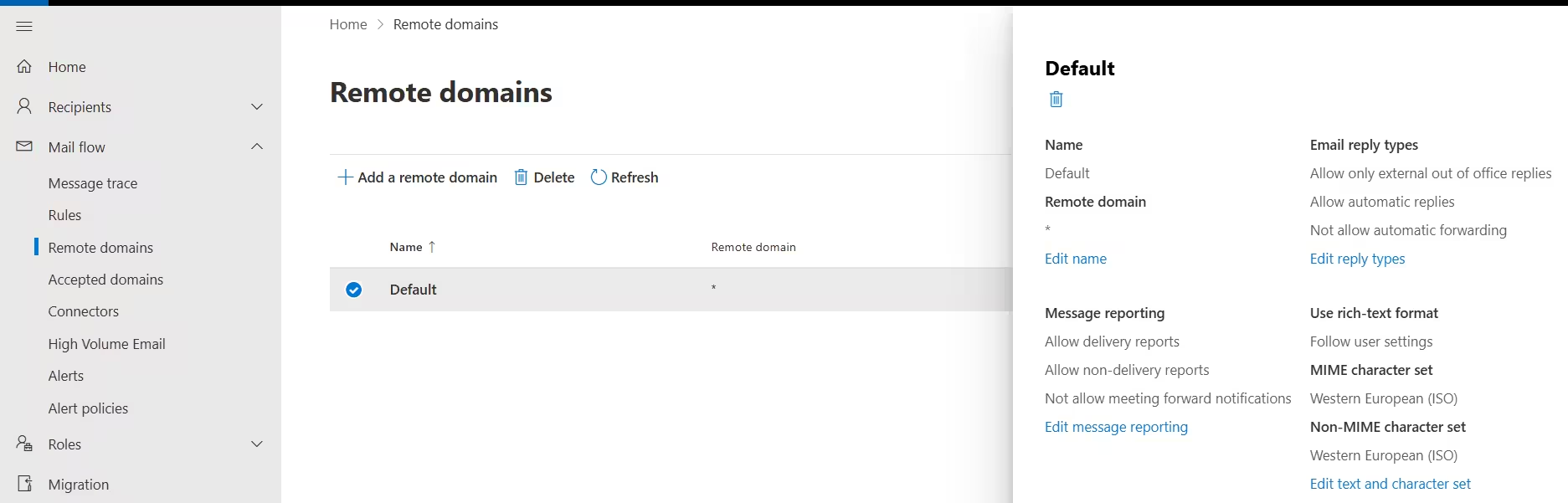
- Email reply types section: ‘Allow only external out of office replies’, ‘Allow automatic replies’, ‘Allow automatic forwarding’ — auto-forwarding enabled by default is a major security risk.
- Message reporting section: Delivery reports and NDRs allowed; meeting forward notifications blocked by default.
- Use rich-text format: ‘Follow user settings’ — whatever Outlook decides to send (HTML, RTF, plain text) is honoured. THIS is the source of winmail.dat problems.
- Character sets: MIME: Western European (ISO). Non-MIME: Western European (ISO). Not suitable for organisations with Asian language email traffic.
Message Reporting Settings
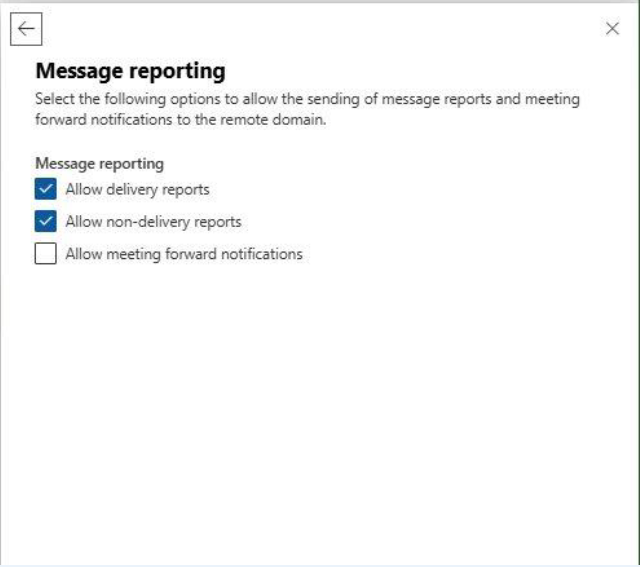
- Allow delivery reports: Keep enabled for compliance — in regulated industries delivery confirmation is legally significant.
- Allow non-delivery reports: Keep enabled — disabling causes silent mail failures. Sender never knows the mail bounced.
- Allow meeting forward notifications: Disabled by default — smart choice to prevent calendar data leakage to external parties.
Text and Character Set (Default Domain)
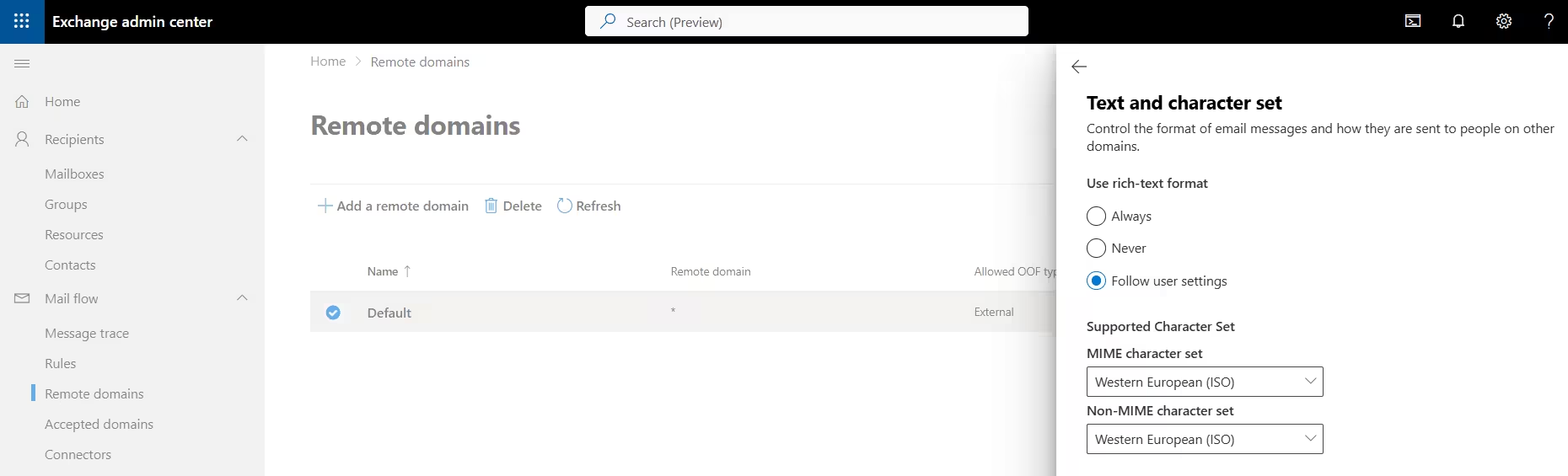
- Rich-text format: ‘Follow user settings’: THIS is the winmail.dat culprit. Outlook decides the format — if it chooses RTF, non-Microsoft clients (Gmail, Apple Mail, Thunderbird) receive a winmail.dat binary instead of the email content.
- MIME character set — Western European (ISO): ISO-8859-1. Works for Western European languages only. Completely fails for Asian scripts.
- Non-MIME character set: Used for older UUENCODE messages. Rarely relevant for modern mail but can break legacy integrations.
Winmail.dat: The Classic Remote Domain Mistake
One of the most common Exchange complaints:
“Your email sent me a winmail.dat attachment.”
This has nothing to do with Accepted Domains.
It is 100% a Remote Domain problem.
Why Winmail.dat Appears
- Outlook sends messages in Rich Text Format (RTF)
- RTF uses TNEF encoding
- Gmail, Apple Mail, Yahoo cannot decode TNEF
- The message arrives as winmail.dat
By default, the Default Remote Domain allows this behavior.
The Proper Fix
Create a specific Remote Domain entry for Gmail (or other affected domains) and set:
- RTF / TNEF: Never
- Force HTML or Plain Text
This targeted override is the correct way to manage Remote Domain responsibilities.
Configuring a Remote Domain
We will configure gmail.com as remote domain why gmail.com ? Gmail is the world’s most popular email service and does NOT support RTF/TNEF format. Any organisation whose users frequently email @gmail.com should have a specific Remote Domain entry — this is a textbook configuration that appears in exams and interviews.
Step 1 — Name the Domain
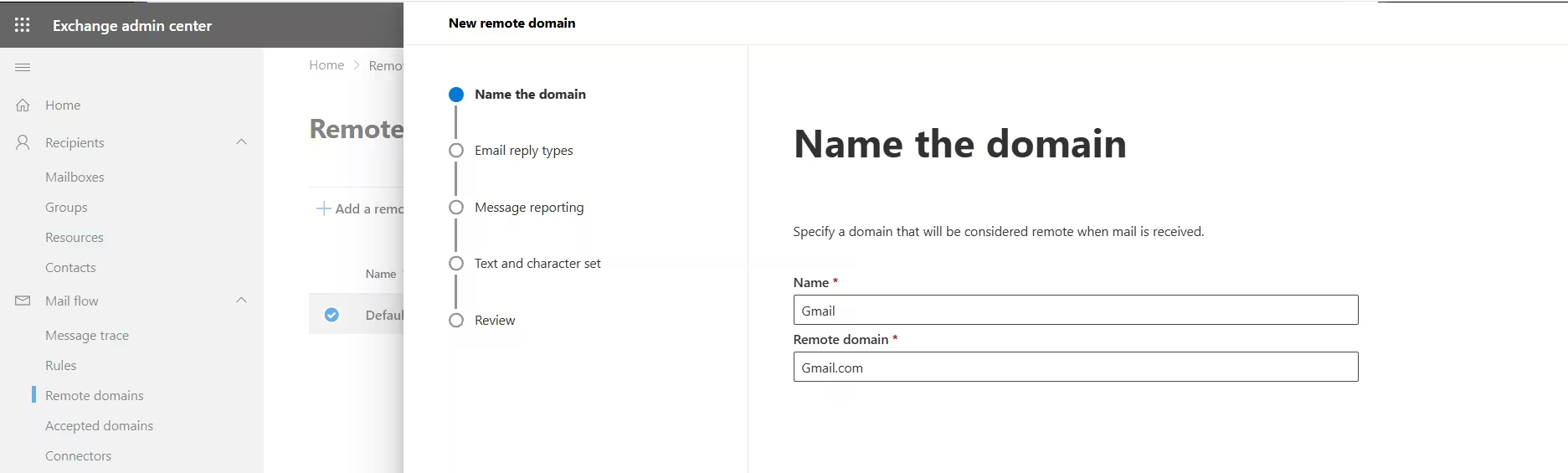
- Name the domain (Name=Gmail, Remote domain=gmail.com)
- Name field: ‘Gmail’: Friendly label used in EAC only — not visible externally. Clear and descriptive.
- Remote domain: ‘gmail.com’: The actual SMTP domain this entry covers. All settings apply to all outbound email to @gmail.com addresses.
- Wizard left-nav:Name → Email reply types → Message reporting → Text and character set → Review. Each step configures a behaviour category.
Step 2 — Email reply types
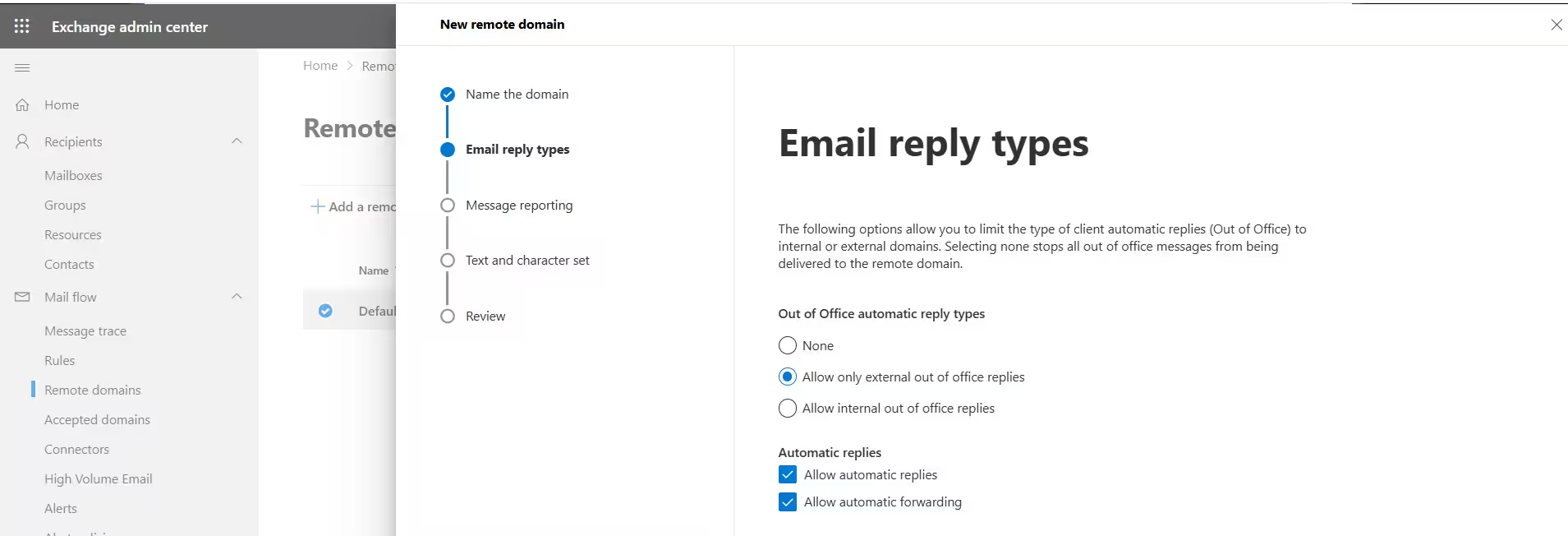
- Allowed OOF type ‘External’: External OOF replies are permitted — your out-of-office WILL reach external senders.
- Automatic replies column: Checkmark visible — auto-replies to external domains are enabled in the default config.
- Automatic Forwarding: Auto-forwarding enabled by default is a major security risk.
Step 3 — Message Reporting
- Allow delivery reports: Enabled — know when mail reaches Gmail recipients. Useful for SLA tracking and legal evidence of delivery.
- Allow non-delivery reports: Enabled — if a Gmail address is invalid you want the bounce notification for diagnosis.
- Allow meeting forward notifications: Disabled — Gmail users forwarding invites don’t need Exchange-specific notifications. Prevents calendar data leakage.
Step 4 — Text and Character Set
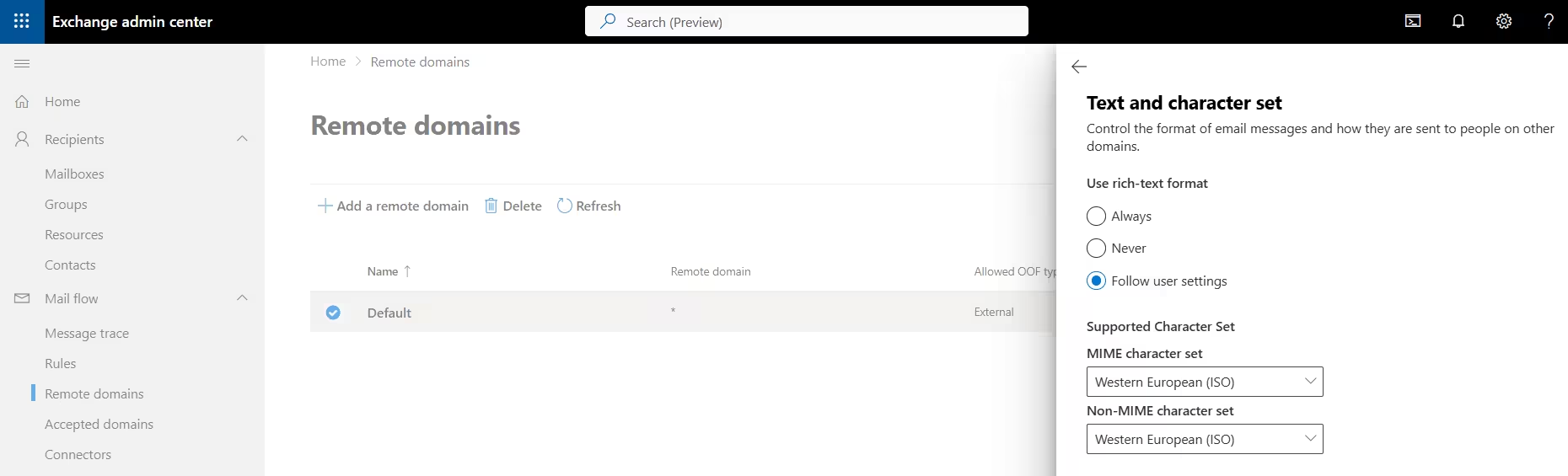
- Rich-text format: ‘Never’: THE key setting. Forces all outbound mail to @gmail.com to use HTML or Plain Text only. No RTF. No TNEF. No winmail.dat. Ever.
- Why ‘Never’ is correct: Gmail’s servers cannot decode TNEF. Setting ‘Never’ overrides any Outlook client setting and ensures safe delivery every time.
- Character sets: None: System default handles encoding. Gmail handles UTF-8 natively — no specific charset override needed.
Why ‘Never’ vs ‘Follow User Settings’: Instructor Annotation
- Follow user settings (Bad for Gmail): Outlook may send Rich Text (RTF/TNEF). Gmail does NOT support TNEF. Result: winmail.dat attachment corruption.
- Never (Correct for Gmail): Forces messages to HTML or Plain Text. Ensures proper formatting in Gmail. Zero attachment corruption.
PowerShell — Remote Domain Commands
# List all remote domains
Get-RemoteDomain | Format-Table Name, DomainName, AllowedOOFType, AutoReplyEnabled, AutoForwardEnabled, TNEFEnabled

# Create Gmail remote domain
New-RemoteDomain -Name 'Gmail' -DomainName 'gmail.com'

# Fix winmail.dat — disable TNEF/RTF for Gmail
Set-RemoteDomain -Identity 'Gmail' -TNEFEnabled $false

# Disable auto-forwarding globally (security baseline)
Set-RemoteDomain -Identity 'Default' -AutoForwardEnabled $false

# Block all OOF replies to a domain
Set-RemoteDomain -Identity 'CompetitorDomain' -AllowedOOFType None

# Only allow external OOF (not internal OOF content)
Set-RemoteDomain -Identity 'PartnerCorp' -AllowedOOFType External

# Disable all auto-replies to a domain
Set-RemoteDomain -Identity 'CompetitorDomain' -AutoReplyEnabled $false

# Fix Asian character encoding for Japan partner
Set-RemoteDomain -Identity 'JPPartner' -CharacterSet 'iso-2022-jp' -NonMimeCharacterSet 'iso-2022-jp'

# Remove a remote domain entry
Remove-RemoteDomain -Identity 'Gmail'
Accepted Domain vs Remote Domain: Side‑by‑Side Comparison
| Feature | Accepted Domain | Remote Domain |
|---|---|---|
| Mail Direction | Inbound | Outbound |
| Purpose | Accepting mail | Sending behavior |
| Domain Ownership | Domains you own | Domains others own |
| Controls | Routing & rejection | Formatting & replies |
| Default Entry | onmicrosoft.com | Default (*) |
| Common Risk | NDRs, mail loops | winmail.dat, data leaks |
Security Risks You Cannot Ignore
Auto‑Forwarding Data Leaks
Remote Domains can allow automatic forwarding to external addresses.
If AutoForwardEnabled = true in the Default Remote Domain:
- Users can silently forward mail outside the organization
- Data exfiltration becomes trivial
- Compliance violations multiply
Best practice:
- Disable auto‑forwarding globally
- Whitelist trusted partners explicitly
Subdomain Phishing via Accepted Domains
Using MatchSubDomains = true on an Internal Relay domain can allow attackers to exploit unused subdomains.
Example:
- invoice.company.com impersonation
- Treated as “internal” mail
- Bypasses security warnings
This is a serious Accepted Domain vs Remote Domain security lesson: inbound trust must be explicit, never wildcarded without auditing.
Enterprise Scenarios Where Admins Get It Wrong
Scenario 1: Merger Domain Chaos
Admins add a new Accepted Domain but forget to update MX records.
Result:
- Exchange accepts nothing
- Mail still goes to the old system
- Helpdesk chaos
Lesson: Accepted Domains and MX records are separate—but equally required.
Scenario 2: Auto‑Reply Storm
Two organizations email each other. Both allow OOF and auto‑replies via Remote Domains.
Result:
- Thousands of looping auto‑responses
- Mail queues backed up
- Delayed email delivery
Fix: Define partner‑specific Remote Domains and block automatic replies.
Best Practice Checklist
Accepted Domain Best Practices
- Use Authoritative after migration completion
- Use Internal Relay only when required
- Review domain type before server decommissioning
- Avoid MatchSubDomains unless necessary
Remote Domain Best Practices
- Harden Default (*)
- Disable auto‑forwarding globally
- Create domain‑specific overrides
- Set UTF‑8 for global compatibility
- Fix RTF for Gmail, Yahoo, and partners
The Mental Model You Should Remember
If you remember one thing from this guide, let it be this:
- Accepted Domain vs Remote Domain is inbound vs outbound
- Accepted Domains decide if mail gets in
- Remote Domains decide how mail goes out
They solve completely different problems—but together they define Exchange Online behavior.
20 Interview Questions & Answers: Accepted Domain vs Remote Domain
One of the fastest ways to validate deep understanding of Accepted Domain vs Remote Domain is through scenario‑based interview questions. These questions are frequently asked in MS‑203 exams, Exchange Administrator interviews, and real L2/L3 escalation discussions.
This section helps you think the way Exchange Online actually thinks.
1. What is the core difference between an Accepted Domain and a Remote Domain?
Answer:
An Accepted Domain controls inbound mail and defines which SMTP domains Exchange Online accepts email for. A Remote Domain controls outbound behavior, defining how Exchange Online behaves when sending email to external domains. In short, Accepted Domain vs Remote Domain = inbound ownership vs outbound behavior control.
2. Why is the Accepted Domain check the first step in Exchange Online mail flow?
Answer:
Exchange Online Protection (EOP) checks the Accepted Domain list before spam filtering, transport rules, or recipient lookup. If the recipient’s domain is not accepted, EOP immediately rejects the message with NDR 5.1.10. This makes Accepted Domains the outermost gate in mail flow.
3. What happens if a domain is not configured as an Accepted Domain?
Answer:
Any email sent to that domain is rejected outright with NDR 5.1.10 (recipient address rejected). Exchange Online does not attempt delivery, spam evaluation, or mailbox lookup.
4. Explain the three types of Accepted Domains and when to use each.
Answer:
- Authoritative: All mailboxes exist in Exchange Online; unknown recipients receive NDRs.
- Internal Relay: Hybrid or staged migrations; unknown recipients are forwarded to another mail system.
- External Relay: Exchange Online acts only as a filter and always forwards mail externally.
Choosing the wrong type is one of the most common Accepted Domain vs Remote Domain misconfigurations.
5. Why does Internal Relay commonly cause mail loops?
Answer:
Mail loops occur when Exchange forwards unknown recipients to an on‑premises server that no longer exists or routes mail back to Exchange Online. Since Internal Relay never rejects unknown recipients, the loop continues until queues fill.
6. What NDR codes help distinguish Accepted Domain issues from mailbox issues?
Answer:
- 5.1.10 → Domain not configured as an Accepted Domain
- 5.1.1 → Domain is accepted, but the mailbox does not exist
Knowing this distinction dramatically reduces troubleshooting time.
7. Can a domain be both an Accepted Domain and a Remote Domain?
Answer:
No. An Accepted Domain is a domain your organization owns and accepts mail for. A Remote Domain is an external domain you send mail to. They serve opposite purposes in the Accepted Domain vs Remote Domain model.
8. What is the purpose of the Default Remote Domain (*)?
Answer:
The Default Remote Domain applies to all outbound email sent to external domains that do not have a specific Remote Domain entry. Any change here affects your entire external mail footprint.
9. Why is modifying the Default Remote Domain considered risky?
Answer:
Because it acts as a global rule. Enabling auto‑forwarding, RTF, or unrestricted auto‑replies here impacts every external domain, potentially causing data leaks, winmail.dat issues, or auto‑reply storms.
10. What causes the winmail.dat issue, and how do you fix it?
Answer:
The issue occurs when Exchange sends rich‑text (RTF/TNEF) encoded emails to clients that don’t support it, such as Gmail or Apple Mail.
Fix: Create a specific Remote Domain for the affected destination and set RTF = Never (TNEFEnabled = false).
This is a classic Remote Domain problem, not an Accepted Domain issue.
11. Why should most organizations create a Remote Domain for gmail.com?
Answer:
Gmail does not support TNEF encoding. Without a Gmail‑specific Remote Domain forcing HTML or plain text, users frequently experience winmail.dat attachments and broken formatting.
12. What is AutoForwardEnabled in Remote Domains, and why is it dangerous?
Answer:
AutoForwardEnabled allows users to automatically forward emails to external addresses. If enabled globally, it can be exploited for silent data exfiltration. Best practice is to disable it in the Default Remote Domain and whitelist only trusted partners.
13. How can Remote Domains prevent Out‑of‑Office reply storms?
Answer:
By setting AllowedOOFType = None and disabling automatic replies for specific domains. This prevents two organizations from endlessly replying to each other’s OOF messages.
14. What is MatchSubDomains, and why is it risky?
Answer:
MatchSubDomains allows Exchange to accept mail for all subdomains (e.g., *.contoso.com). Attackers can exploit unused subdomains to send phishing emails that appear internal, bypassing security controls.
15. When should MatchSubDomains ever be used?
Answer:
Only during controlled hybrid scenarios where all subdomains are known and managed. Even then, it should be temporary and closely audited.
16. Why can’t the onmicrosoft.com domain be removed?
Answer:
It is the permanent fallback Accepted Domain created at tenant provisioning. Exchange Online uses it for internal routing and system operations. Microsoft does not allow its deletion.
17. What happens if you delete an Accepted Domain while users still use it?
Answer:
Mailboxes retain the email address, but inbound mail stops flowing and senders receive NDRs. Always update email address policies and mailbox addresses before removing an Accepted Domain.
18. How do Accepted Domains relate to SPF, DKIM, and DMARC?
Answer:
Accepted Domains define what Exchange treats as internal. All Accepted Domains should publish proper SPF, DKIM, and DMARC records; otherwise, outbound mail may fail authentication at recipient systems.
19. What is the safest Accepted Domain configuration post‑migration?
Answer:
Once all mailboxes are in Exchange Online and on‑prem servers are decommissioned, the domain should be switched to Authoritative to eliminate relay risks and mail loops.
20. Summarize Accepted Domain vs Remote Domain in one sentence.
Answer:
Accepted Domain vs Remote Domain is the difference between who you accept mail for and how you send mail out—inbound ownership versus outbound behavior control.
Final Thoughts
Mastering Accepted Domain vs Remote Domain is not optional for Exchange administrators. These settings sit at the foundation of mail flow, security posture, user experience, and compliance readiness.
Most Exchange “mysteries” are not bugs—they are misunderstood domain configurations.
Get these right, and Exchange Online becomes predictable, secure, and boring (the best compliment for any mail system).
Powerful Guide to Address Book and Address Book Policies in Exchange Online
Microsoft 365 Copilot for Small Business – Powerful AI to Grow Faster
Microsoft 365 Copilot: Beginner’s Guide – A Powerful & Positive Steps By Steps
