How to Investigate Phishing Attacks in Microsoft 365 ? Phishing attacks are the number one entry point for Microsoft 365 account compromise.
A single successful phishing email can lead to credential theft, mailbox abuse, data exfiltration, and lateral movement inside your tenant.
This admin playbook explains how to properly investigate a phishing attack in Microsoft 365, using Microsoft Defender, Exchange Online, audit logs, and PowerShell — exactly how real incidents are handled.
Table of Contents
What Triggers a Phishing Investigation?
You should immediately start an investigation if:
- Users report suspicious emails
- A user clicked a phishing link
- Credentials were entered on a fake login page
- Multiple users received the same malicious email
- Defender for Office 365 raised a phishing alert
- You see unusual sign-ins after an email event
Treat phishing as a security incident, not just an email issue.
Step 1: Contain the Threat Immediately
Before deep investigation, stop further damage.
Immediate actions:
- Block sender domain or address
- Remove the email from all mailboxes
- Disable compromised accounts (if credentials exposed)
Where to act:
Microsoft 365 Defender → Email & collaboration → Explorer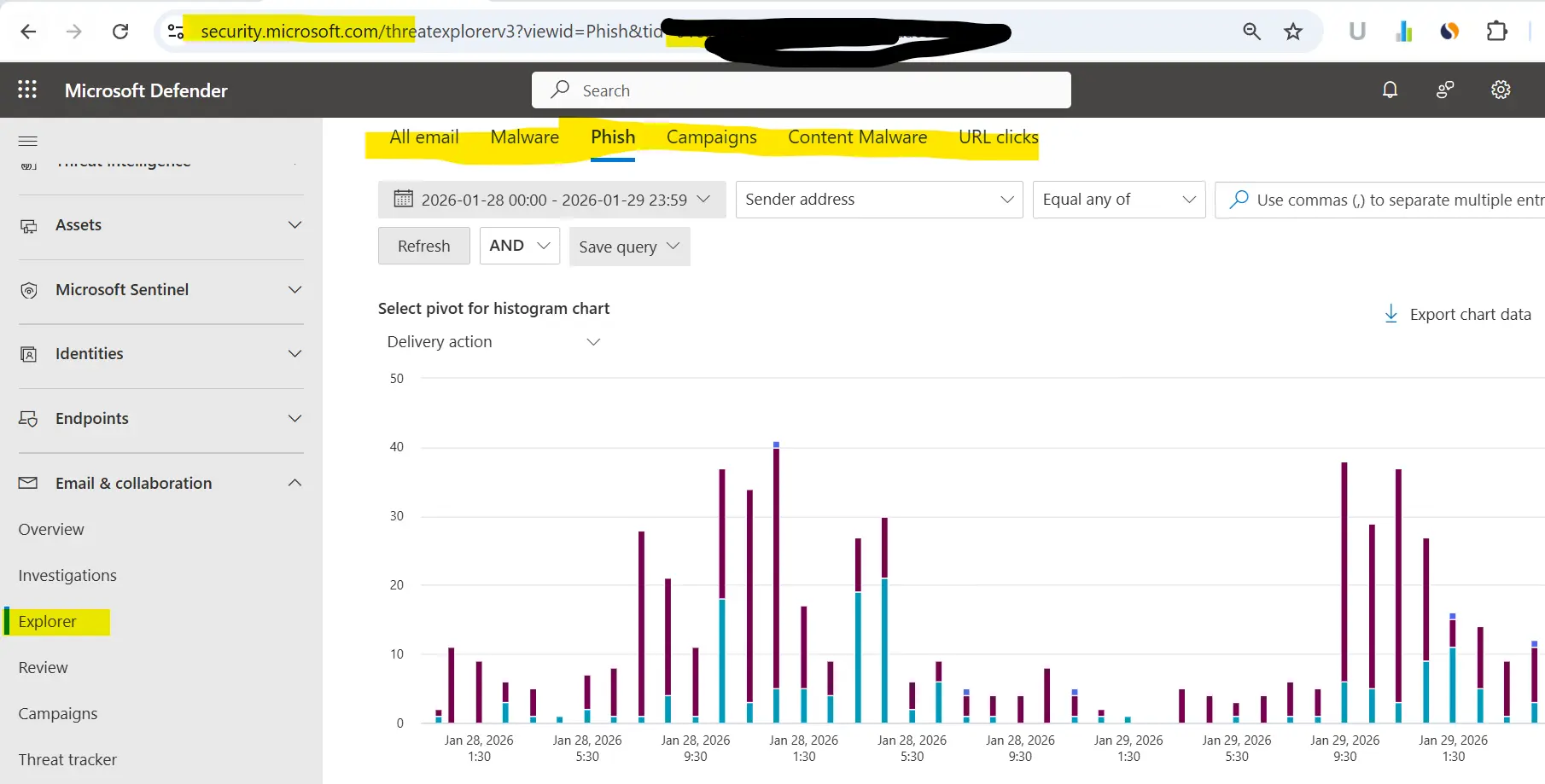
Step 2: Identify the Phishing Email (Message Trace)
Go to:
Exchange Admin Center → Mail flow → Message traceCheck:
- Sender address & domain
- Sending IP
- Spam verdict
- Number of recipients
- Delivery status
This confirms how many users were impacted.
Step 3: Investigate Email Headers
Open one phishing email and analyze headers.
Look for:
- Suspicious sender domain
- Failed SPF / DKIM / DMARC
- Mismatched “From” and “Return-Path”
- Sender IP reputation
- Check whether sender IP is blocked in how many RBL Using MX tool
📌 Header analysis often reveals spoofing or impersonation techniques.
Step 4: Use Microsoft Defender Threat Explorer
Go to:
Microsoft 365 Defender → ExplorerFilter by:
- Threat type: Phish
- Sender domain
- URL or attachment hash
Check:
- Click activity
- Delivery actions
- User interaction (clicked / opened)
Phishing attack
Step 5: Identify Affected Users
Determine:
- Who received the email
- Who clicked the link
- Who entered credentials
If credentials were entered:
Assume account compromise
Immediate response:
- Reset password
- Revoke sign-in sessions
- Enforce MFA
Step 6: Review Sign-In Logs (CRITICAL)
Go to:
Microsoft Entra ID → Monitoring & Health → Sign-in logsCheck:
- Sign-ins after phishing timestamp
- New IP addresses
- Impossible travel
- Legacy authentication usage
Successful sign-ins without MFA = high risk.
Step 7: Check for Mailbox Abuse
Attackers often abuse mailbox access.
Check Inbox Rules
Get-InboxRule -Mailbox user@domain.comDelete rules that:
- Forward emails externally
- Hide security notifications
- Auto-delete emails
Check Mailbox Forwarding
Get-Mailbox user@domain.com | Select ForwardingSMTPAddressRemove if found:
Set-Mailbox user@domain.com -ForwardingSMTPAddress $nullStep 8: Audit User Activity (Evidence Collection)
Go to:
Microsoft Purview → AuditSearch activities:
- MailboxLogin
- FileAccessed
- Add-MailboxPermission
- Set-InboxRule
This helps determine:
- Data exposure
- Lateral movement
- Compliance impact
Step 9: Block the Phishing Infrastructure
Add blocks:
- Sender domain
- Sending IP
- URLs
- Attachments
Where:
Defender → Email & collaboration → Policies & rules → Threat policies → Rules section → Tenant Allow/BlockThis prevents repeat attacks. If you are using any third-party email security gateway then you have to blocked sender domain, IP, URL and attachment on that portal.
Step 10: Strengthen Security After the Incident
Mandatory controls:
- Enforce MFA for all users
- Disable legacy authentication
- Configure anti-phishing policies
- Enable Safe Links & Safe Attachments
- Train users on phishing awareness
Most phishing incidents repeat if post-incident hardening is skipped.
Phishing Investigation Checklist (Quick View)
- Identify phishing email
- Remove email from all mailboxes
- Identify affected users
- Reset passwords & revoke sessions
- Review sign-in logs
- Remove inbox rules & forwarding
- Audit user actions
- Block sender & URLs
- Strengthen security
- Enforce MFA
- Block users from time Travelling
Frequently Asked Questions (FAQs)
How fast should phishing be investigated?
Immediately. Delays increase risk of account takeover.
Should users forward phishing emails?
No. Use Report Phishing or submit via admin tools.
Is deleting the email enough?
No. Always check sign-ins and mailbox rules.
Do I need Defender for Office 365?
Not mandatory, but highly recommended for enterprise security.
Pro Tip (From Real Incidents)
If phishing succeeded once:
- The environment is already exposed
- Attackers may return using similar tactics
Always treat phishing as tenant-wide risk, not a user mistake.
Final Thoughts
Phishing is no longer just spam — it’s a full-scale identity attack. A structured investigation approach helps you contain threats, protect users, and prevent recurrence.
This playbook reflects how real Microsoft 365 security incidents are handled.
