Email delivery issues are among the most common problems Microsoft 365 administrators face. Messages getting delayed, blocked, or never delivered can impact business operations immediately.
This guide explains Exchange Online Mail Flow Troubleshooting, using a clear, step-by-step approach that administrators can apply in real environments.
Table of Contents
What Is Mail Flow in Exchange Online?
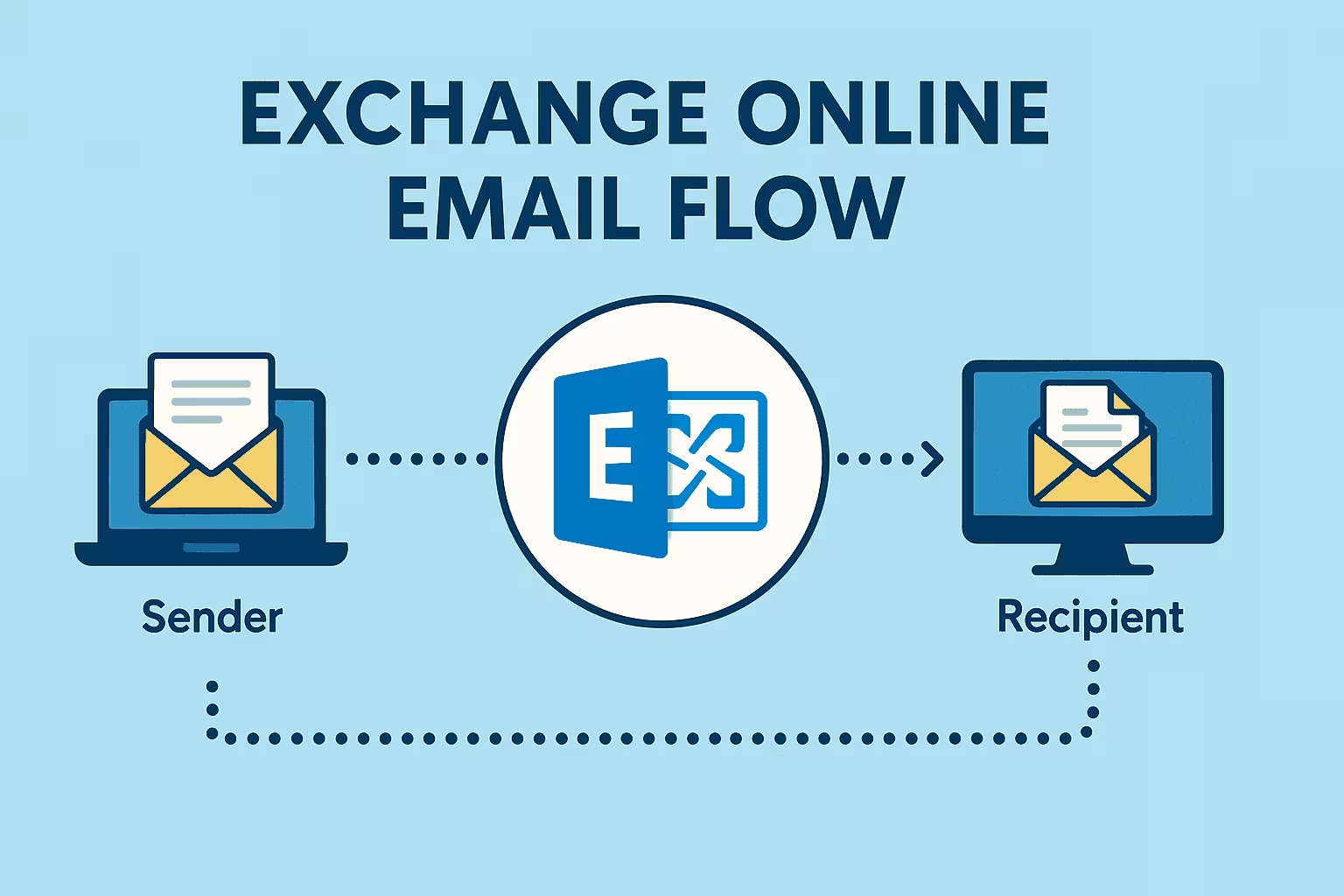
Mail flow in Exchange Online refers to the path an email takes from the sender to the recipient. This includes:
- Sender mailbox or external mail server
- Exchange Online Protection (EOP)
- Transport rules and connectors
- Recipient mailbox
Any issue at one of these stages can cause emails to be delayed, blocked, or rejected.
Common Exchange Online Mail Flow Issues
Administrators usually encounter mail flow problems such as:
- Emails going to spam or quarantine
- External emails not being delivered
- Internal emails delayed
- Bounce-back (NDR) messages
- Emails blocked by spam filters
- Authentication failures (SPF, DKIM, DMARC)
Understanding the type of issue is the first step toward fixing it.
Exchange Online Mail Flow Troubleshooting:
Now let understand and troubleshoot exchange online mail flow issue steps by steps.
Step 1: Use Message Trace (Most Important Tool)
Message Trace is the primary tool for diagnosing mail flow problems.
You can use it for:
- Track the path of an email
- See delivery status
- Identify where the message was blocked or delayed
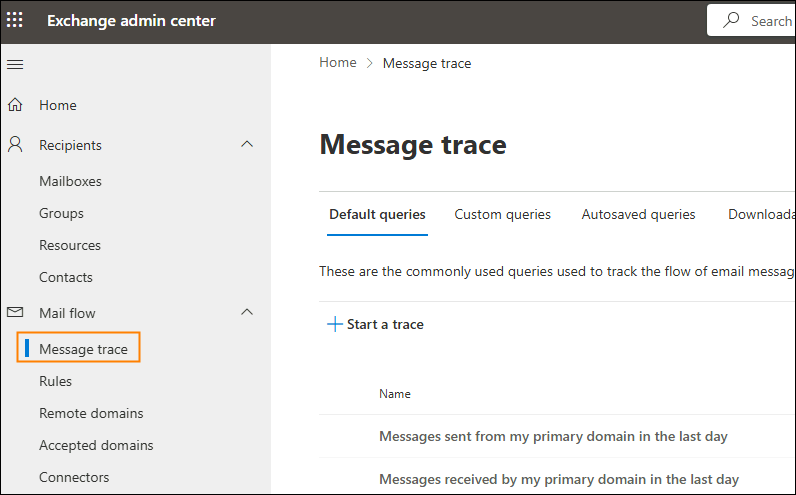
How to run a message trace:
- Go to Microsoft 365 Admin Center
- Open Exchange Admin Center
- Navigate to Mail flow → Message trace
- You can Perform message trace based on sender, recipient, suject line and time range
- Review results
Message trace provides detailed insight into what happened to an email.
Step 2: Check the Delivery Status
Message trace results usually show one of these statuses:
- Delivered – Message reached the mailbox
- Filtered as spam – Blocked by spam filtering
- Quarantined – Held for review
- Failed – Delivery failed with error
- Pending – Still being processed
If a message is marked as delivered but the user can’t see it, check the Junk Email folder.
Step 3: Review Non-Delivery Reports (NDRs)
A Non-Delivery Report (NDR) is an automatic bounce message that explains why delivery failed.
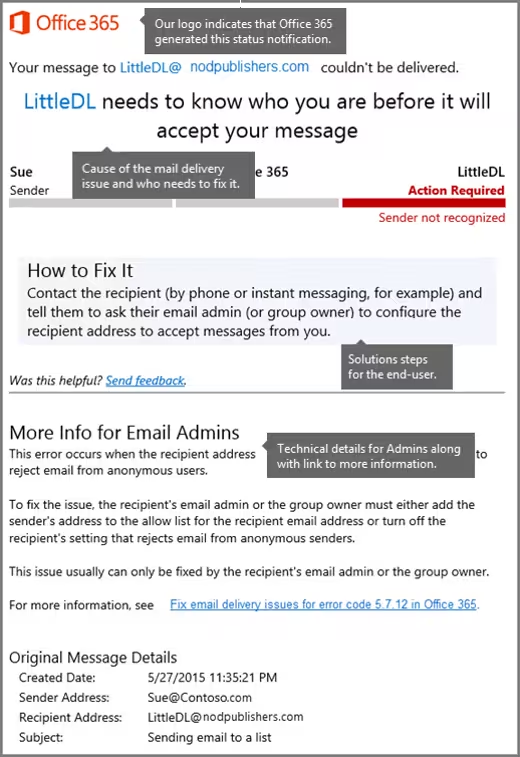
Common NDR reasons include:
- Invalid recipient address
- Domain not found
- Sender blocked
- Authentication failure
- Mail blocked by mail flow rule
Always read the error code and description carefully.
Step 4: Check Spam and Malware Policies
Exchange Online Protection applies multiple filters to protect users.
Review:
- Anti-spam policies
- Malware policies
- Safe sender lists
- Blocked domains or IPs
Incorrect or overly strict policies are a frequent cause of mail delivery problems.
Step 5: Verify Transport Rules (Mail Flow Rules)
Transport rules can:
- Block messages
- Redirect emails
- Modify message headers
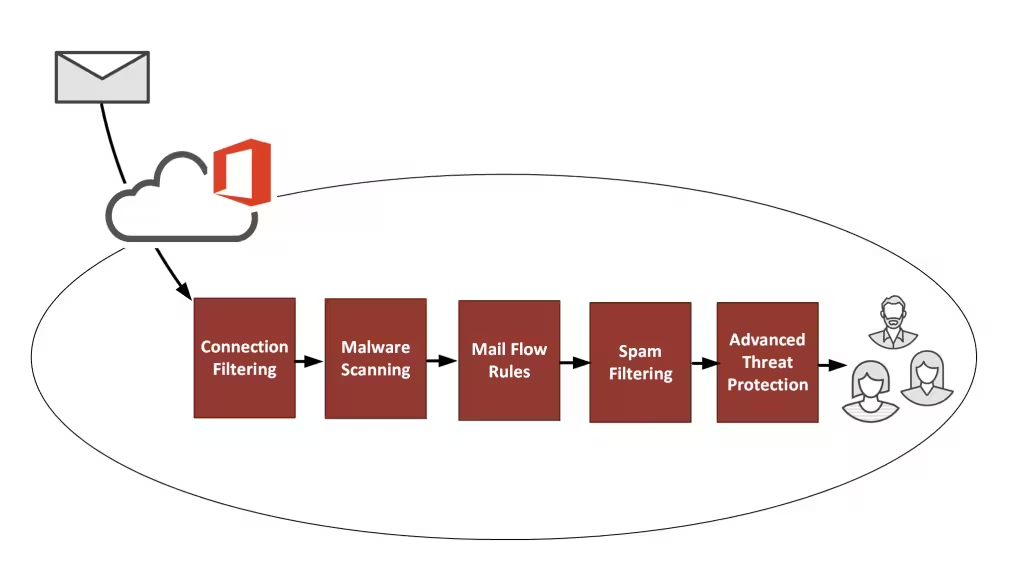
Check for rules that:
- Apply to external senders
- Block specific keywords
- Restrict attachments or domains
Even one misconfigured rule can stop email delivery.
Step 6: Check Connectors (Hybrid or Third-Party)
If your organization uses:
- Hybrid Exchange
- Third-party email gateways
- External relay servers
Then connectors must be reviewed.
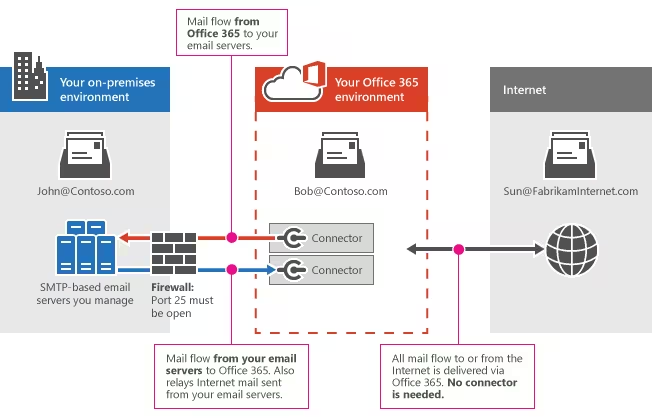
Verify:
- Connector direction (inbound / outbound)
- TLS requirements
- Sender IP addresses
- Certificate settings
Incorrect connector configuration often causes external mail failures.
Step 7: Validate SPF, DKIM, and DMARC
Email authentication is critical for external mail delivery.
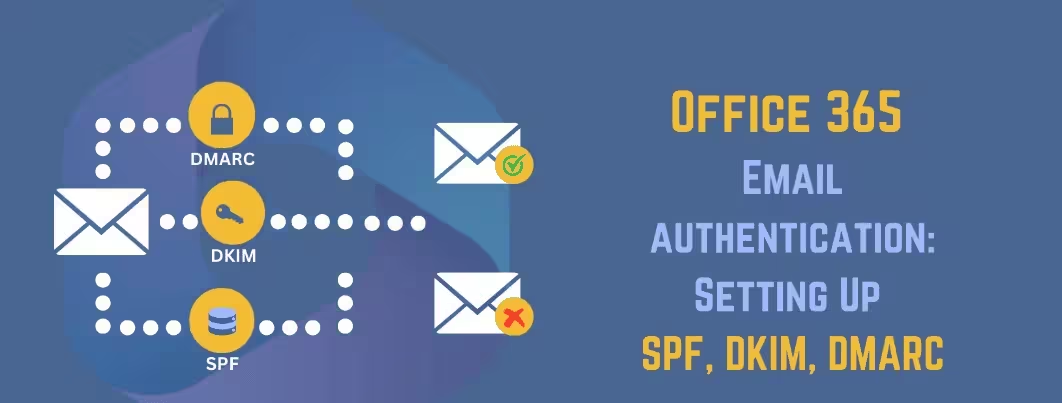
What to check:
- SPF record includes Microsoft 365
- DKIM is enabled for your domain
- DMARC policy is not overly strict
Authentication failures commonly cause emails to land in spam or get rejected.
Step 8: Check Quarantine
Sometimes emails are not blocked but quarantined.
Admins should:
- Review quarantine regularly
- Release false positives
- Adjust policies if needed
Step 9: Review Mail Flow Reports
Mail flow reports provide a high-level overview of email activity.
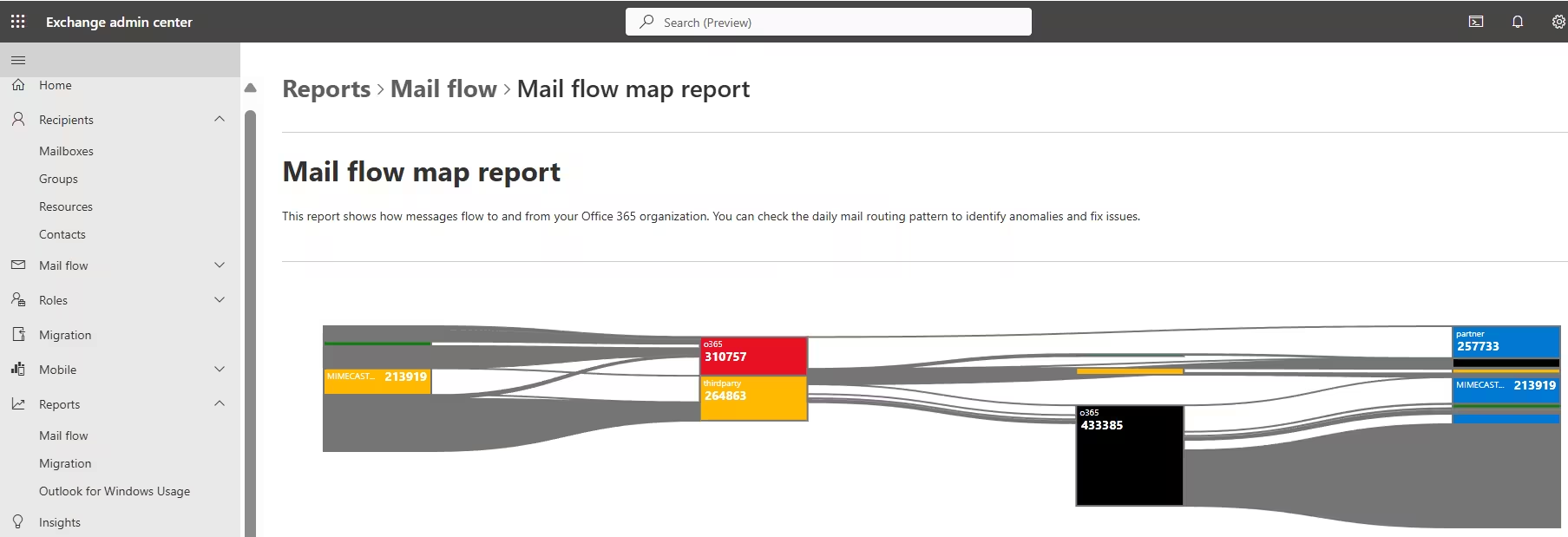
These reports help identify:
- Spikes in blocked messages
- External sender issues
- Policy effectiveness
Common Exchange Online Mail Flow Troubleshooting Mistakes
Admins often make these mistakes:
- Ignoring Message Trace
- Misconfiguring spam policies
- Not validating SPF/DKIM/DMARC
- Using overly aggressive transport rules
- Forgetting to check quarantine
Avoiding these saves hours of troubleshooting.
Best Practices for Mail Flow Troubleshooting
Follow these best practices:
- Always start with Message Trace
- Keep spam policies balanced
- Test transport rules carefully
- Monitor mail flow reports
- Document changes
Good documentation helps future troubleshooting.
Frequently Asked Questions (FAQ)
Why is email delivered but not visible?
It may be in Junk Email or quarantined.
How long does Message Trace data stay available?
Basic trace is available for 10 days, extended trace for 90 days.
Can mail flow issues affect internal mail?
Yes, especially if transport rules or connectors are misconfigured.
Final Thoughts
Exchange Online provides powerful tools for troubleshooting mail flow issues but knowing where to look and in what order makes all the difference.
By following a structured approach—starting with Message Trace and ending with authentication checks—you can resolve most mail flow issues quickly and confidently.
