One of the most common and frustrating issues in Microsoft 365 environments is when emails are delivered but land in the spam or junk folder—especially for external recipients like Gmail, Yahoo, or customer domains.
Even legitimate business emails can be marked as spam due to security policies, authentication failures, or reputation issues.
This guide explains why emails go to spam in Exchange Online and provides a step-by-step troubleshooting and fix approach that Microsoft 365 Support Engineers use in real production environments.

Table of Contents
Emails Going to Spam Common Symptoms
You may observe one or more of the following:
- Emails delivered but appearing in Junk Email
- External recipients report emails landing in spam
- Marketing or notification emails blocked
- Message trace shows delivery succeeded, but emails flagged as spam
- No bounce-back or error received by sender
Step 1: Confirm the Scope of the Problem
Start by identifying the scope:
- Are emails going to spam for all users or specific users?
- Is the issue only for external recipients?
- Does it affect all external domains or only certain ones (e.g., Gmail, Yahoo)?
Understanding the scope helps determine whether the issue is policy-based, domain-based, or sender-based.
Step 2: Check Message Trace for Spam Verdict
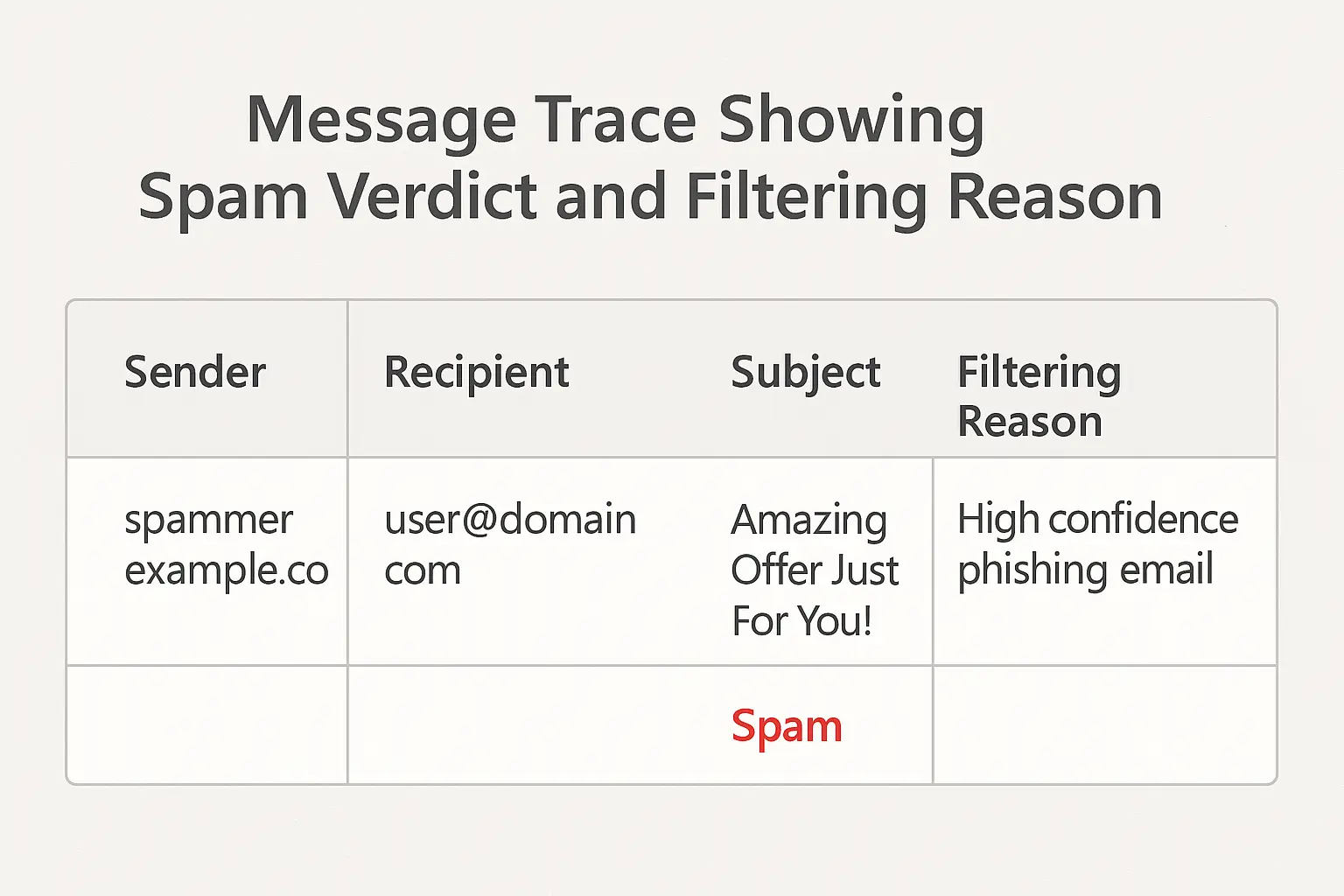
Where to check:
- Go to Exchange Admin Center (EAC)
- Navigate to Mail flow → Message trace
What to verify:
- Delivery status → Confirm if the message was Delivered, Failed, Pending, or Expanded.
- Spam verdict → Look for flags such as Spam, High confidence spam, Phish, or Bulk.
- Reason for filtering → Review the detailed explanation (e.g., content filter, IP reputation, spoofing, bulk mail detection).
💡Extra tip:
- If you need deeper insight, you can run an extended message trace (available in the Security & Compliance Center or via PowerShell Get-MessageTrace and Get-MessageTraceDetail). This gives more granular filtering reasons and headers.
- Also check Message Headers (via Outlook or OWA) for X-MS-Exchange-Organization-MessageDirectionality, X-Forefront-Antispam-Report, etc., which provide additional spam verdict details.
Step 3: Review Anti-Spam Policies (Inbound & Outbound)
Exchange Online Protection (EOP) applies multiple spam filters.
Where to check
Microsoft 365 Defender → Email & collaboration → Policies & rules → Threat policies → Anti-spamKey settings to review:
- Spam filter threshold
- Bulk email settings
- Allowed senders/domains
- Phishing protection
Step 4: Check if Sender or Domain Is Blocked
Emails may be blocked due to sender reputation.
Check blocked senders:
Defender Portal → Tenant Allow/Block ListNote:If your organization is using any third party email security gateway like mimecast then you can check block sender list there as well and remove blocked domain or blocked email ID)
PowerShell command:
Get-TenantAllowBlockListItems -ListType SenderRemove blocked sender if required:
Remove-TenantAllowBlockListItems -Identity sender@domain.comStep 5: Verify SPF Record (VERY COMMON CAUSE)
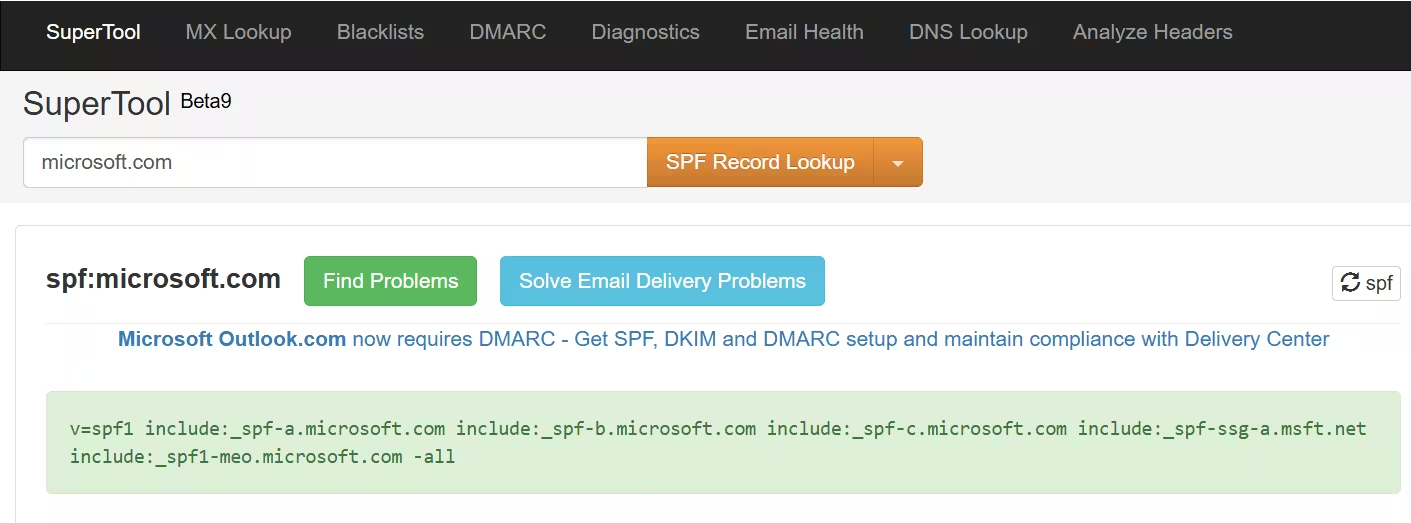
SPF tells receiving servers which mail servers are authorized to send emails on behalf of domain.
Correct SPF example:
v=spf1 include:spf.protection.outlook.com -allCommon mistakes:
- Missing include:spf.protection.outlook.com
- Multiple SPF records
- Using ~all or ?all incorrectly
Step 6: Enable and Verify DKIM
DKIM signs outgoing emails to verify authenticity.
PowerShell command:
Get-DkimSigningConfigEnable DKIM:
New-DkimSigningConfig -DomainName domain.com -Enabled $trueIf DKIM is disabled or misconfigured, spam filtering is more aggressive.
Step 7: Check DMARC Policy
DMARC tells receiving servers how to handle SPF/DKIM failures.
Recommended starting policy:
v=DMARC1; p=none; rua=mailto:dmarc@domain.comOnce stable, move to:
p=quarantineor
p=rejectIncorrect DMARC alignment can cause emails to be flagged as spam.
Step 8: Review Outbound Spam Policy
Microsoft may throttle or flag outbound emails.
Where to check
Defender Portal → Anti-spam → Outbound spam policy
Look for:
- Restricted user alerts
- Rate limits
- Automatic blocking actions
PowerShell check:
Get-HostedOutboundSpamFilterPolicyStep 9.Check Sender IP Reputation (Very Important)
One of the most common reasons emails go to spam in Exchange Online is poor sender IP reputation.
Even if SPF, DKIM, and DMARC are correctly configured, a bad IP reputation can still cause Microsoft, Gmail, or other providers to mark emails as spam.
What is Sender IP Reputation?
Sender IP reputation is a trust score assigned to the IP address from which your emails are sent.
If the IP has a history of:
- Sending spam
- High bounce rates
- Being listed on blacklists
then receiving mail servers automatically distrust emails coming from that IP.
Note: In Microsoft 365, emails are sent either from:
- Microsoft shared outbound IPs, or
- Your on-premises / third-party mail gateway IP (hybrid setups)
How to Check Sender IP Reputation
1.Identify the Sending IP Address
First, check the email headers of a message that went to spam.
- Open the spam email
- View Message headers
- Look for:
Submitting Host first IP will be sender IP

Note down the outbound sending IP
2.Check IP Reputation Using Online Tools
Use these trusted tools to verify if the IP is blacklisted or flagged:
- MXToolbox
- Talos Intelligence (Cisco)
- Spamhaus IP Lookup
If the IP is listed on Spamhaus / SORBS / Barracuda, emails will almost certainly land in spam.
What to Do If IP Reputation Is Bad?
If Using Microsoft 365 (Shared IPs)
Usually temporary. Improve email practices:
- Avoid bulk emailing suddenly
- Reduce spam complaints
- Send only to valid recipients
- Microsoft automatically rehabilitates IP reputation over time
Note: You cannot manually change Microsoft’s shared outbound IP.
If Using On-Premises or Third-Party Gateway
Request IP delisting from blacklist providers
Ensure:
- Reverse DNS (PTR) is configured
- SPF includes correct sending IP
- DKIM signing is enabled
Consider rotating or changing the outbound IP if reputation is permanently damaged.
If your organization recently migrated to Exchange Online or changed mail routing, always verify sender IP reputation immediately, even before checking SPF/DKIM/DMARC.
Best Practices to Maintain Good IP Reputation
- Warm up new IPs gradually
- Avoid sending bulk emails suddenly
- Monitor bounce & spam complaint rates
- Use Exchange Online message trace regularly
- Keep mailing lists clean
Step 10: Check User Sending Behavior
Unusual behavior can trigger spam filtering:
- Sending large volumes of emails
- Sending identical content repeatedly
- Sending emails with suspicious links or attachments
Advise users to:
- Avoid URL shorteners
- Use business email signatures
- Follow email best practices
Step 11: Test & Validate Fix
After changes:
Send test emails to:
- Gmail
- Outlook.com
- External corporate domain
Check spam folder, Re-run message trace, Confirm spam verdict is clean
Prevention Best Practices
To avoid spam issues long-term:
- Always configure SPF, DKIM, and DMARC
- Monitor Tenant Allow/Block List
- Review spam policies quarterly
- Avoid excessive outbound bulk emails
- Use Microsoft Defender reports regularly
Frequently Asked Questions (FAQs)
Why do emails land in spam even when SPF and DKIM are correct?
Spam filters also consider sender reputation, email content, and user behavior.
Can Microsoft automatically mark emails as spam?
Yes. Exchange Online uses machine learning and reputation-based filtering.
Does whitelisting a domain fully prevent spam filtering?
No. Whitelisting reduces filtering but does not bypass all security checks.
Should I contact Microsoft Support for spam issues?
If spam verdicts persist after proper configuration, Microsoft Support can investigate backend reputation issues.
Final Thoughts
Spam filtering in Exchange Online is designed to protect users, but misconfiguration or reputation issues can affect legitimate emails.
By following a structured troubleshooting approach—starting from message trace, policies, and DNS—you can quickly identify and fix spam delivery problems.
