Conditional Access policy best practices are the backbone of modern Microsoft 365 security. If you manage identities in Entra ID (Azure AD), Conditional Access is essential for secure your tenant.
At its core, Conditional Access acts as an intelligent gatekeeper. It decides who can access what, from where, and under which conditions. When implemented correctly, it drastically reduces the risk of account compromise while keeping user productivity intact.
As someone who has implemented Conditional Access across multiple enterprise tenants, I can confidently say that most security incidents could have been minimized—or completely avoided—with well-planned Conditional Access policies.
This guide shares practical, field-tested Conditional Access policy best practices you can apply immediately.

Table of Contents
What is Conditional Access
Conditional Access is a policy-based access control system in Microsoft Entra ID that evaluates signals such as:
- User identity
- Device state
- Location
- Application sensitivity
- Sign-in risk
- User risk
Based on these signals, it allows, blocks, or enforces controls like MFA or device compliance before granting access.
Think of it as:
IF a condition is met → THEN apply a control
Example:
IF user logs in from outside India → THEN require MFA.This dynamic security model is far superior to traditional perimeter-based security.
Conditional Access Policies You should Use
Below are must-have Conditional Access policy best practices that every tenant should have.
1. Require MFA for All Users
MFA is the single most effective protection against identity attacks.
Best practice:
- Enforce MFA for all users
- Exclude break-glass emergency accounts
- Prefer phishing-resistant methods (Authenticator, FIDO2)
Expert tip:
Avoid SMS where possible. Use number matching in Microsoft Authenticator.
2. Block Basic/Legacy Authentication
Legacy authentication bypasses MFA and is a common attack vector.
Best practice:
- Block legacy protocols tenant-wide
- Monitor sign-ins to identify apps using legacy authentication
- Move users to modern authentication
Real-world note:
Many brute-force attacks still target legacy endpoints.
How To Respond To A Compromised Microsoft 365 Account (Admin Guide)
3. Require Compliant Devices
Only managed and secure devices should access corporate data.
Best practice:
- Integrate Intune compliance policies
- Require encryption and antivirus
- Block non-compliant devices
This ensures access is limited to compliant devices on that tenant.
4. Require Hybrid Entra ID Joined Device
For organizations with on-premises AD:
Best practice:
- Require Hybrid Join for sensitive apps
- Apply policy to SharePoint, Exchange, Teams
- Combine with device compliance
This provides stronger identity-device linkage.
5. Block Access From Untrusted Locations
Location-based control is a powerful layer.
Best practice:
- Define trusted named locations
- Block risky geographies
- Allow business-required countries
Pro tip:
Use report-only mode before enforcement.
6. Block High-User Risk
Identity Protection can detect risky users.
Best practice:
- Block access if user risk = High
- Force password reset for remediation
This prevents compromised accounts from being used.
7. Block High Sign-In Risk
Sign-in risk evaluates each login attempt.
Best practice:
- Block high-risk sign-ins
- Require MFA for medium risk
This stops suspicious sign-ins instantly.
8. Require an App Protection Policy
For BYOD environments:
Best practice:
- Use Intune App Protection
- Protect Outlook and Teams
- Prevent data copy /paste to personal apps
This secures data without device enrollment.
9. Block Unused Device Operating Systems
Unsupported OS = higher risk.
Best practice:
- Block outdated Android/iOS versions
- Block Windows versions below policy
- Allow only supported platforms
10. Control User Sessions
Session control improves ongoing security.
Best practice:
- Set sign-in frequency
- Enable continuous access evaluation
- Limit persistent browser sessions
This reduces token misuse risk.
11.To Block Impossible Travel Sign‑ins (High‑Risk Behavior)
If a user signs in from India, then 5 minutes later from the US, it’s physically impossible.
Microsoft labels these as Risky Sign‑ins due to suspected credential theft.
Conditional Access can block or require MFA for these events:
- “Impossible travel” risk
- “Atypical travel” risk
- Sudden country/region changes
CA ensures attackers cannot exploit stolen passwords even if they try logging in from inconsistent geo‑locations.
Additional Conditional Access Best Practices (Expert Point)
Use Report-Only Mode First
Always test conditional access policy before enforcement.
Protect Admin Accounts
Admins should have stricter policies. Like MFA enforce, risk sign in blocked, time travel block.
Create Break-Glass Accounts
Keep 2 emergency accounts:
- Excluded from CA
- Strong passwords
- Monitored regularly
Use Policy Naming Standards
Example:
CA01 – Require MFA – All UsersThis simplifies management.
How to Set Up an Azure Conditional Access Policy
Steps:
- Go to Entra ID Portal
- Navigate Conditional Access
- Click New Policy
- Assign users/groups
- Select cloud apps or any application for which you want to create policy
- Configure conditions ( Like device platform, Location, client app)
- Set access controls ( Allow or block)
- Enable policy (frist test on report only mode then apply for users)
Expert tip:
Start with report-only mode. using sign-in logs you can see whether policy is getting applied on user ID or not in report only mode and after that you can enable or can do trubleshooting if policy is not getting applied in report only mode. There will be no impact on user end in report only mode only admin can monitor this logs for check whether policy is getting applied on not.
Checking Policy Effects
You can evaluate impact using:
- Sign-in logs
- Conditional Access insights
- What-If tool ( you can use this feature available on Microsoft entra portal for check which which conditional acccess policy is getting applied on user ID while acccessing particualr application or URL)
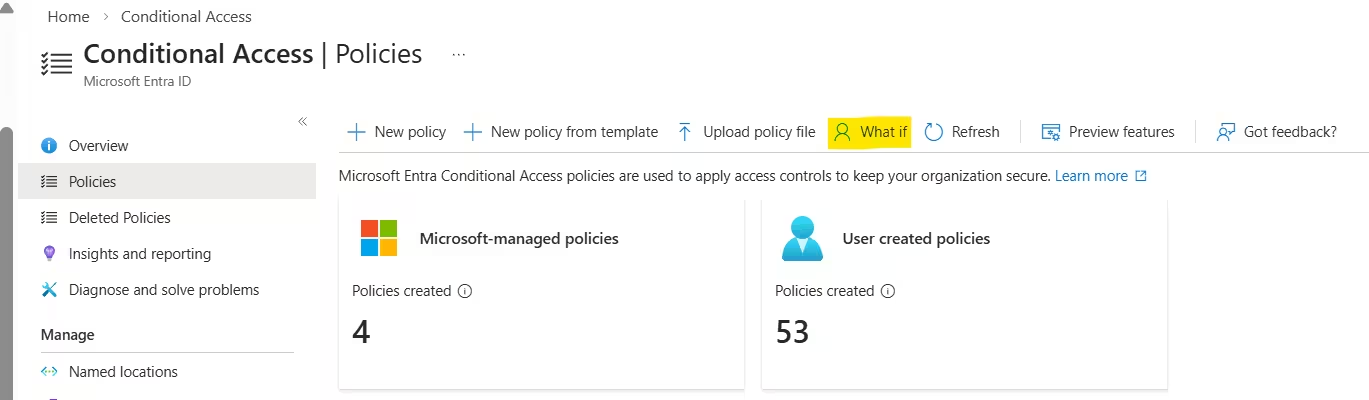
These show:
- Which policy applied
- Why access was allowed/blocked
Undoing Policy Changes
Mistakes happen.
Recovery methods:
- Use break-glass account (this account will be excluded from policy or there will be no policy on this account)
- Disable policy in portal
- Use PowerShell if locked out
Golden rule:
Never deploy major policies without exclusions. Never add global admin account in any policy while creating conditional access policy. Once policy testing done successfully then you can add admin acount as well.
Checking Policy Status
Regular monitoring is essential.
Check:
- Policy state (On/Off/Report-only)
- Assignment accuracy
- Sign-in impact
- Local IT feedback
Monthly reviews are recommended.
Frequently Asked Questions (F & Q)
Is Conditional Access free?
Basic features require Entra ID P1. Risk-based policies need P2.
How many policies should I create?
Quality > quantity.
10–20 well-designed policies are better than 50 random ones.
Can Conditional Access replace MFA?
No. It enforces MFA intelligently.
How often should policies be reviewed?
Quarterly review is ideal.
Can I lock myself out?
Yes—if no break-glass account exists.
Summary
Implementing Conditional Access policy best practices is one of the smartest security investments for Microsoft 365.
When designed properly, Conditional Access:
- Reduces identity risk
- Protects sensitive data
- Improves compliance
- Maintains user productivity
Start simple. Test thoroughly. Scale gradually. Security is a journey—not a one-time project.
