When you’re managing Exchange Online mail flow, it’s only a matter of time before you’ll run into a strange bounce message that includes a mysterious file called RawEmail.eml. For administrators, this file can be confusing—especially when users insist “the email was only 30–40 MB, so why did it bounce?”
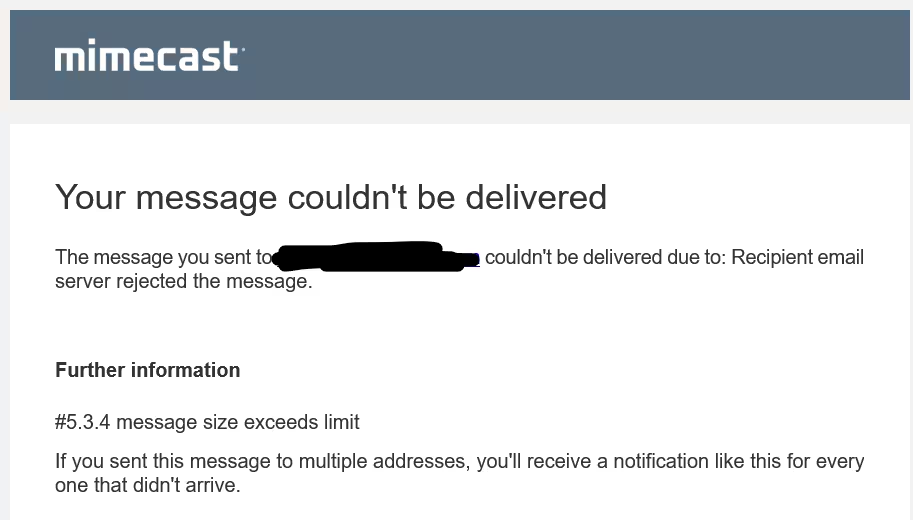
In this blog, I will walk you through a real-world troubleshooting scenario where emails sent from Exchange Online to an external domain failed due to recipient-side size restrictions. During analysis, Mimecast message traces displayed an attached RawEmail.eml—and understanding why that file appeared turned out to be the key to solving the issue.
This article will help you understand:
- What RawEmail.eml is
- Why email size appears to “double” during transport
- Why the bounce message included RawEmail.eml
- How we discovered that Cisco IronPort was rejecting messages larger than 25 MB
- How to validate and explain this to end users and stakeholders
Let’s dive in.
Table of Contents
What Is RawEmail.eml?

When an email is rejected by the recipient’s server, the receiving gateway typically generates a Non-Delivery Report (NDR) or bounce message. Many secure gateways—such as Cisco IronPort (Cisco ESA), Proofpoint, or Exchange—attach a copy of the original message inside the bounce message.
This attached file is usually named:
RawEmail.eml
This file contains the entire original email, including:
- Original headers
- Attachments
- Message body
- Encoding details
Its purpose is to give administrators and senders full visibility into what exactly was rejected.
Why Does the Email Size Look Larger Than What the User Sent?
One of the most common misunderstandings in mail flow troubleshooting is the difference between:
- File size on disk (what the user sees)
- MIME-encoded message size (what email servers process)
When attachments are sent by email, they are converted to Base64 encoding, which increases their size by ~33%.
For example:
| User’s attachment size | Actual message size after Base64 |
|---|---|
| 20 MB | ~26.6 MB |
| 25 MB | ~33.2 MB |
| 30 MB | ~39.9 MB |
This overhead is normal and applies to all email systems, including Exchange Online, Gmail, Mimecast, Proofpoint, and Cisco ESA.
The Actual Troubleshooting Scenario
One user was able to send a 36–40 MB email to Gmail successfully.
However, sending the same email to @partnerdomain.com resulted in a bounce with an error:
#5.3.4 message size exceeds limit
In Mimecast’s “Transmission Data” view, the message showed:
- Original attachments: 36–40 MB
- RawEmail.eml: ~49 MB
- Total bounce size: ~85 MB
This caused confusion because it looked like Mimecast was adding a 49 MB file. But that wasn’t the case.
Where RawEmail.eml Actually Came From
The RawEmail.eml was not added by the sender
The RawEmail.eml was not added by Mimecast
The RawEmail.eml was not added by Exchange Online
It was added by Partner Cisco IronPort ESA, because:
- IronPort rejected the message due to size
- IronPort created a bounce
- IronPort attached the original message as RawEmail.eml inside the bounce
Mimecast simply displayed what it received.
The Root Cause: Cisco IronPort Had a 25 MB Limit
During analysis, we examined:
- Raw message headers
- Mimecast trace logs
- NDR fields
- Receiving server hostname
- Full DSN format
The NDR clearly showed the bounce was generated by:
esa.hc6997-4.iphmx.com
This hostname belongs to Cisco IronPort (now Cisco Secure Email Gateway).
The NDR reason included:
Message size exceeds limit
After engaging with Partner mail administrators and reviewing their inbound policy, we discovered their IronPort cluster had a strict inbound size limit.
Partner IronPort Inbound Message Size Limit: < 25 MB
This means:
- Any message whose MIME-encoded size exceeds 25 MB is rejected.
- Even if the user attaches only 18–20 MB of files, encoding overhead can push the message above the 25 MB threshold.
Thus, the 36–40 MB message (MIME-expanded to ~50 MB) was far outside their inbound limit.
Why Gmail Worked But Partner Didn’t
This puzzled the user initially.
Gmail Inbound Limit
Gmail accepts messages up to 50 MB inbound.
Partner (IronPort) Limit
Partner only allowed < 25 MB.
So:
Gmail accepted the message
Partner rejected it due to their lower inbound limit
The issue was not with:
- Exchange Online
- Mimecast
- The sender
- The attachments
It was entirely due to recipient-side restrictions.
How To Confirm This in Any Real-World Scenario
If you run into RawEmail.eml during troubleshooting, follow these steps:
Step 1: Open the Bounce Message
Look for:
- Reporting-MTA
- Final-Recipient
- Diagnostic-Code
- Hostname (e.g., iphmx.com, proofpoint.com, mimecast.com)
If you see iphmx.com, you’re dealing with Cisco IronPort.
Step 2: Review the Error Code
Examples:
- 5.3.4 message size exceeds limit
- 552 5.3.4 message too large
- 552 Message too large
Any of these indicates a size restriction, usually on the recipient side.
Step 3: Check the Destination Gateway’s Known Limits
Common defaults:
| System | Default Max Size |
|---|---|
| Exchange Online | 35–36 MB per attachment / 150 MB per message |
| Gmail | 25 MB attachment / 50 MB message |
| Cisco ESA (IronPort) | 10–25 MB (varies) |
| Mimecast | 50 MB default (customizable) |
IronPort systems often enforce lower limits due to corporate security policies.
Step 4: Validate MIME Size
Use a safe formula:
Actual MIME size ≈ attachment size × 1.33
Step 5: Ask the recipient to confirm their inbound size limit
This is always the final confirmation.
How to Explain This Clearly to End Users
Here’s a simple template you can send to confused end users:
User-Friendly Explanation
Your email to the external domain failed because their mail server does not accept large messages. Even though your attachments were around 36–40 MB, email systems add encoding overhead which increases the total message size to around 50 MB. The recipient’s server limits inbound messages to less than 25 MB, so it rejected the message.
This rejection message included a copy of your original email as an attachment named “RawEmail.eml,” which is why the bounce message appeared even larger.
To resolve this, please use OneDrive/SharePoint to share large files instead of sending them as attachments.
Final Recommendation: Use Cloud File Sharing Instead of Large Attachments
Modern best practices strongly discourage sending large attachments over SMTP.
Instead, use:
- OneDrive
- SharePoint
- Teams
- Secure file transfer portals
This avoids:
- Encoding overhead
- Gateway size restrictions
- Bounce messages
- RawEmail.eml confusion
Conclusion
The presence of RawEmail.eml in a bounce message is not an error—it’s a diagnostic tool used by secure email gateways such as Cisco IronPort. In this troubleshooting case, the root cause was a recipient-side 25 MB inbound message size limit enforced by IronPort. Due to Base64 encoding overhead, the sender’s 36–40 MB message was expanded and exceeded the recipient’s maximum allowed size.
Understanding how message size inflation works—and how secure gateways handle bounces—can save hours of confusion for both administrators and end users.
