Microsoft 365 accounts are a prime target for attackers due to email access, SharePoint data, OneDrive files, and privileged admin roles.
If even one account is compromised, attackers can spread phishing internally, steal data, or escalate privileges.
This guide provides a real-world incident response how to respond to a compromised microsoft 365 account to detect, contain, remediate, and prevent Microsoft 365 account compromise.
Table of Contents
How to Identify a Compromised Microsoft 365 Account
Common warning signs include:
- Users report emails sent automatically from their mailbox
- Suspicious sign-ins from foreign locations
- Inbox rules forwarding emails externally
- Password change alerts not initiated by the user
- MFA prompts sent unexpectedly
- Deleted or missing emails
- Admin alerts for risky sign-ins
Important: Do NOT wait for confirmation. Assume compromise and act immediately.
Step 1: Immediately Block the Account (Containment)
Disable Sign-In (Recommended First Action)
Microsoft Entra admin center
Users → Select user → Block sign-inThis prevents further attacker activity while you investigate.
Step 2: Reset Password & Revoke Active Sessions
Reset Password
- Force a strong, random password
- Enable “Require password change at next sign-in”
Revoke Sign-In Sessions (CRITICAL)
Entra ID → User → Overview → Revoke sessions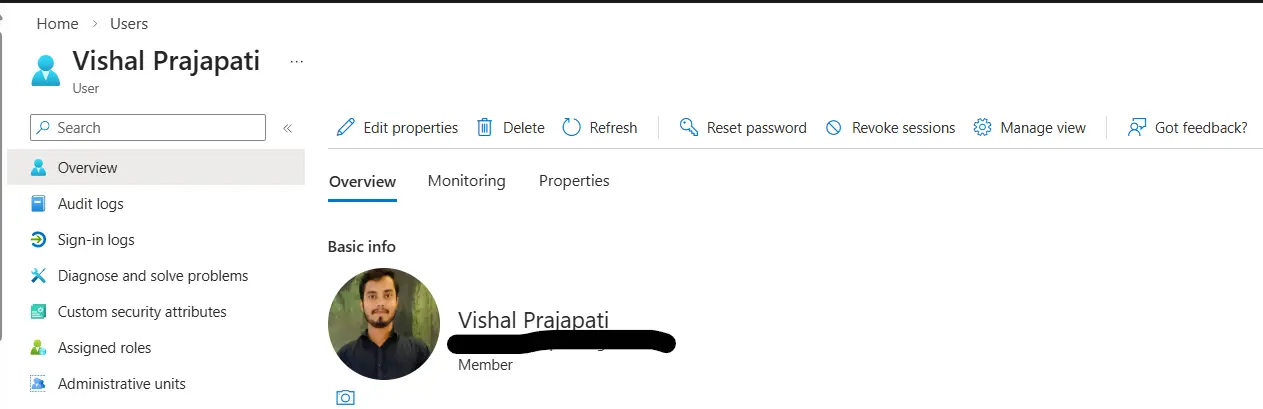
This kicks out:
- Active browser sessions
- OAuth tokens
- Mobile device access
Step 3: Review Sign-In Logs (Root Cause Analysis)
Go to:
Microsoft Entra ID → Users → Search compromised account → Sign-in logsCheck:
- IP addresses
- Country / region
- Device & browser
- Authentication method (password-only = red flag)
Look Specifically For:
- Impossible travel
- Legacy authentication usage
- Failed MFA attempts followed by success
Step 4: Remove Malicious Inbox Rules (VERY COMMON)
Attackers often create hidden inbox rules.
Check via Exchange Online Powershell
Get-InboxRule -Mailbox user@domain.comDelete rules that:
- Forward emails externally
- Move emails to RSS/Archive
- Delete security alerts
Step 5: Check Mailbox Forwarding & Delegates
Check Forwarding
Get-Mailbox user@domain.com | Select ForwardingSMTPAddressRemove if found:
Set-Mailbox user@domain.com -ForwardingSMTPAddress $nullCheck Delegates PowerShell
Get-MailboxPermission user@domain.comCheck Delegates Exchange Online Portal
Exchange admin center → mailboxes → Search mailbox → Click on delegation Remove unknown users immediately.
Step 6: Investigate Azure AD Risky Events
Go to:
Entra ID → ID Protection → Risky users / Risky sign-insActions:
- Confirm user compromised
- Reset password
- Require MFA re-registration
Step 7: Enforce MFA & Conditional Access
Minimum Security Controls:
- Enforce MFA for all users
- Block legacy authentication
- Require compliant or Microsoft Entra hybrid joined device
Step 8: Scan for Lateral Movement
Check if attacker:
- Sent phishing internally
- Modified SharePoint permissions
- Accessed OneDrive files
Audit Logs
Purview → Audit → Search activitiesLook for:
- MailboxLogin
- Add-MailboxPermission
- FileAccessed
Step 9: Notify Users & Management
Transparency matters.
Notify:
- Affected user
- IT Security / SOC
- Management (if data exposure suspected)
Reset passwords for any contacted users.
Step 10: Prevent Future Compromise (Hardening)
Must-Have Security Controls:
- MFA everywhere
- Conditional Access
- Disable legacy protocols
- User training (phishing awareness)
- External email tagging
- Defender for Office 365 (recommended)
How To Respond To A Compromised Microsoft 365 Account Checklist (Quick View)
- Disable account
- Reset password
- Revoke sessions
- Remove inbox rules
- Check forwarding
- Review sign-in logs
- Enforce MFA
- Audit mailbox activity
Frequently Asked Questions (FAQs)
Q1. Should I delete the compromised mailbox?
No. Investigation and evidence may be required.
Q2. Is password reset alone enough?
No. You must revoke sessions and check inbox rules.
Q3. How long should I monitor after incident?
At least 14–30 days.
Pro Tip (From Real Incidents)
Most M365 compromises happen due to:
- MFA not enforced
- User shared password on mail or whatsapp
- Legacy authentication enabled
- Users reusing passwords
Fix these once → prevent 90% of attacks.
Final Thoughts
A compromised Microsoft 365 account is not just an email issue—it’s an identity breach.
Fast containment, deep investigation, and strong preventive controls are the only way to stop repeat attacks.
