One of the most critical issues Microsoft 365 administrators face is when Exchange Online Emails Not Delivering to External Domains.
Users can send emails internally, but messages sent to Gmail, Yahoo, or customer domains never arrive or bounce back.
This guide explains how to troubleshoot and fix Exchange Online external email delivery issues using a structured, real-world admin approach.
Table of Contents
Common Symptoms
You may notice one or more of the following:
- Emails sent to external recipients are not delivered
- Users receive NDR (bounce-back) messages
- Emails show as “Sent” but are never received
- External recipients report no email or spam filtering
- Message trace shows failed or blocked status
Step 1: Confirm the Scope of the Issue
Before making changes, identify the scope:
- Is the issue affecting all users or specific users?
- Is the issue with all external domains or only some?
- Are internal emails working correctly?
This helps determine whether the issue is user-based, policy-based, or tenant-wide.
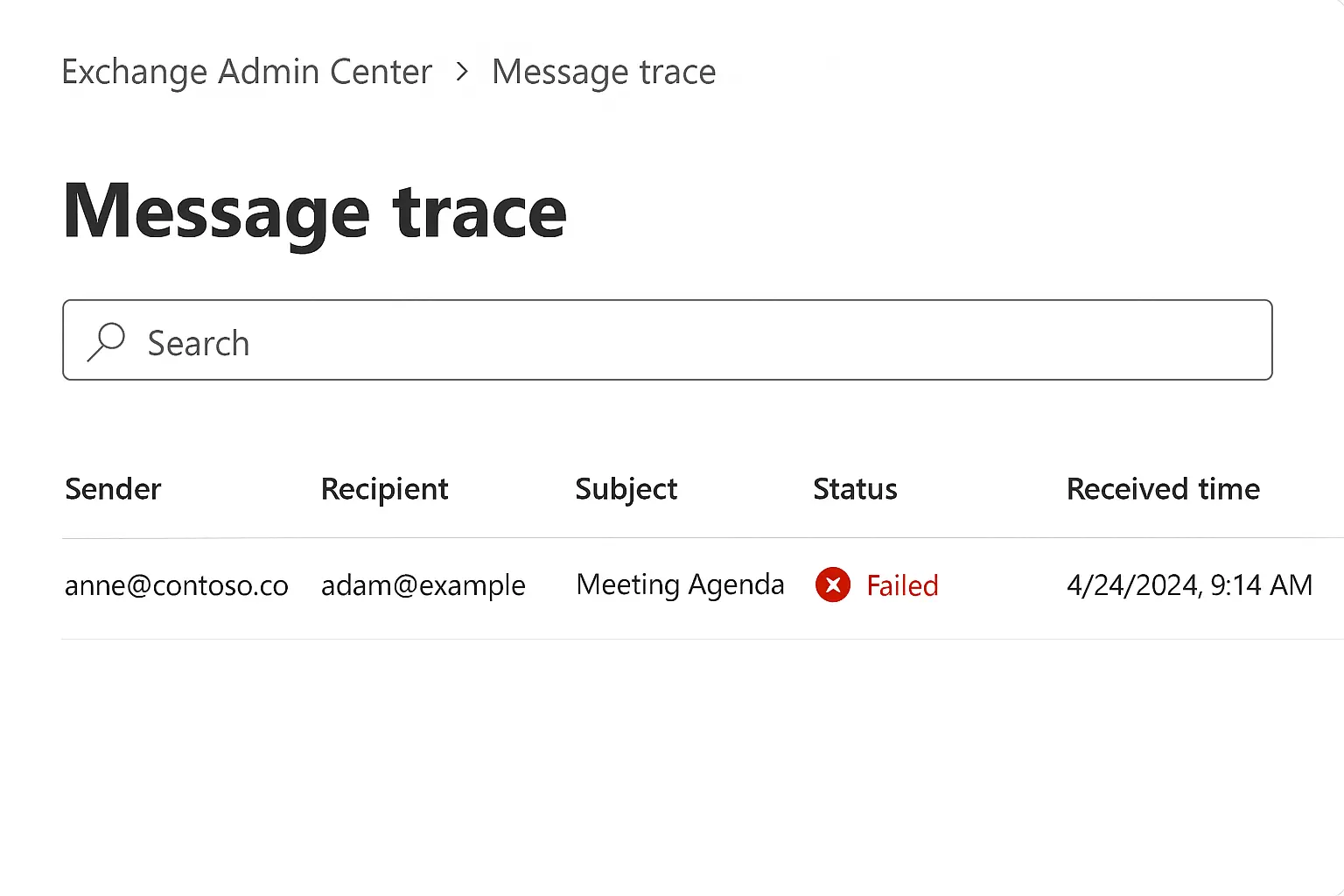
Step 2: Use Message Trace (MOST IMPORTANT STEP)
Where to check
Exchange Admin Center → Mail flow → Message traceWhat to verify
- Status: Delivered / Failed / Filtered
- Error or rejection reason
- Whether the message left Exchange Online
Step 3: Check if the User Is Restricted (Outbound Spam Control)
Microsoft automatically restricts users if suspicious activity is detected.
Check restricted users:
Microsoft 365 Defender Portal → Email & collaboration → Review → Restricted usersPowerShell command:
Get-BlockedSenderAddressIf the user is restricted, remove the restriction:
Remove-BlockedSenderAddress -SenderAddress user@domain.comStep 4: Review Mail Flow Rules (Transport Rules)
Mail flow rules can silently block or redirect emails.
Where to check
Exchange Admin Center → Mail flow → RulesLook for:
Rules blocking external recipients
Rules limiting outbound domains
Rules with incorrect conditions
PowerShell command:
Get-TransportRule | Format-Table Name,State,ModeDisable a rule for testing:
Disable-TransportRule -Identity "Rule Name"Step 5: Verify Outbound Connectors
Outbound connectors can affect external mail delivery.
Where to check
Exchange Admin Center → Mail flow → ConnectorsVerify:
- Connector status is enabled
- Correct smart host configuration
- TLS settings
PowerShell command:
Get-OutboundConnector | Format-List Name,Enabled,ConnectorTypePS C:\WINDOWS\system32> Get-OutboundConnector | Format-List Name,Enabled,ConnectorType
Name : Out bound Connector- for Secondary Link
Enabled : False
ConnectorType : Partner
Name : FromO365ToForcepoint
Enabled : True
ConnectorType : OnPremises
Step 6: Check DNS Records (CRITICAL)
Incorrect DNS configuration is a very common cause.
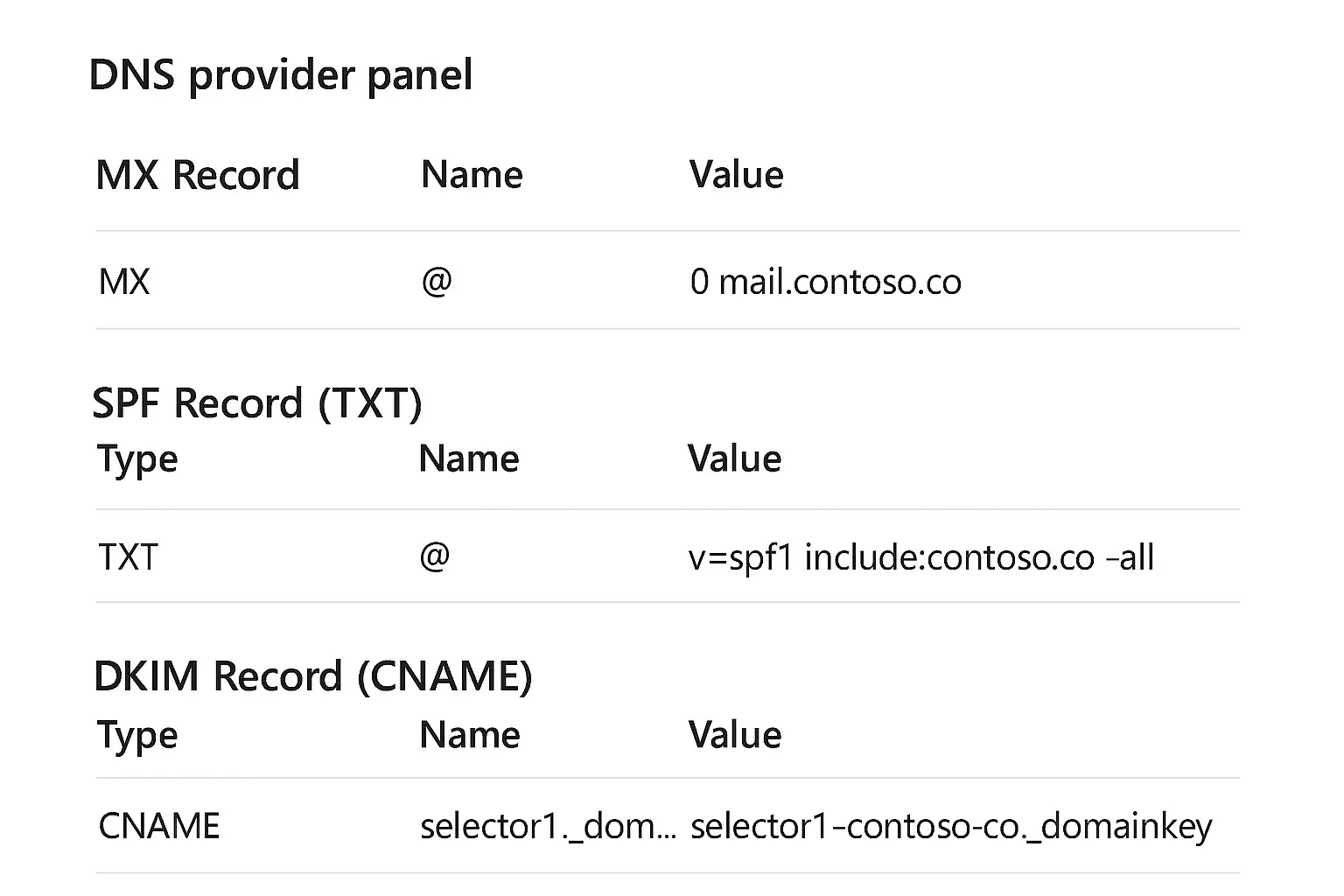
Verify the following records:
✔ MX Record
Must point to:
domain-com.mail.protection.outlook.com(In you case it could be your email gateway IP like Iron port, Mimecast, barracuda IP)
✔ SPF Record
Example:
v=spf1 include:spf.protection.outlook.com -all(If your organization is using application server for email sending on behalf of your domain and any third part email gateway for outbound email routing then you can see all Ip’s listed here )
✔ DKIM
Ensure DKIM is enabled in Exchange Online.
PowerShell to check DKIM:
Get-DkimSigningConfigEnable DKIM if disabled:
New-DkimSigningConfig -DomainName domain.com -Enabled $true✔ DMARC (Recommended)
Example:
v=DMARC1; p=none; rua=mailto:dmarc@domain.com(DMARC configuration is also vary from organization to organization may be your organization set it to p=reject or p= quarantine )
Step 7: Check Anti-Spam Policies
Outbound spam policies may block messages.
Where to check
Microsoft 365 Defender → Policies & rules → Threat policies → Anti-spamVerify:
- Outbound spam policy
- Restricted sender actions
- Threshold settings
Step 8: Verify License & Mailbox Status
If the mailbox is not provisioned correctly, mail flow may fail.
PowerShell commands:
Get-Mailbox user@domain.comCheck mailbox type:
Get-Mailbox user@domain.com | Select RecipientTypeDetailsStep 9: Test External Email Delivery
After changes:
1.Send a test email to:
- Gmail
- Outlook.com
- External corporate domain
2.Re-run message trace
3.Confirm delivery status
Step 10: Prevention Best Practices
To avoid future issues:
- Enable MFA for all users
- Monitor outbound spam reports
- Keep DNS records updated
- Review mail flow rules quarterly
- Monitor Service Health dashboard
Frequently Asked Questions (FAQs)
Why are internal emails working but external emails failing?
Internal mail flow does not rely on DNS, connectors, or outbound policies, which are critical for external delivery.
Can Microsoft block outbound emails automatically?
Yes. If suspicious activity is detected, Microsoft may restrict the user to prevent spam.
How long does DNS change take to fix mail flow?
DNS changes usually take 5 minutes to 24 hours, depending on TTL.
Should I contact Microsoft Support?
If message trace shows failures with no clear cause and Service Health is normal, contacting Microsoft Support is recommended.
Final Thoughts
Exchange Online external email delivery issues can seem complex, but a structured troubleshooting approach helps resolve them quickly.
Always start with message trace, then move step by step through:
- User restrictions
- Mail flow rules
- Connectors
- DNS records
This approach is exactly what Microsoft 365 SupportEngineer interviews and real-world support roles expect.
