Every email carries an invisible flight log. Before it reaches the recipient’s inbox it is inspected, timestamped and stamped by each server on its route — and every one of those stamps is recorded at the top of the message as metadata we call the header. The header is the single richest diagnostic artefact an Exchange Online engineer has, and the only source of truth when the user says “something is wrong with this email”.
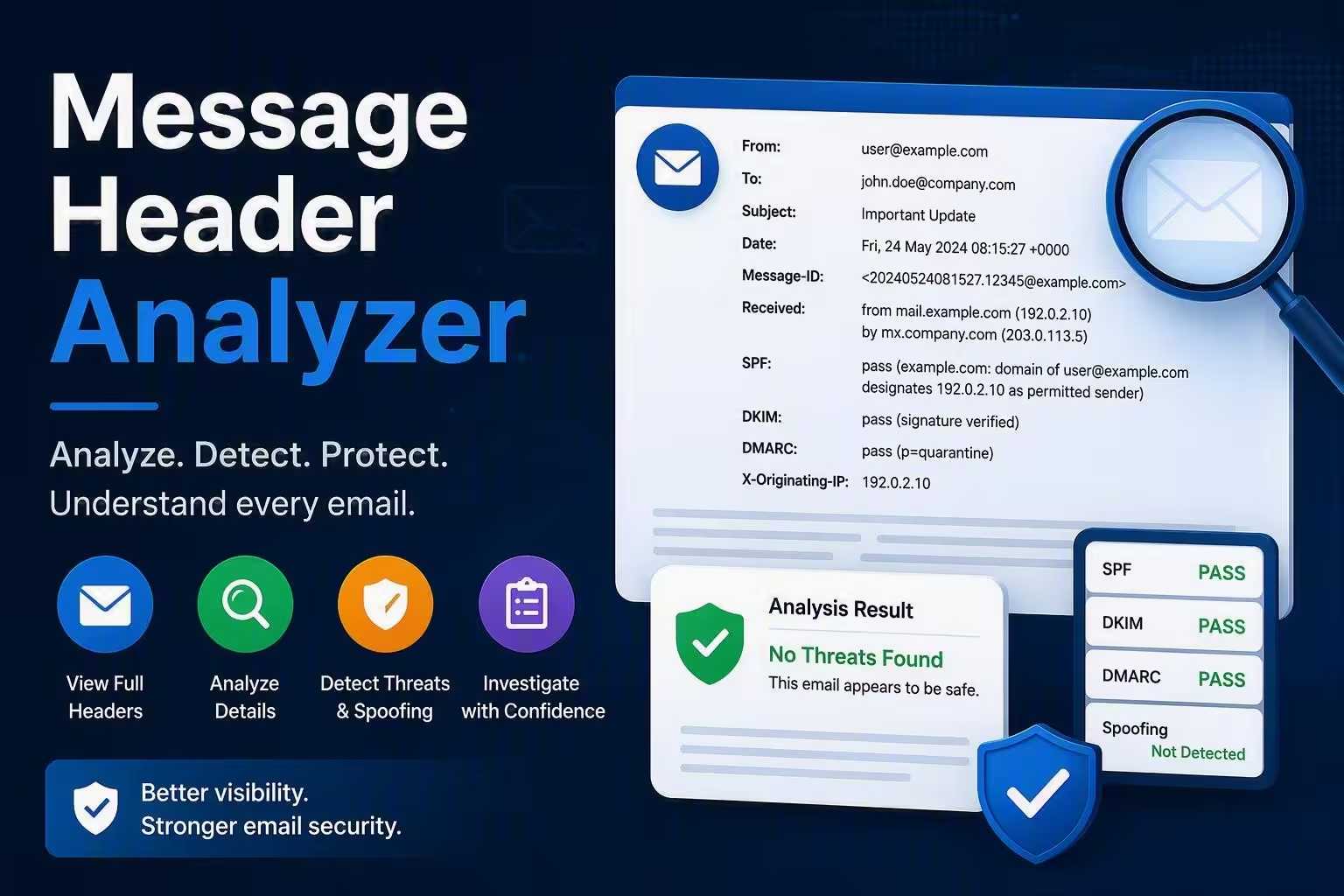
A Message Header Analyzer (MHA) is a parser that takes this dense, semicolon-heavy block of text and renders it as a structured report — hop-by-hop timeline, authentication verdicts, antispam scores, filtering decisions and routing metadata — so Support engineers can diagnose in seconds what used to take minutes of squinting at raw text.
Table of Contents
What Is a Message Header Analyzer?
A Message Header Analyzer is a parsing tool that converts raw RFC 5322 email headers into a structured, easy-to-understand report.
Instead of manually reading semicolon-heavy text, the analyzer provides:
- Hop-by-hop email journey
- Authentication results (SPF, DKIM, DMARC)
- Spam and filtering verdicts
- Routing and delivery details
- Anti-spam scores like SCL and BCL
Expert Insight
Think of it as reading a courier tracking log instead of guessing why a package is late. The header never lies—the user often does.
Why Message Header Analyzer Matters More Than Message Trace
Message trace tells you that an email existed. Message Header Analyzer tells you what actually happened.
Top Real-World Use Cases Where The Header Wins
| Problem | What You Learn from Header |
|---|---|
| Email delay | Exact hop causing latency |
| Phishing suspicion | SPF, DKIM, DMARC failure |
| Junk/quarantine issue | SCL, BCL, SFV verdict |
| NDR/bounce | Rejection point |
| Routing problem | Internal vs external path |
Collecting Headers — Outlook Desktop
Step 1: Collect Message Headers
Outlook Desktop
Classic Outlook Desktop (the Win32 client bundled with Microsoft 365 Apps) stores the raw RFC 5322 header for every message inside its Properties dialog. The dialog is only accessible once the message is opened in its own window — the reading pane does not expose it.
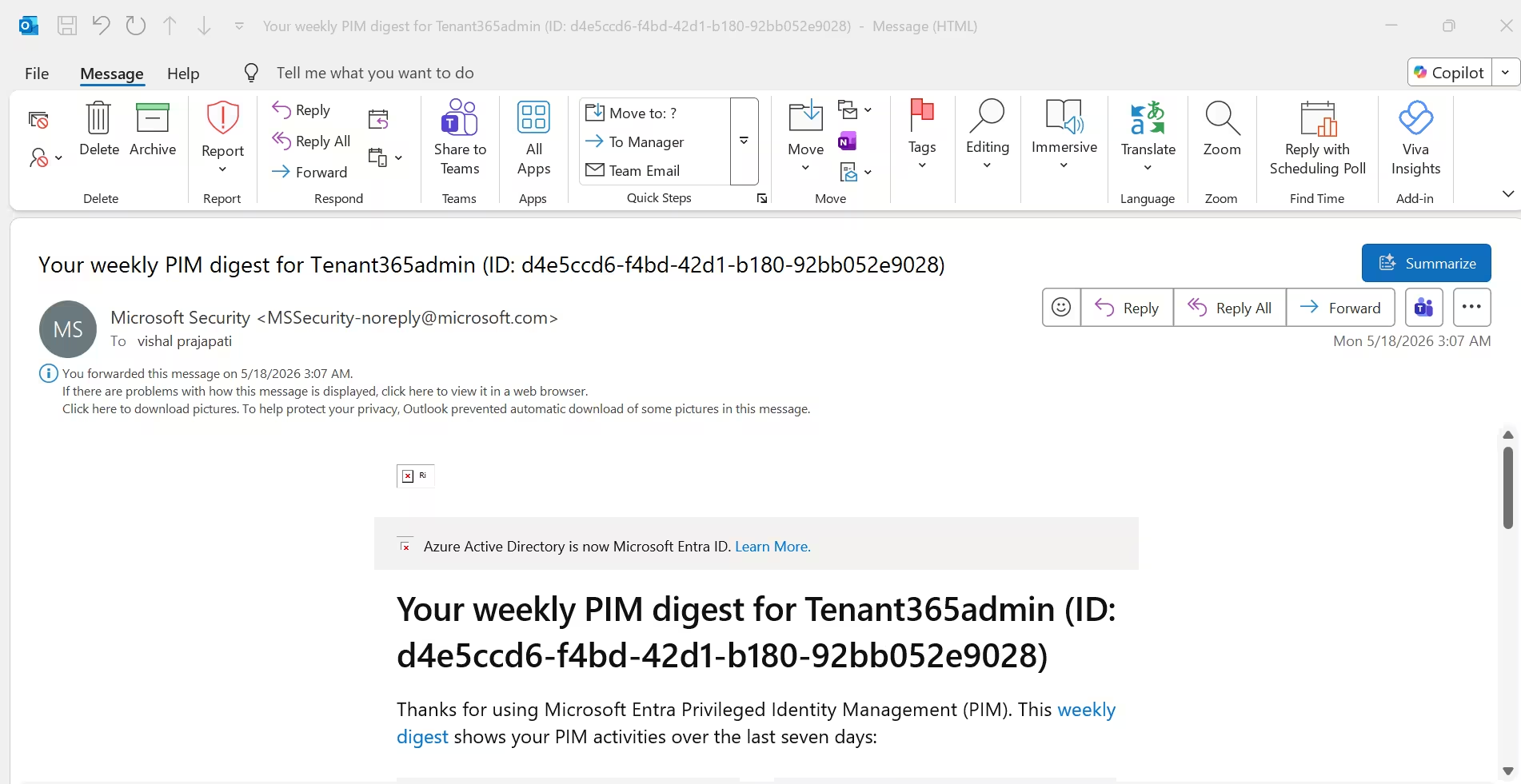
Step 1 — Open the message in its own window
From the Outlook main window, double-click the email. It opens in a dedicated reading window with the Message ribbon at the top. This is mandatory — File → Info is not available from the reading pane.
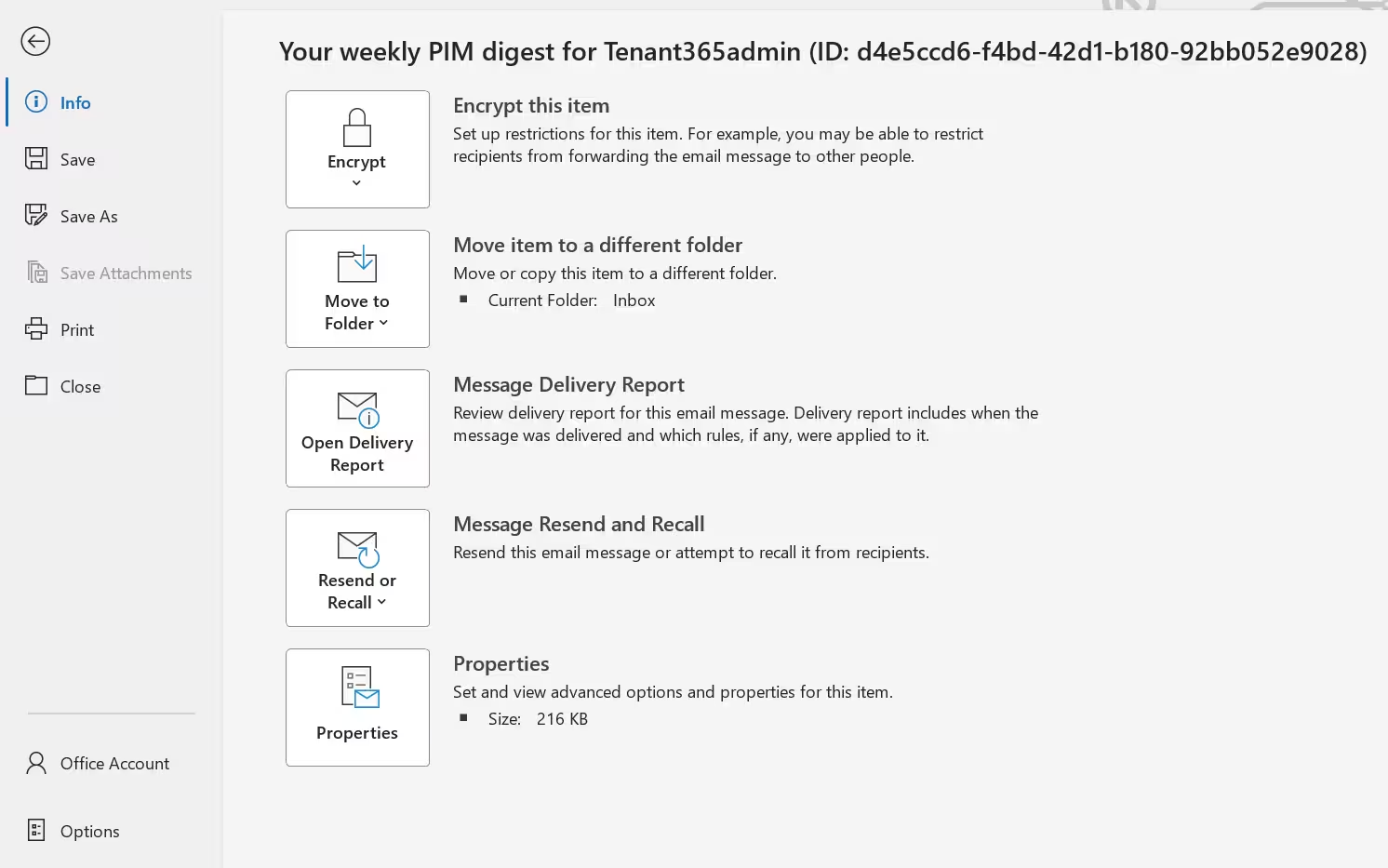
Step 2 — File → Info
Click File in the top-left to enter Backstage view. The Info tab is selected by default. The Properties button appears on the right, exposing advanced item options.
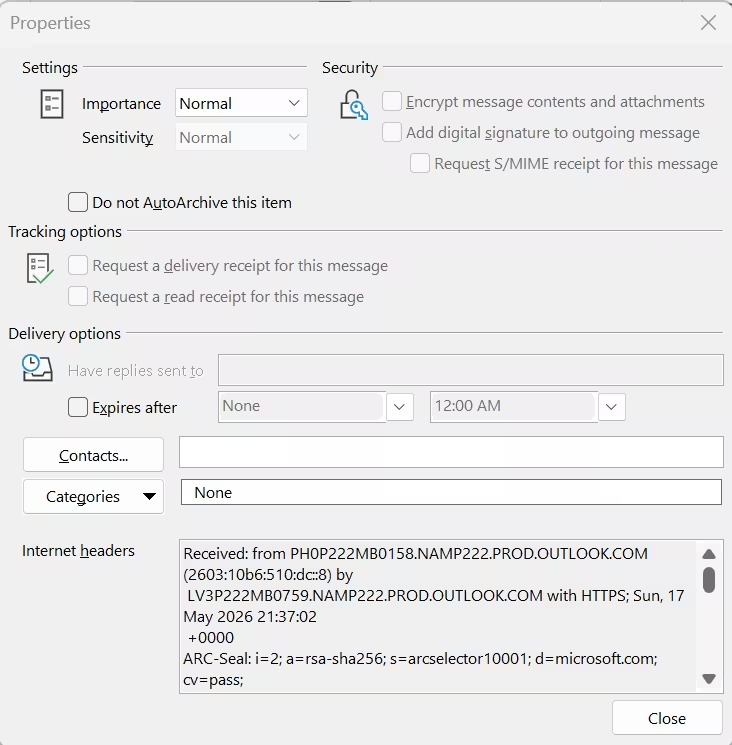
Step 3 — Properties → Internet headers
Click Properties. A small dialog opens. The Internet headers box at the bottom contains the full, verbatim RFC 5322 header. Click inside, press Ctrl+A to select all, Ctrl+C to copy.
WATCH OUT — NEW OUTLOOK FOR WINDOWS
The New Outlook (rolling out from 2024 onward as the default for new installs) does not expose File → Info → Properties. There is no Internet headers dialog. Use the OWA-style approach in the next section instead. If you must work with classic Outlook, it is still shipped with Microsoft 365 Apps for Enterprise and can be forced via the toggle in the top-right of the Outlook window.
Collecting Headers — Outlook on the Web
OWA is the browser-based client for Exchange Online. It exposes the raw message source through the More actions (⋯) menu on any opened email. Because OWA is session-based, there is no Properties dialog — you either view the source inline or download the .EML file.
The Steps:
1.Sign in to outlook.office.com and open the subject email (reading pane or pop-out — both work).
2.Click the More actions menu (⋯) at the top-right of the open email.
3.Choose View → View message source to see the source inline, OR choose Download → Download as EML to save a copy.
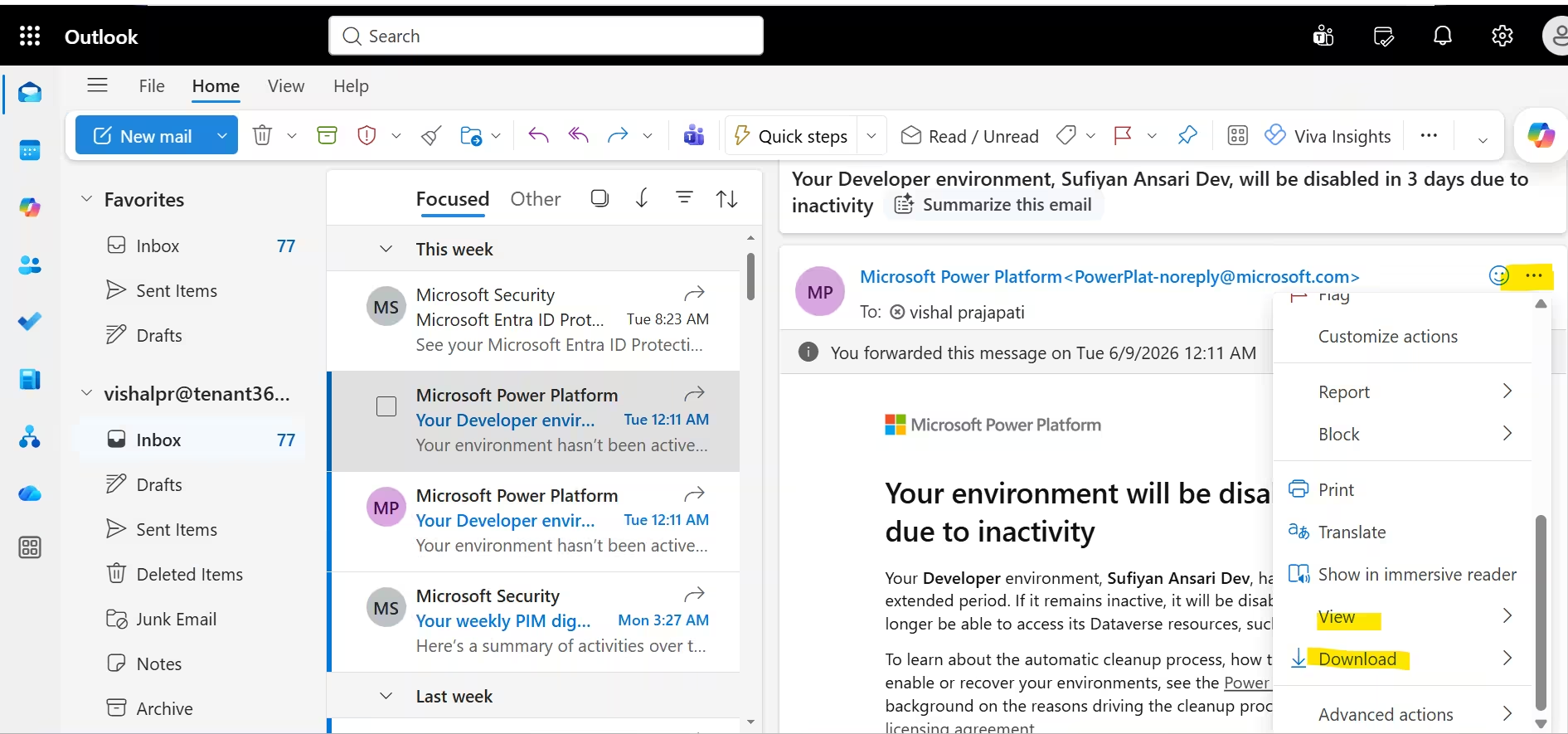
4.If you used View message source, a dialog opens with the full RFC 5322 content. Select everything above the first blank line — that is the header — and copy.
5.If you downloaded the .EML, open it in any text editor (Notepad, VS Code) — the header block is everything above the first empty line.
WHAT IS IN AN .EML FILE
An .EML file is the plain-text, RFC 5322 serialisation of the message. The top block (before the first blank line) is the header. Below is the body — text, HTML, multipart MIME, attachments in Base64. When pasting into MHA, pasting the whole .EML content works — the parser ignores the body automatically.
Microsoft-recommended Message Header Analyzer
The Microsoft-recommended Message Header Analyzer for Exchange Online is hosted at: https://mha.azurewebsites.net
The tool is free, public, maintained by the Microsoft Exchange team, and — importantly — parses headers entirely in the browser. No header data is transmitted to a backend service, which makes it safe to use with production emails containing customer identifiers. The front-end is a single-page app; you paste, click, and read.
How MHA Work
1.Open https://mha.azurewebsites.net in any modern browser (Edge, Chrome, Firefox, Safari).
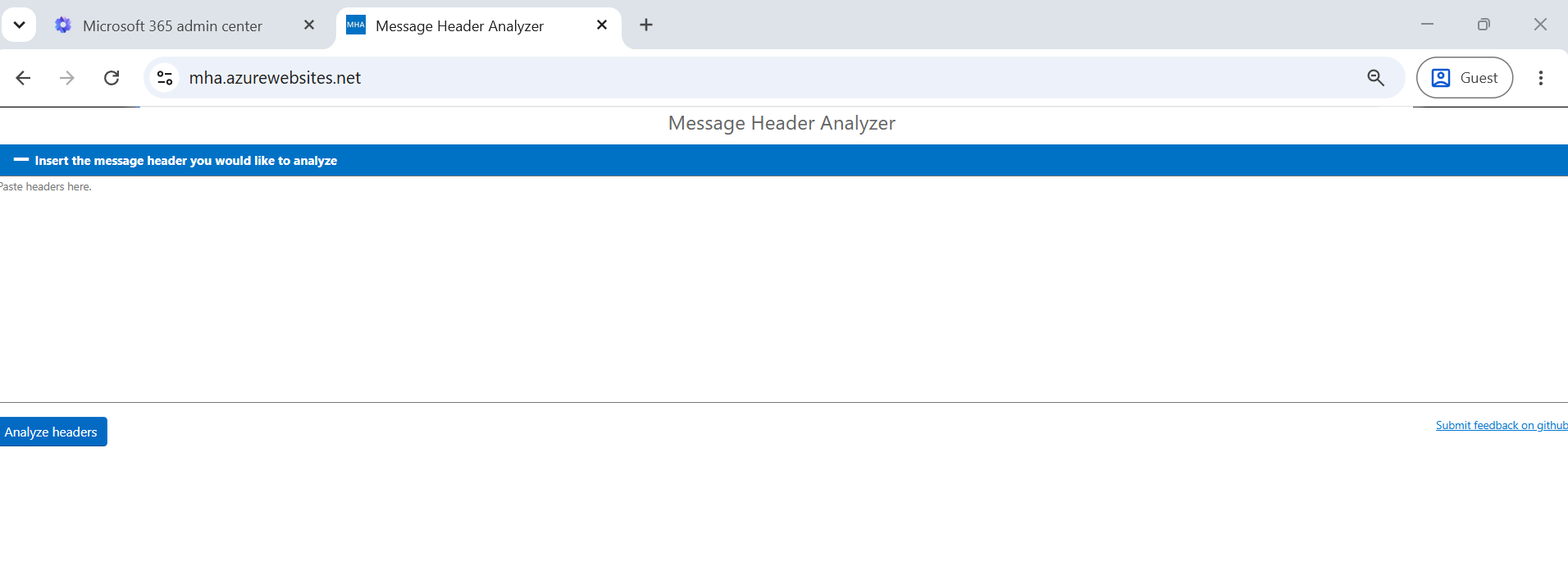
2.Paste the copied header into the text box labelled “Insert the message header you would like to analyze”.
3.Click the blue Analyze headers button below the input.
4.The page re-renders with collapsible sections: Summary, Diagnostics Report, Received headers, Forefront Antispam Report, Microsoft Antispam Header, Other headers.
MHA – Every Option Explained
After clicking Analyze headers, MHA renders a vertical stack of collapsible panels. Each panel surfaces a specific layer of intelligence. The sections below walk through each panel with live screenshots from a real Microsoft 365 tenant investigation.
- Summary
The Summary is the executive snapshot — the one view most tickets never need to go beyond.

| Field | What it shows | Why it matters |
|---|---|---|
| Subject | The value of the Subject: header as stamped by the sender. | Confirm you are looking at the right message. |
| Message Id | A globally unique identifier generated by the originating mail system. | Cross-correlate with message trace, Defender logs, spam reports. |
| Creation time | Date header value + computed total delivery time across all hops. | Immediate visibility of end-to-end latency. |
| From | Display name + SMTP address as it appears in the visible From: header. | What the recipient sees. Compare to Return-Path to spot spoofing. |
| To | Primary recipient SMTP address. | Confirms whether delivery was direct, via alias, or via DL expansion. |
Diagnostics Report
MHA’s plain-English verdict based on reading antispam and routing headers. It tells you what the EOP filtering stack decided.
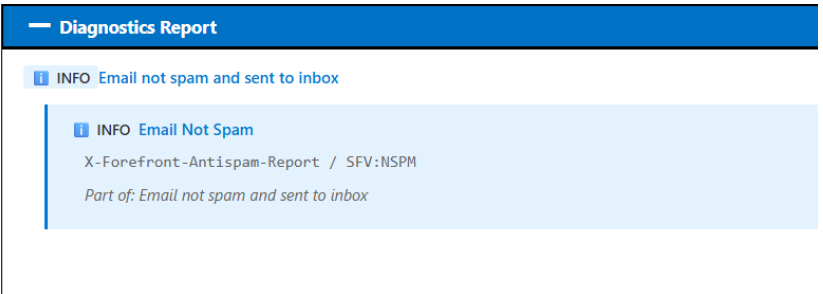
Common Diagnostics verdicts
- Email not spam and sent to inbox — SFV:NSPM. EOP did not mark as spam. Normal delivery.
- Email marked as spam — SFV:SPM or BLK. Content filter or blocklist fired.
- Email marked as bulk — SFV:SKB. BCL exceeded the tenant threshold.
- Phishing — SFV:SKI with CAT:PHISH. Defender anti-phish verdict.
- Allow-listed / safe — SFV:SKN. Bypassed filtering via transport rule, connector, or Safe Senders.
Received Headers — The Hop Table
Arguably the single most important panel. It reverses the Received: chain and presents it as an ordered hop-by-hop timeline — Hop 1 is where the message originated, the last hop is where it landed.

| Column | Meaning | What to Look For |
|---|---|---|
| Hop | Sequence number. Hop 1 is origin. | Abnormally high counts point to unexpected relays. |
| Submitting Host | The MTA that handed off, plus its IP. | Compare with CIP in the Forefront report. It should match for Hop 1. |
| Receiving Host | The MTA that accepted the handoff. | Tracks whether the path stayed inside Exchange Online or crossed external gateways. |
| Time | Timestamp when the receiving host accepted the message. | Watch for time-zone anomalies or server clock skew. |
| Delay | Time gap from the previous hop. | Anything greater than 10 seconds is suspicious. Localize the problematic hop. |
| Type | Protocol used, such as SMTP, HTTPS, or Microsoft SMTP Server with TLS cipher. | Confirms end-to-end encryption and TLS version. |
DELAY — RULE OF THUMB
- 0–2 seconds per hop: healthy.
- 3–10 seconds: acceptable during peak or cross-region routing.
- 10–60 seconds: investigate DNS, TLS, greylisting or queue backpressure.
- >60 seconds: definite issue — throttling, connector inspection, or third-party gateway scan.
Microsoft Antispam Header
The X-Microsoft-Antispam header carries the Bulk Complaint Level (BCL) and internal telemetry fingerprints. MHA unpacks them into a compact view.

BCL — Bulk Complaint Level scale
| BCL | Interpretation | Default EOP Action |
|---|---|---|
| 0 | Not bulk. Legitimate sender with a very low complaint rate. | Deliver to Inbox. |
| 1–3 | Occasional bulk sender with a low complaint rate. | Deliver to Inbox. |
| 4 | Mixed reputation. Default Microsoft 365 bulk threshold. | Delivered (depends on tenant policy settings). |
| 5–7 | Frequent bulk sender with noticeable complaints. | Marked as Bulk and delivered to Junk Email folder. |
| 8–9 | Aggressive bulk sender with a high complaint rate. | Delivered to Junk or Quarantine |
Forefront Antispam Report Header
X-Forefront-Antispam-Report is the single richest header EOP stamps. Semicolon-separated key:value pairs that MHA decodes into a table.
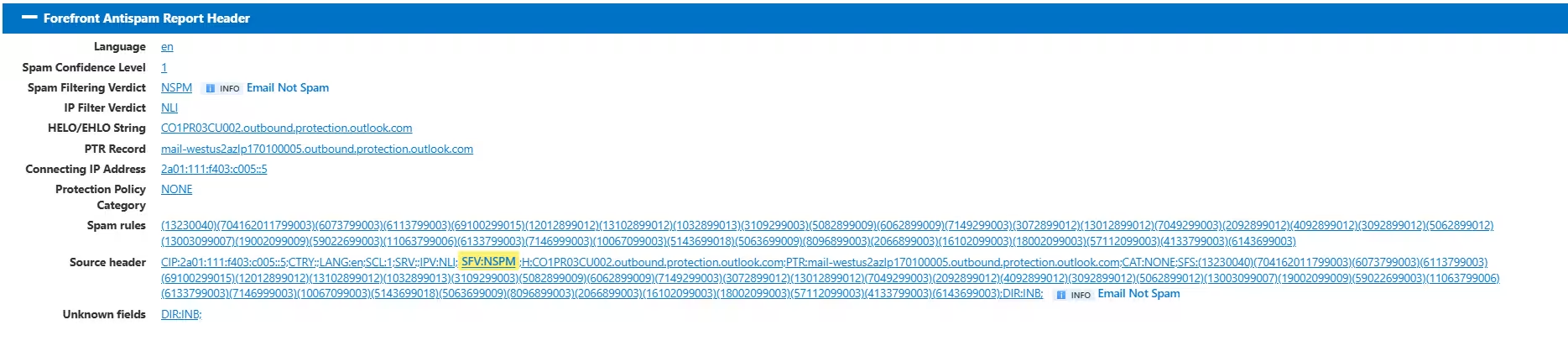
Every key decoded
| Key | Stands For | Meaning |
|---|---|---|
| CIP | Connecting IP | IP address of the sending MTA as seen by Exchange Online Protection (EOP). |
| CTRY | Country | Geolocation of the connecting IP address (ISO-2 country code). |
| LANG | Language | Detected language of the email message (for example: en, fr, de). |
| SCL | Spam Confidence Level | -1 = bypass, 0–1 = not spam, 5–6 = spam, 7–9 = high-confidence spam. |
| SRV | Service | Filtering service classification (BULK, etc.). |
| IPV | IP Filter Verdict | NLI = Not Listed, CAL = Connection Allowed. |
| SFV | Spam Filtering Verdict | NSPM, SPM, SKB, BLK, SKI, SKN and other Microsoft spam verdict codes. |
| H / PTR | HELO / Reverse DNS | HELO host name from the SMTP handshake and PTR (reverse DNS) record of the connecting IP. |
| CAT | Category | Possible values include NONE, PHISH, SPM, BULK, MALW, and HSPM. |
| SFS | Spam Filter Signatures | Internal Microsoft spam-filter rule IDs useful when escalating cases to Microsoft Support. |
| DIR | Direction | INB = Inbound message, OUT = Outbound message. |
| SFP | Spam Filter Policy | Identifier of the anti-spam policy that processed the message. |
SCL values
| SCL | Classification | Action |
|---|---|---|
| -1 | Skipped by Policy | Bypassed spam filtering through a transport rule, IP allow list, or partner connector. |
| 0 / 1 | Not Spam | Delivered directly to the Inbox. |
| 5 / 6 | Spam | Moved to Junk Email folder or Quarantine depending on tenant policy. |
| 7 / 8 | High-Confidence Spam | Quarantined by default. |
| 9 | High-Confidence Spam (Aggressive) | Quarantined or Deleted based on organizational policy. |
SFV verdict codes
| Code | Meaning | Typical Trigger |
|---|---|---|
| NSPM | Not Spam | Normal email delivery with no spam indicators detected. |
| SPM | Spam | Message classified as spam by Microsoft’s content filtering engine. |
| SKN | Skipped – Known Good | Sender or message matched an allow-listed trusted source. |
| SKB | Skipped – Bulk | High Bulk Complaint Level (BCL) detected; delivered to Junk Email folder. |
| SKA | Skipped – Allow List | Sender was explicitly allowed by a tenant or user allow list. |
| SKS | Skipped – Safe | A transport rule or policy marked the message as safe. |
| SKI | Skipped – Intra-Org | Message originated from within the same Microsoft 365 organization. |
| BLK | Blocked | Sender matched a block list or anti-spam policy block action. |
| SKQ | Skipped – Quarantine Release | Message was previously quarantined and later released by an administrator or user. |
Other Headers — Deep Dive
Every header not belonging to the named panels appears here as a numbered table. These are the expert’s playground — most of the hard diagnostic answers live in this panel.
ARC chain and Authentication-Results

- Authentication-Results — master verdict. spf=, dkim=, dmarc=, compauth=. What DMARC-aware receivers trust.
- ARC-Authentication-Results — preserved upstream verdict when the message passed through a trusted forwarder.
- ARC-Seal / ARC-Message-Signature — cryptographic chain of custody added by each ARC-aware intermediary.
SPF, MIME and content
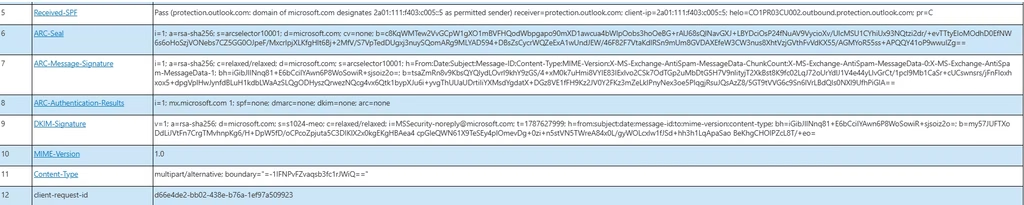
- Received-SPF — Explicit Pass / Fail / SoftFail / Neutral / None with the receiver’s reasoning in parentheses.
- MIME-Version / Content-Type / Content-Transfer-Encoding — defines body structure. Useful when rendering is broken.
Transport diagnostics

- Return-Path — envelope sender (SMTP MAIL FROM). Compare to visible From: for spoof detection.
- X-MS-Exchange-SenderADCheck — 0 means sender not in Entra/AD; 1 means present. Crucial for intra-org spoof detection.
Untrusted / original backup fields

- Untrusted / Original suffix — the upstream-stamped copy of a header that EOP could not cryptographically verify. Diverges from the trusted rewritten copy when ARC trust fails.
Organisation and tenant metadata

- X-MS-Exchange-Organization-Network-Message-Id — tenant-scoped GUID. Your key to message trace, Defender logs and support cases.
Attribution and directionality
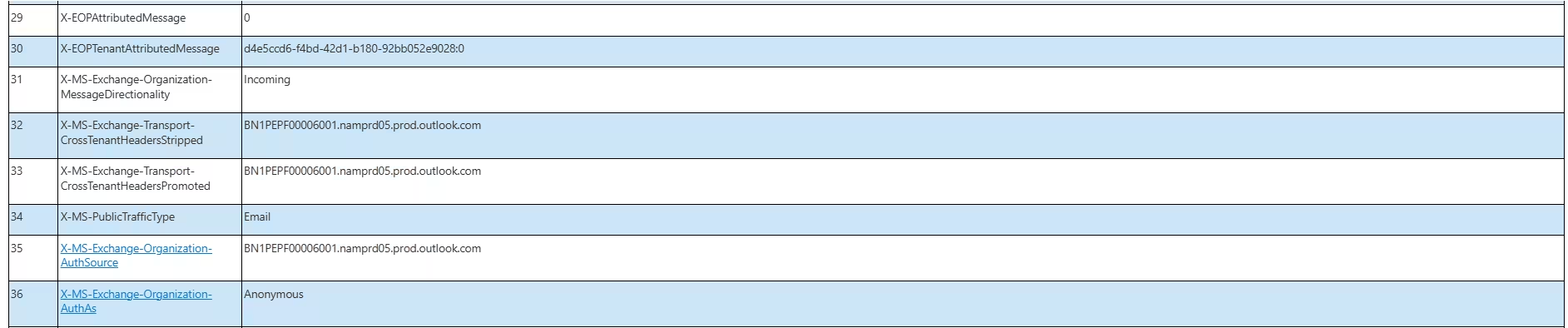
- MessageDirectionality — Incoming / Originating. Absolute source of direction used by transport rules.
- X-EOPTenantAttributedMessage — tenant GUID EOP attributed the message to. Critical for multi-tenant investigations.
Cross-tenant and filtering correlation
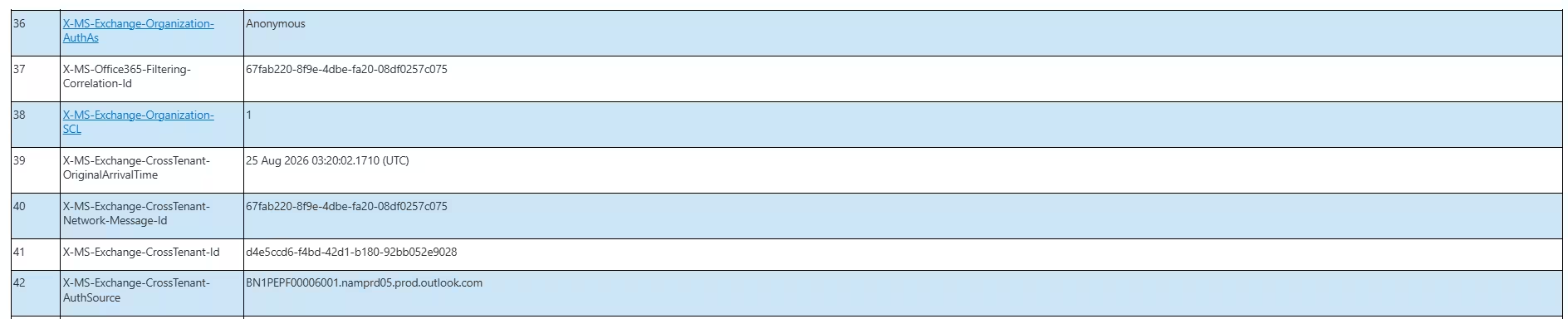
- X-MS-Exchange-Organization-AuthAs — Anonymous (external), Internal (same org), Partner (federated).
- X-MS-Office365-Filtering-Correlation-Id — GUID that joins the header to Defender / filtering backend logs. Share with Microsoft support.
Latency, foldering, external tag

- X-MS-Exchange-CrossTenant-FromEntityHeader — Internet (sender outside any M365 tenant), HostedTenant (another M365 customer), HybridOnPrem (on-prem Exchange).
- X-MS-Exchange-Transport-EndToEndLatency — total latency inside EXO in HH:MM:SS.f. Cross-check against the Summary’s Delivered after N seconds.
- X-MS-Exchange-ExternalInOutlookResult — NotEnabled / Stamped / Bypassed. Tells you whether the External tag in Outlook was applied.
Mailbox delivery decision

X-Microsoft-Antispam-Mailbox-Delivery — ucf (user config), jmr (junk rule), auth (authenticated), dest:I / J / Q (inbox / junk / quarantine). The definitive folder-placement decision.
Complex Scenario — Step by Step
Scenario. The front-desk team at Taj place complains that booking confirmations from their third-party reservation system are arriving 3–4 minutes late at reservations@contosohotels.com. Some messages land in Junk, others in Inbox. L1 has already verified application IP is listed in their SPF record. The ticket has escalated to L2 Team.
Step 1 — Collect the header cleanly
Ask the user to Forward as Attachment (Home → More → Forward as Attachment in Outlook; ⋯ → Forward as attachment in OWA).This preserves the original header. Paste into mha.azurewebsites.net.
Step 2 — Baseline facts from Summary
Record Subject, From, To, Message Id, Creation time. Delivered after 240 seconds vs an SLA of <30 seconds confirms the delay numerically — no more user anecdote.
Step 3 — Localise the delay in the Received table
Normal Microsoft internal hops are 0–2 seconds. If Hop 2 (where EOP first accepts from ReservePro) shows 180+ seconds, the problem is inbound — sender-side MTA queue or EOP greylisting.
If internal hops 3–5 are slow, it is inside EXO — open a case with Microsoft.
If Hop 1 → Hop 2 is slow, the external sender is slow or being greylisted.
Step 4 — Filter fingerprints
SCL = 5 or 6 ⟹ content filter marked it as spam → Junk. That explains the Junk half of the complaint.
BCL ≥ 4 ⟹ tenant bulk threshold is tripping. Check your Anti-Spam policy bulk threshold.
SFV — NSPM, SPM, SKB, SKN — tells you which filter decided.
CTRY — if not ReservePro’s expected region, a new IP or an upstream relay is in use.
Step 5 — Authentication
spf=pass: ReservePro’s CIP is in their SPF record. Missing or softfail means SPF is misconfigured at the sender.
dkim=pass: body integrity verified. dkim=none is a DMARC weakness.
dmarc=pass: SPF/DKIM aligned with From.
compauth=pass reason=100 is the strongest trust verdict EOP issues. Anything else ⟹ reduced trust.
Step 6 — Direction
MessageDirectionality = Incoming, AuthAs = Anonymous: confirmed external. If you see Internal, a transport rule is rewriting direction — investigate.
Step 7 — Final delivery decision
X-Microsoft-Antispam-Mailbox-Delivery dest: is ground truth. I = Inbox, J = Junk, Q = Quarantine.
If some messages show J and others I for the same sender, check: user Junk folder, tenant allow/block, content-filter rules, Safe Sender override.9
Step 8 — Hypothesis and remediation
LIKELY ROOT CAUSE AND FIX
Hop 1 → Hop 2 delay of ~180s on some messages (sender queue backup or first-touch EOP greylisting). SCL=5, BCL=4 on a subset (content rules firing on booking-HTML with many links and URL patterns).
SPF pass, DKIM none, DMARC pass by SPF alignment only.
dest:J on flagged messages, dest:I on clean ones. Fixes:
(1) Ask ReservePro to add DKIM signing — strengthens DMARC.
(2) Add ReservePro IP range to Enhanced Filtering bypass on the inbound connector.
(3) If policy allows and DKIM is enabled, create a transport rule to set SCL=-1 for verified ReservePro mail. (4) Raise a case with Microsoft to review greylisting on the sender IP.
Which Headers Can You Trust?
Not every header is truth. Some are written by the sender and can contain anything they want. Others are stamped by trusted infrastructure and cannot be forged without breaking cryptography. Knowing which is which is the single largest gap between L2 and L3 engineers — and the difference between a correct diagnosis and a wrong one.,
The trust ladder
| Trust Tier | Headers | Why They Can Be Trusted |
|---|---|---|
| TRUSTED — Stamped by EOP |
X-Microsoft-Antispam, X-Forefront-Antispam-Report, X-MS-Exchange-Organization-*, X-MS-Exchange-CrossTenant-*, X-Microsoft-Antispam-Mailbox-Delivery |
Microsoft Exchange Online Protection (EOP) stamps these headers after authenticating the connection. External senders cannot modify or influence these values. |
| TRUSTED — Cryptographic |
DKIM-Signature, ARC-Seal, ARC-Message-Signature |
Digitally signed using the sender’s or forwarder’s private key. Any modification invalidates the signature, making tampering easily detectable. |
| SEMI-TRUSTED — Trusted Upstream Systems |
Received-SPF, ARC-Authentication-Results, Authentication-Results from trusted forwarders |
Generated by trusted mail infrastructure. Generally reliable but may be spoofed if originating from an untrusted upstream source. |
| SEMI-TRUSTED — Boundary Received Headers |
Received: lines added bymail.protection.outlook.comand Microsoft servers above the EOP boundary |
These entries are stamped by Microsoft infrastructure. Anything below the Exchange Online Protection boundary should be validated carefully. |
| UNTRUSTED — Sender-Controlled |
From, Subject, Date, Reply-To, To, Cc, Message-ID, Received headers below the trust boundary, Any sender-generated X-* header |
These values can be easily forged by the sender. Never trust them without supporting evidence such as DKIM, ARC, SPF, or Microsoft-stamped headers. |
CORE RULE OF HEADER READING: Read the Received chain from the BOTTOM UP (oldest first) but TRUST from the TOP DOWN. The top-most Received (your EOP) is trustworthy. Trust everything above the mail.protection.outlook.com boundary. Treat anything below the boundary as claims, not evidence — until cryptographic signatures (DKIM, ARC) corroborate.
Classic forgery patterns and how to spot them
- Forged Received lines — attacker adds fake Received: entries below the boundary to hide the true source. Counter: ignore everything below the first Received line stamped by your trusted infrastructure.
- From display-name spoofing — From: “CEO Name” random@external.com. Visible name is trivially forged; the SMTP address and Return-Path tell the truth.
- Lookalike domain — contoso.com vs contos0.com. Check the From: domain character-by-character and confirm DMARC alignment.
- Reply-To redirection — From appears legitimate but Reply-To points to an attacker address. Always compare Reply-To to From in the header.
Power Tips for Experts
- Always ask for Forward as Attachment
- Use Network-Message-ID for correlation
- Validate compauth result
- Focus on Received chain delays
- Ignore spoofable headers
Common Pitfalls, Edge Cases, and Quick Reference
Common mistakes engineers make
- Trusting a forwarded email’s header — when a user forwards a phishing email normally (not as attachment), the header is destroyed. Always ask for Forward as Attachment.
- Confusing Message-ID with Network-Message-Id — Message-ID is sender-generated (forgeable). Network-Message-Id is tenant-stamped GUID (trusted). Use NMI for all Microsoft correlation.
- Reading Received chain top-down — the chain is reverse-chronological. Top is most recent (your EOP); bottom is oldest (origin). MHA reorders for you; the raw text does not.
- Misreading timestamps — each hop’s timestamp is in the time zone of the receiving server. When comparing hops, normalise to UTC first.
- Assuming SPF pass = legitimate — SPF can pass on a spoofed From if the envelope sender is different and SPF alignment fails. DMARC alignment is what matters.
- Ignoring truncation — EOP truncates headers over 256 KB. If X-Microsoft-Antispam-Message-Info is missing from the trailer, the header is incomplete.
Edge cases worth knowing
| Edge Case | What You Will See | Correct Interpretation |
|---|---|---|
| Hybrid Exchange (EXO + On-Prem) | The Received chain alternates between on-premises Exchange servers and Exchange Online. |
Verify X-MS-Exchange-CrossTenant-FromEntityHeader=HybridOnPrem.
This confirms mail flow through a hybrid connector.
|
| Mailing List / Distribution List Forwarders | Original SPF or DKIM authentication appears broken after forwarding, while ARC preserves upstream authentication results. |
Trust ARC-Authentication-Results only when the complete ARC-Seal chain successfully validates.
|
| Sender Uses a Bulk MTA (Mailchimp, Amazon SES, SendGrid) | Return-Path differs from the From address. SPF passes using the bulk mail provider, while DMARC relies on DKIM alignment. | Require DKIM signing from the sender. DKIM is the most reliable method for maintaining DMARC alignment. |
| Greylisting on First Contact | A significant delay appears between Hop 1 and Hop 2 when receiving mail from a previously unseen IP address. | This is typically expected behavior. Delivery times improve as sender reputation is established. Consider an IP bypass only for SLA-critical mail flow. |
| Cross-Tenant Delivery (Microsoft 365 → Microsoft 365) |
CrossTenant-FromEntityHeader=HostedTenant and tenant-specific identifiers appear in the message header.
|
Both Microsoft 365 tenants stamp their own headers. Network-Message-ID values will differ between tenants. |
| Encrypted Email (S/MIME, OME, RMS) |
Content-Type values such as multipart/signed or application/pkcs7-mime.
|
Message headers remain visible for analysis, but the email body cannot be inspected without appropriate decryption keys. |
Quick-reference decoder card
| Field | Quick Interpretation |
|---|---|
| SCL = -1 | Spam filtering was bypassed through an allow list, transport rule, or partner connector. |
| SCL 0 or 1 | Message is classified as not spam and delivered to the Inbox. |
| SCL 5 or 6 | Message is classified as spam and typically delivered to the Junk Email folder. |
| SCL 9 | High-confidence spam. Usually quarantined or deleted based on policy. |
| BCL ≥ 4 | Bulk sender detected. Junk Email delivery becomes more likely depending on tenant thresholds. |
| SFV:NSPM | Not spam. Message passed filtering and was delivered normally. |
| SFV:SPM | Content filtering identified the message as spam. |
| SFV:SKN | Skipped filtering because the sender is known good or allow-listed. |
| SFV:SKB | Bulk email detected. Delivery is generally based on Bulk Complaint Level (BCL). |
| dest:I / J / Q | I = Inbox, J = Junk Email, Q = Quarantine. This is the final folder delivery decision. |
| compauth=pass reason=100 | Full DMARC alignment achieved. Considered Microsoft’s strongest trust verdict. |
| compauth=fail | DMARC validation failed. Possible sender authentication or domain configuration issue. |
| AuthAs=Anonymous + FromEntity=Internet | Confirms the message originated from an external sender. |
| AuthAs=Internal | Message originated from within the same Microsoft 365 organization. |
| AuthAs=Partner | Message came through a trusted partner or federated connection. |
| MessageDirectionality=Originating | Outbound message sent from your Microsoft 365 tenant. |
| MessageDirectionality=Incoming | Inbound message received by your Microsoft 365 tenant. |
If you’re short on time, check these three values first:
- Authentication Results (SPF, DKIM, DMARC, CompAuth)
- SFV & SCL Values (spam verdict)
- dest:I/J/Q (final mailbox delivery location)
FAQ Section
1. What is a Message Header Analyzer used for?
A Message Header Analyzer is used to decode email headers and diagnose delivery issues, spam filtering, and authentication failures.
2. Is Message Header Analyzer safe to use?
Yes. The Microsoft tool processes data locally in the browser, meaning no header data is uploaded externally.
3. What is the most important part of header analysis?
The Received headers section in Message Header Analyzer is the most important because it shows the complete email journey and delays.
4. How do I identify phishing emails using headers?
Check:
- SPF/DKIM/DMARC failures
- From vs Return-Path mismatch
- Suspicious IP addresses
5. What does SCL mean in Message Header Analyzer?
SCL (Spam Confidence Level) determines how likely an email is spam and where it will be delivered.
6. Why does my email go to Junk even if it’s legitimate?
Possible reasons:
- High SCL score
- Bulk sender classification (BCL)
- Missing DKIM
- Content triggers spam filters
7. What is the difference between SPF, DKIM, and DMARC?
- SPF → verifies sending IP
- DKIM → verifies message integrity
- DMARC → enforces policy and alignment
Final Thoughts
Mastering the Message Header Analyzer gives you a massive edge in email troubleshooting. Instead of reacting to user complaints, you diagnose with precision and authority.
If you want to move from L1 to L3 expertise, start here—because every email problem is already solved inside the header. You just need to read it using Message Header Analyzer.
Powerful DKIM Record Masterclass: Blueprint for Rock‑Solid Email Integrity
Powerful SPF Record Guide: A Positive Masterclass for Email Deliverability Success
DMARC Record Guide: A Positive Masterclass for Ultimate Email Protection
